

Logging into cPanel is extremely simple. Let’s see how to do it by logging into the client area or directly by connecting to your cPanel address.
How do I log in to cPanel
To access cPanel, you just need to connect to Client Area, then select your website from the active products/services as shown below:

Click on the service you want to access from the list:

A new window will open, then click on Access cPanel from the side menu on the left, as you can see in this screenshot:

You can also connect to the cPanel login page utilizing one of these addresses, replacing your website address in place of domain.com:
domain.com/cpanel
dominio.it:2083
Until the domain has propagated (DNS propagation), you can use the following addresses using your IP address. You will always find the IP in the activation email:
ip/cpanel
ip:2083
Alternatively, you can log in to cPanel using the name of the server your site is hosted on, as follows:
server-name/cpanel
server name:2083 -> for example: https://valentina.svrsh.com:2083
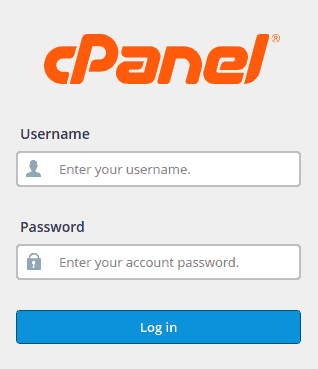
The information about the server will always be in the activation e-mail. Using the above links you will find yourself in front of the cPanel login page, so you can enter your username and password to log in.
Where can I find the cPanel login data?
In your account activation e-mail, you will receive the access data to the control panel. Just check the Control Panel Login Details (cPanel) section of the e-mail you received.
The access data are different from those you use to access the client area. The username is automatically assigned to you and usually corresponds to the first 8 characters of your domain.
For example, if your site is: mypersonalblob.it your username will be myperson.
The password you will be sent is temporary, and you can change it after logging in for the first time.
Ready to build your WordPress site?
Try our service free for 14 days. No obligation, no credit card required.
