

Managing a website shouldn’t require a computer science degree. If you’ve ever created an email account, uploaded files, or set up a database without a control panel, you know how quickly things get complicated.
That’s where cPanel helps. It’s a web-based control panel that simplifies server management. You get a visual dashboard with everything a few clicks away. No terminal commands needed.
Below, you’ll learn exactly what cPanel is, how to access it, and how you can use its features to manage your website. We’ll also cover the difference between cPanel and WHM, explore the types of hosting that include cPanel, and look at some popular alternatives.
Table of Contents
What is cPanel?
cPanel is a Linux-based control panel that lets you easily manage your web hosting account. You get a clean interface for handling everything from email setup to database management, without ever touching a configuration file.
The panel is divided by function, with tools for managing files, email accounts, domains, databases, and more.
Here’s a quick look at what cPanel lets you do:
- Create new email accounts, set up forwarding rules, configure spam filters, adjust mailbox storage limits, and manage MX records.
- Add new domains, create subdomains, set up redirects, and manage DNS records for your websites.
- Upload, download, edit, and organize files on your server with File Manager.
- Create MySQL databases, manage database users, and access phpMyAdmin for more advanced database work.
- Install SSL certificates, block IP addresses, password-protect directories, and run malware scans.
- Use tools like Softaculous to install WordPress, Joomla, PrestaShop, and hundreds of other applications with just a few clicks.
cPanel has been around since 1996, powers over 1.4 million servers worldwide, and is one of the most widely used hosting control panels. It’s been around that long because it works. The interface looks the same across most hosting providers, so once you learn how to use cPanel with one host, you can apply those same skills anywhere else.
How to Access cPanel
There are a few different ways to log in to cPanel, and the method you use depends on your hosting provider.
Through Your Hosting Dashboard
The easiest way to access cPanel is through your hosting provider’s customer area. With SupportHost, you can log in to your client area, select your hosting plan, and click the Login to cPanel button. This method automatically logs you in without needing to enter your cPanel credentials separately.

Direct URL Access
You can also access cPanel directly by visiting one of these URLs in your browser:
- https://yourdomain.com/cpanel
- https://yourdomain.com:2083
Just replace yourdomain.com with your actual domain name. You’ll see a login screen where you can enter your cPanel username and password. These credentials are typically sent to you when you first set up your hosting account.
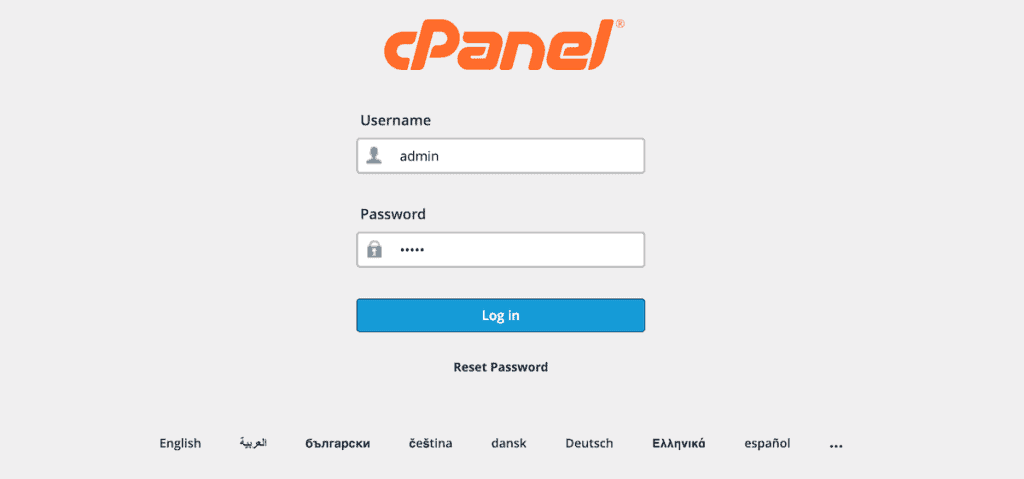
If your site doesn’t have an SSL certificate installed yet, you can use the non-secure version:
- http://yourdomain.com:2082
If you forgot or didn’t save your credentials, then check your hosting welcome email. If totally lost, then you can reset your password or contact support from your provider’s portal.
cPanel Features Overview
Now that you know how to access cPanel, let’s walk through its main features. Each section of the panel handles a different part of your hosting environment.
File Management
The File Manager is one of the most commonly used tools in cPanel. It gives you a visual interface for browsing, uploading, editing, and organizing files on your server. You don’t need an FTP client or any technical knowledge to use it.
From here, you can:
- Upload files directly to your server
- Edit HTML, CSS, PHP, and other text files
- Create new folders and organize your site structure
- Change file permissions
- Compress and extract ZIP files
- Delete files and folders you no longer need
The File Manager displays your server’s directory structure on the left side, with the contents of the selected folder shown in the main area. Your website files are typically stored in the public_html folder.

If you prefer using an FTP client like FileZilla or Cyberduck, you can create and manage FTP accounts from the Files section of cPanel. This is useful when you need to upload large files or transfer multiple files at once.
Email Administration
cPanel makes it easy to create professional email addresses tied to your domain. You can set up something like info@yourdomain.com or sales@yourdomain.com instead of using a generic Gmail or Yahoo address.
From the Email section, you can:
- Create new email accounts with custom storage limits
- Access webmail directly from your browser
- Set up email forwarding to send messages to another address
- Configure autoresponders for vacation messages or automatic replies
- Create email filters to organize incoming messages
- Manage spam filters to keep junk mail out of your inbox
- Check email deliverability and troubleshoot delivery issues

You can also configure email clients such as Outlook, Apple Mail, or Thunderbird using cPanel settings. The panel shows you exactly which server addresses and ports to use for incoming and outgoing mail.
Domain Management
cPanel gives you full control over your domain settings, whether you have one domain or twelve. You’ll find everything you need in the Domains section. You can do things like:
- Connect additional domains to host multiple websites from one plan
- Create subdomains like blog.yourdomain.com for separate sections of your site
- Set up 301 redirects or 302 redirects when you move content or switch domains
- Edit DNS records directly through the Zone Editor

Database Management
If your website runs on WordPress, Joomla, or any other content management system, it relies on a database to store content, settings, and user information. cPanel provides tools to create and manage these databases.
- The MySQL Database Wizard walks you through creating databases, adding users, and assigning permissions.
- phpMyAdmin gives you direct access to your databases for running queries, importing data, and editing table structures.
- Remote MySQL lets you connect to your database from external applications or servers.

Most users won’t need to interact with databases directly since WordPress and other CMS platforms handle this automatically. But if you ever need to import a database backup, fix a corrupted table, or troubleshoot an issue, these tools are essential.
Backup Tools
Backups are your safety net. If something goes wrong with your website, a recent backup lets you restore everything to a working state.
cPanel includes built-in backup tools that let you:
- Download a full backup of your entire account (files, databases, emails, and settings)
- Download partial backups of just your files, a specific database, or email forwarders
- Restore files or databases from a previous backup

The Backup Wizard simplifies this process by guiding you through each step. For a full account backup, cPanel generates a compressed file that you can download and store on your computer or cloud storage.
Many hosting providers also offer automatic backups that run on a schedule. With SupportHost, for example, daily backups are included with all hosting plans through JetBackup. You can restore databases, files, or emails from any of the stored backup points.

Security Features
Keeping your website secure is critical, and cPanel includes several tools to help protect your site and your visitors.
- SSL/TLS Management lets you install and manage certificates to encrypt traffic between your site and visitors. Many hosts include free Let’s Encrypt certificates you can activate directly from cPanel.
- The IP Blocker stops specific addresses or ranges from accessing your site, which helps with spam and brute force attacks.
- Hotlink Protection prevents other websites from displaying your images, saving bandwidth and protecting your content.
- Directory Privacy lets you password-protect specific folders so only authorized users can access them.
- Imunify360 is included with some hosting providers and scans for malware, blocks threats in real time, and generates security reports.

Software Installation
One of cPanel’s most popular features is the ability to install applications with just a few clicks. Most hosting providers include Softaculous, an auto-installer that supports hundreds of applications.
From Softaculous, you can install:
- WordPress: The world’s most popular content management system
- Joomla: A flexible CMS for building websites and online applications
- PrestaShop: An eCommerce platform for online stores
- Drupal: A powerful CMS for complex websites
- phpBB: Forum software for building online communities
- And hundreds more
Installing an application is simple. Simply select the application you want, choose the domain where you want to install it, fill in some basic details (site name, admin username, password), and click Install. Softaculous handles the rest, and you’ll have a working site in about a minute.

You can also use Softaculous to manage your installed applications, run updates, create staging copies, and even clone sites from one domain to another.
cPanel vs WHM: What’s the Difference?
If you’ve spent any time researching cPanel, you’ve probably come across WHM. These two panels work together, but they serve different purposes.
cPanel is what you use to manage your individual hosting account. It gives you access to your website files, email accounts, databases, and other site-specific features.
WHM (WebHost Manager) operates at the server level. It’s used to create and manage multiple cPanel accounts, allocate resources, configure server-wide settings, and handle administrative tasks.
Here’s a quick comparison:
Feature | cPanel | WHM |
|---|---|---|
Access Level | Single hosting account | Entire server |
Primary Users | Website owners | Administrators, resellers, developers |
Account Management | Manage your own site | Create and manage multiple accounts |
Typical Tasks | Email, files, databases, backups | Server configuration, resource allocation, security policies |
If you have a shared hosting plan, you’ll only use cPanel. But if you have a VPS, dedicated server, or reseller hosting plan, you’ll likely have access to both cPanel and WHM.
For developers managing multiple client websites, WHM makes it possible to create separate cPanel accounts for each client. Each account is isolated from the others, which improves security and makes management easier.
Resellers use WHM to provision hosting accounts for their customers, set resource limits, and white-label the interface with their own branding.
Types of cPanel Hosting
cPanel is available across different types of hosting plans. The right choice depends on your website’s size, traffic, and technical requirements.
Shared Hosting
Shared hosting is the most affordable option and a great starting point for new websites, blogs, and small business sites. Your website shares server resources with other accounts on the same machine, which keeps costs low while still giving you full cPanel access.
SupportHost’s shared hosting plans include everything most small websites need to get started. You can install WordPress or another CMS during checkout and start building immediately.
WordPress Hosting
WordPress hosting is shared hosting that’s been optimized specifically for WordPress. The server environment is configured to help WordPress run faster and more securely, and WordPress comes pre-installed so you can start building right away.
SupportHost’s WordPress hosting plans include managed updates, staging environments, and daily backups. You manage everything through cPanel, but with tools designed for WordPress sites.
Semi-dedicated Hosting
Semi-dedicated hosting sits between shared hosting and dedicated servers. You’re still in a shared environment, but fewer accounts share the server. This means more resources for your site and better performance when traffic picks up.
You still get full cPanel access, and SupportHost offers LiteSpeed versions of these plans for faster load times through server-level caching.
Dedicated Hosting
Dedicated hosting gives you an entire physical server (or cloud server) for your websites. You get maximum performance, complete control, and the ability to customize every aspect of your server configuration.
SupportHost offers both managed and unmanaged dedicated servers. Unmanaged plans include cPanel, so you can run multiple websites while still making server tasks and maintenance much easier.
Alternatives to cPanel
While cPanel is the most widely used hosting panel, it’s not the only option. Here are some alternatives you might come across.
DirectAdmin
DirectAdmin offers a simpler, more streamlined interface compared to cPanel. It includes all the essential features for managing a hosting account like file management, email, domains, databases, and backups.
One advantage of DirectAdmin is its lower licensing cost, which can translate to more affordable hosting plans. The interface is less cluttered, which some users prefer. However, it has fewer features and third-party integrations compared to cPanel.
Plesk
Plesk is another popular control panel that works on both Linux and Windows servers. It has a modern interface and includes features like WordPress toolkit integration, security extensions, and developer tools.
Plesk organizes everything around websites rather than features, which some users find more intuitive. It’s a solid alternative to cPanel, though licensing costs are similar.
Webmin
Webmin is a free, open-source control panel that lets you manage server configuration through a web interface. It’s highly customizable and can be extended with additional modules.
However, Webmin is more technical than cPanel. It’s better suited for system administrators who are comfortable with server management but want a graphical interface for common tasks.
cPanel FAQs
How do I install WordPress using cPanel?
You can install WordPress in a couple of clicks inside cPanel. If your host includes Softaculous, the installer walks you through the whole process step by step.
How do I upload files through cPanel?
The File Manager in cPanel lets you upload files directly through your browser. Navigate to the folder you want, drag your files in, and you’re set. For larger transfers or bulk uploads, create an FTP account and use a client like FileZilla.
How do I back up my website in cPanel?
cPanel has a built-in Backup tool that lets you download your files, databases, and email settings. You can grab a full account backup or just the pieces you need. Store the backup somewhere safe outside your server in case you ever need to restore it.
Is cPanel free?
cPanel requires a license, but hosting providers typically include that cost in your plan. Licensing fees have gone up in recent years, which is why some budget hosts now charge extra for cPanel or use alternatives like DirectAdmin. Check what’s included before you sign up.
Closing Thoughts: Is cPanel Right for You?
cPanel has been the go-to hosting control panel for nearly three decades, and there’s a reason it’s still on top. It takes tasks that would normally require technical expertise and makes them accessible to anyone with a web browser.
Setting up your first email account? Installing WordPress? Managing a dozen client sites? cPanel handles it all through the same familiar interface.
If you’re looking for reliable hosting with cPanel included, SupportHost offers plans that fit websites of all sizes.
From shared hosting for small sites to semi-dedicated and WordPress hosting for growing projects, you’ll get cPanel access along with daily backups, free SSL certificates, and support from a team that actually knows cPanel inside and out.
Now over to you. Are you using cPanel to manage your website? Or do you prefer a different control panel? Share your experience in the comments below.
Ready to build your WordPress site?
Try our service free for 14 days. No obligation, no credit card required.


