

You need to move files from your computer to your web server. How do you do it?
FTP solves this problem and makes it easy. It’s been the standard for file transfers for decades. Every website owner should know the basics, even if your rarely use it.
In this post, you’ll learn what FTP is, how it works, different ways to use it, security issues that might come up, and how to set up your first FTP connection.
Table of Contents
What is FTP?
FTP stands for File Transfer Protocol. It’s a standard network protocol for transferring files between a client (your computer) and a server over a TCP/IP network, typically the internet.
FTP is like a highway for file transfers between your computer and the server. You can upload to or download from your server.
The protocol itself is a set of rules that tells both computers how to communicate during the file transfer. Without these standardized rules, your computer and the server wouldn’t know how to package, send, and receive files correctly.
FTP began in 1971, making it one of the oldest active internet protocols. It was designed for ARPANET, and though it’s evolved, its core remains unchanged.
When you sign up for web hosting, your hosting provider sets up an FTP server and provides the credentials you need to connect. These credentials typically include:
- FTP server address: This is usually your domain name preceded by “ftp” (like ftp.yourdomain.com) or your server’s IP address
- Username: Created during signup or generated by you through your hosting dashboard like cPanel
- Password: Your secure password for the FTP account
- Port number: The default FTP port is 21, though secure alternatives use different ports
With these four pieces of information, you can connect to your server and start transferring files.
How Does FTP Work?
Understanding how FTP works under the hood helps you troubleshoot connection issues and choose the right settings. The protocol operates using two separate communication channels.
The Command Channel
The command channel operates on port 21 and manages all communication between your computer and the server.
When you request a file, rename a folder, or delete something, those commands travel through this channel. The server then returns status codes indicating whether the command succeeded or failed.
The Data Channel
The data channel, usually port 20, handles actual file transfers. Uploads or downloads use this channel, while the command channel keeps the session active.
Having two channels makes FTP file transfers efficient and reliable, even for large files.
Active Mode vs. Passive Mode
FTP has two modes, active and passive, that differ in who initiates the data connection.
In active mode, the client tells the server which port for data. The server connects back to that port on the client. This is FTP’s original method.
However, firewalls are an issue for active mode. If your computer is behind a firewall, the firewall might block the server’s inbound connection attempt.
That’s where passive mode comes in. In passive mode, the server tells the client which port to use, and the client initiates the data connection. Since your computer is making the outgoing connection rather than receiving an incoming one, firewalls are much less likely to interfere.
Most modern FTP clients default to passive mode for exactly this reason. If you’re having trouble connecting via FTP, switching to passive mode is often the fix.
What Can You Do with FTP?
FTP gives you direct access to the files on your server. Once connected, you can perform a wide range of file management tasks like:
- Upload files from your computer to the server
- Download files from the server to your computer
- Edit files directly on the server
- Delete files and folders
- Rename files and folders
- Create new directories
- Change file permissions
For WordPress website owners specifically, FTP offers several possibilities beyond what you can do from the dashboard.
Upload Plugins and Themes
WordPress limits the maximum file size you can upload through the dashboard. If you’re trying to install a large WordPress theme or plugin, you might hit that ceiling. FTP bypasses this limitation entirely. You can upload files of any size directly to the appropriate directory.
Troubleshoot Site Errors
When your WordPress site throws the dreaded white screen of death or another error that locks you out of the dashboard, or takes your site offline, FTP becomes your lifeline.
You can access critical files like .htaccess or wp-config.php, deactivate problematic plugins by renaming their folders, or switch themes by renaming the active theme directory.
Create Manual Backups
While there are plenty of backup plugins available, sometimes you need a manual backup. Using FTP lets you download your entire site to your local computer. Combined with a database export, you have a complete backup that doesn’t depend on any plugin.
Migrate Your Site
Moving your WordPress site from one server to another often involves FTP.
You can download all your files from the old server and upload them to the new one. It’s a manual process, but it gives you complete control over the website migration.
Install WordPress Manually
Some hosting providers don’t offer one-click WordPress installation, or access to software like Softaculous which lets you one click install other CMS like Drupal, Joomla, and more.
In those cases, uploading the WordPress files via FTP is one option for getting started.
FTP Security: The Elephant in the Room
Here’s something important you need to know: standard FTP is not secure.
When you connect to an FTP server, your username and password are transmitted in plain text. So are the files you transfer. Anyone monitoring the network traffic between your computer and the server can intercept this information.
When FTP was created, this was less risky. Today, sending plain-text credentials is a big risk.
If someone gets your FTP credentials, they can access your files, inject malicious code, steal data, or take your site down.
This is why most security-conscious developers and hosting providers recommend using secure alternatives instead of plain FTP.
Secure Alternatives to FTP
Fortunately, there are two widely supported alternatives that add encryption to the file transfer process. Both give you the same functionality as FTP while keeping your credentials and data secure.
FTPS (FTP Secure)
FTPS is also known as FTP over SSL or FTP-SSL. It’s an extension of the standard FTP protocol that adds support for SSL/TLS encryption.
With FTPS, the connection between your computer and the server is encrypted. Your login credentials and the files themselves are protected from interception. Anyone monitoring the network traffic would only see scrambled data.
FTPS typically uses port 990 for implicit connections or port 21 for explicit connections. Most FTP clients support FTPS, and most hosting providers offer it as an option.
SFTP (SSH File Transfer Protocol)
SFTP takes a different approach. Rather than being an extension of FTP, it’s a completely separate protocol that runs over SSH (Secure Shell).
SFTP uses a single encrypted connection for both commands and data transfer, typically on port 22. Authentication can occur with a username and password, or via SSH keys for even stronger security.
Because SFTP uses only one port, it tends to work better with firewalls than FTPS. The entire session, from login to file transfer, is encrypted end to end.
Which Should You Use?
If your hosting provider supports SFTP, that’s generally the better choice. It’s more firewall-friendly, uses a single port, and provides strong encryption.
FTPS is still a good option if SFTP isn’t available. It’s certainly better than unencrypted FTP.
The bottom line is avoid using plain FTP if possible. If you’re transferring anything important and want it kept safe and secure (and if it’s your website, it’s important), then use SFTP or FTPS instead.
Two Ways to Connect via FTP
There are two main methods for establishing an FTP connection. Each has its advantages depending on your needs and technical comfort level.
1. Command Line
Most operating systems include command-line tools for file transfers, though support varies by protocol. Linux systems typically include FTP by default, while macOS may require installing an FTP client.
In practice, many modern hosting providers recommend SFTP (Secure FTP) or FTPS instead of plain FTP due to security requirements.

Once connected, you use text commands to navigate directories, upload files, download files, and perform other operations. Common commands include:
- cd: Change directory
- ls: List directory contents
- get: Download a file
- put: Upload a file
- mkdir: Create a directory
- delete: Delete a file
- quit: End the session
The command line approach works, but it’s not the most user-friendly option. You need to remember the commands, and there’s no visual representation of the file structure.
2. FTP Client Software
For most people, an FTP client is the way to go. An FTP client is a dedicated program with a graphical interface that makes file transfers intuitive and visual.
FTP clients show you your local files on one side and your server files on the other. You can drag and drop files between them, right-click for options, and see exactly what’s happening during transfers.
Most FTP clients also support SFTP and FTPS, store your connection credentials for future sessions, and offer advanced features like file synchronization and transfer queues.
Some popular FTP clients include:
- FileZilla: Free, open-source, works on Windows, Mac, and Linux
- Cyberduck: Free, works on Windows and Mac
- WinSCP: Free, Windows only
- Transmit: Premium, Mac only
How to Connect via FTP with FileZilla
FileZilla is one of the most popular FTP clients available, and for good reason.
It’s free, works on all major operating systems, and supports FTP, FTPS, and SFTP. Here’s how to set it up and connect to your server.
Step 1: Download and Install FileZilla
Head to the official FileZilla website and download the FileZilla Client (not the Server). Run the installer and follow the prompts to complete the installation.

Step 2: Gather Your FTP Credentials
Before you can connect, you need your FTP credentials from your hosting provider. You’ll need:
- Host (FTP server address)
- Username
- Password
- Port (usually 21 for FTP, 22 for SFTP)
If you’re using SupportHost, you’ll find these details in your hosting activation or welcome email or in your cPanel dashboard under FTP Accounts.
If you’re on a hosting plan that includes cPanel (like SupportHost’s WordPress hosting or shared hosting plans), finding and managing your FTP credentials is straightforward.
All you need to do is login to your cPanel account and go to the Files section.

Then, click on FTP Accounts and here you can see existing FTP accounts and create new ones.

When creating a new FTP account, you’ll set a username and password. The system will also show you the FTP server address and port to use for connections.
Step 3: Connect Using Quickconnect
After that, open FileZilla and look at the bar near the top of the window. You’ll see fields for Host, Username, Password, and Port.

Then, enter the following information:
- Enter your FTP server address in the Host field (like ftp.yourdomain.com)
- Enter your Username
- Enter your Password
- Leave Port blank for standard FTP (it defaults to 21), or enter 22 if using SFTP
Then, click QuickConnect. If everything is correct, you’ll see a Connected message in the status window, and your server’s files will appear in the right panel.

Step 4: Navigate and Transfer Files
FileZilla’s interface is divided into four main areas:
- Left panel (top): Your local computer’s folder structure
- Left panel (bottom): Contents of the selected local folder
- Right panel (top): Your server’s folder structure
- Right panel (bottom): Contents of the selected server folder
To upload a file, find it in the left panel and drag it to the right panel. To download a file, do the opposite. You can also right-click files and folders to access options such as delete, rename, and change permissions.

Step 5: Save Your Connection for Later
To avoid entering your credentials every time, you can use FileZilla’s Site Manager. To do this, go to File > Site Manager and click New Site and give it a name.
After that, enter your connection details and choose Normal for your Logon Type and save your password. Then click OK to save your changes.

Now, next time you want to connect, open Site Manager and double-click your saved site.
Common FTP Connection Issues (And How to Fix Them)
Sometimes FTP connections don’t work on the first try. Here are the most common issues you’ll run into and how you can fix them to get the connection working.
Connection Refused Error
This usually means either the server address is wrong or the FTP service isn’t running. Double-check your host address for typos. If you’re sure it’s correct, contact your hosting provider to verify FTP is enabled on your account.
Authentication Failed Error
If you get this, then your username or password is incorrect. FTP credentials are case-sensitive, so check your capitalization. If you’ve forgotten your password, then reset it through cPanel or contact your host.
Connection Times Out
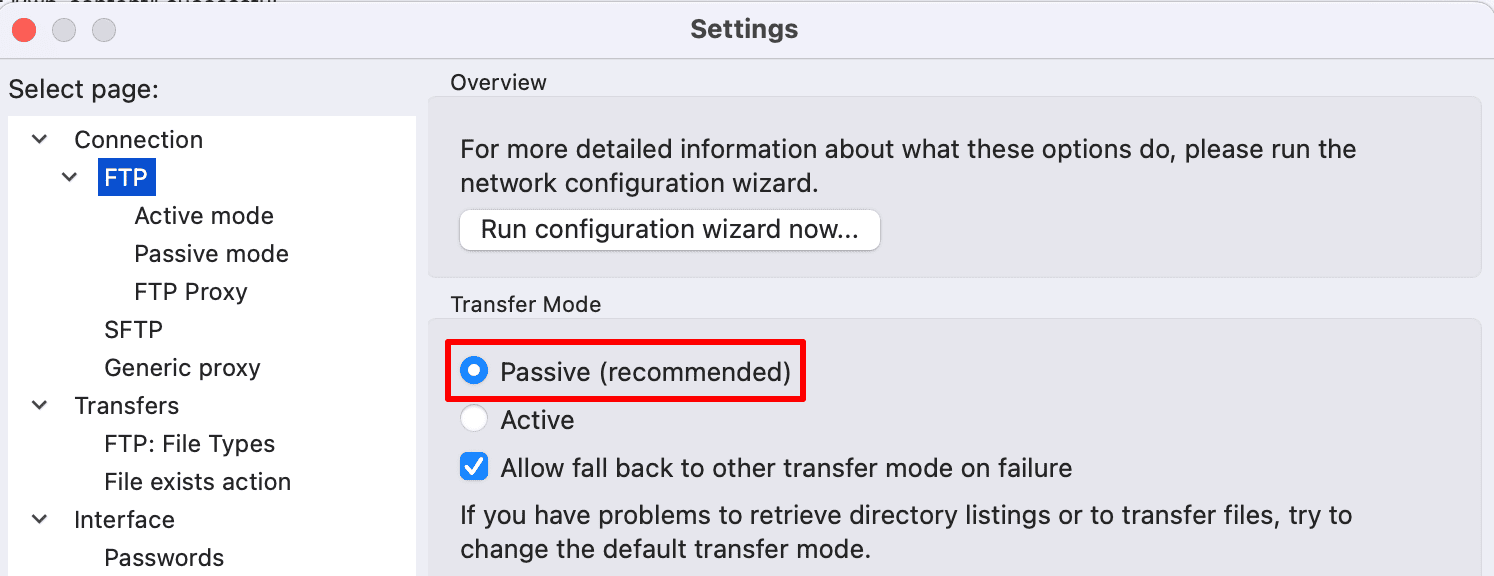
Timeouts often indicate a firewall issue. Try switching to passive mode in your FTP client’s settings. To do this, go to Edit > Settings > FTP and select Passive under Transfer Mode.
Directory Listing Failed
You connected successfully, but can’t see any files. This is another firewall-related issue that passive mode usually fixes. It can also happen if your FTP account has restricted directory access.
Slow Transfer Speeds
If transfers are unusually slow, check if you’re uploading during peak hours. You can also try limiting the number of simultaneous connections in your FTP client. Too many parallel transfers can actually slow things down.
FTP vs. FTPS vs. SFTP Comparison
Here’s a quick comparison of the three protocols to help you choose the right one for your needs:
Feature | FTP | FTPS | SFTP |
|---|---|---|---|
Encryption | None | SSL/TLS | SSH |
Default Port | 21 | 990 or 21 | 22 |
Security Level | Low | High | High |
Firewall Friendly | Moderate | Moderate | Excellent |
Connections Used | Two | Two | One |
Recommended | No | If SFTP unavailable | Yes |
For most users, SFTP is the recommended choice when available. It offers the best combination of security, simplicity, and firewall compatibility.
FTP FAQs
What is the default FTP port?
The default port for standard FTP is 21. FTPS typically uses port 990 for implicit connections, while SFTP uses port 22 (the same as SSH). In most FTP clients, if you leave the port field blank, it defaults to port 21.
Is FTP the same as SFTP?
No, they’re different protocols. FTP is unencrypted and transmits data in plain text. SFTP (SSH File Transfer Protocol) is a completely separate protocol that runs over SSH and encrypts all data. While they accomplish similar goals, SFTP is much more secure.
Can I use FTP to access my WordPress files?
Yes. FTP gives you direct access to all your WordPress files on the server. You can upload plugins and themes, edit configuration files, create backups, and troubleshoot issues that prevent dashboard access. Your hosting provider should give you FTP credentials when you sign up.
What’s the best FTP client?
FileZilla is the most popular choice because it’s free, cross-platform, and feature-rich. Cyberduck is another excellent free option with a clean interface. For Mac users willing to pay for premium software, Transmit is highly regarded. WinSCP is a solid free choice for Windows users who also need SCP support.
Do I need FTP if I have cPanel?
cPanel includes a File Manager that lets you manage files through your browser. For small tasks, File Manager works fine. However, FTP is faster and more reliable for transferring large or multiple files. Most users find value in having both options available.
Closing Thoughts: What is FTP?
FTP is a fundamental tool for anyone managing a website. Whether you need to upload files, troubleshoot errors, migrate sites, or create backups, understanding how FTP works gives you more control over your online presence.
The key things to remember about FTP:
- FTP lets you transfer files between your computer and your server
- Standard FTP is not secure, so use SFTP or FTPS when possible
- An FTP client like FileZilla makes the process visual and intuitive
- If connections fail, try switching to passive mode
- Your hosting provider supplies the credentials you need to connect
If you’re using SupportHost, your FTP credentials are waiting in your account. And if you run into any trouble getting connected, our support team is here to help.
Now over to you. Have you used FTP to manage your website files? What’s your preferred FTP client? Share your thoughts in the comments below.
Ready to build your WordPress site?
Try our service free for 14 days. No obligation, no credit card required.


