

A WordPress 404 error means a visitor tried to reach a page on your site, and the server couldn’t find it. From the browser’s perspective, it shows up as Page Not Found or 404 Not Found, though the exact wording varies depending on your server setup. Either way, the page didn’t load, and whoever requested it hit a dead end.
The problem isn’t just a bad user experience. Pages stuck returning a 404 get dropped from Google’s index over time. If a page was ranking for anything before it broke, that ranking disappears. And if other sites link to a broken URL on your site, those links stop passing any value until you set up a redirect.
Most WordPress 404 errors have straightforward causes and are fixable in a few minutes. Below you’ll find eight solutions, starting with the simplest, plus guidance on how to find 404 errors on your site and what to do when you can’t fully fix them.
Table of Contents
What Causes a WordPress 404 Error?
There are a handful of common reasons a site starts throwing WordPress 404 errors. Some are obvious, like a page that was deleted without a redirect. Others are less intuitive, like a single settings change that breaks URLs across your entire site at once. Here’s a look at the most likely culprits.
Your Permalink Structure Changed
This is the most common cause. When you update how WordPress generates URLs, any pages already indexed under the old structure stop resolving.
Google has them cached, other sites link to them, and visitors with bookmarks will try to access them again. All of those requests hit a 404 until you fix the permalink settings or set up redirects for the old URLs.
Content Was Deleted or Moved Without a Redirect
If you remove a post or page, or change its slug, anyone visiting the old URL gets a 404. That includes Google’s crawler, anyone who bookmarked the page, and anyone who found a link to it somewhere else.
This is easy to overlook when you’re tidying up old content or restructuring your site. But every deleted or moved page without a redirect in place is a potential dead end for your visitors.
The .htaccess File Is Missing or Corrupted
WordPress depends on the .htaccess file to route incoming requests to the right place. If it gets corrupted, goes missing, or contains incorrect rules, pages stop loading even though the content is still sitting on your server.
This type of 404 error tends to affect multiple pages at once rather than individual URLs. A site migration or a server change is the most common trigger.
A Plugin or Theme Conflict
Some plugins and themes interfere with how WordPress handles URL rewriting, causing 404 errors that appear across the site without any obvious trigger. What makes these harder to diagnose is that the errors can show up without you having changed anything significant. Sometimes a plugin update is enough to cause it.
A Recent Site Migration
Moving a WordPress site to a new host or domain is one of the more complex triggers because several things can go wrong at once. The WordPress URL stored in your database might still point to the old domain. File paths might have changed. The .htaccess file might not have transferred correctly.
If you’ve recently migrated and you’re seeing 404 errors across multiple pages, the database URL and the .htaccess file are the first two things to check.
How 404 Errors Affect Your Site
A 404 error isn’t just an inconvenience for the visitor who hits it. Left unchecked, these errors create problems that affect your traffic, your search rankings, and the value you get from external links.
Creates a Poor User Experience
When someone clicks a link and lands on a broken page, most of them leave. They don’t go looking for the content another way. That’s especially damaging if the broken page was driving meaningful traffic, because every visitor who hits the 404 is a visitor you’ve lost.
Can Negatively Impact Your Search Rankings
If Google’s crawler keeps hitting 404 errors on pages that used to exist, it eventually removes those pages from the index. Any rankings they had built up disappear along with them. A handful of 404s on a large site won’t cause serious problems, but widespread errors across important pages will affect how your site gets crawled over time and negatively impact your SEO and site traffic.
Loss of Link Value
External sites linking to a URL that returns a 404 aren’t passing any benefit to you. Those links exist, but the value they carry goes nowhere. Setting up a 301 redirect (more on this below) from the broken URL to a relevant page recovers that value and preserves whatever authority the original page had built up.
How to Find 404 Errors on Your Site
Before working through the fixes below, it helps to know which pages are actually broken and how many you’re dealing with. There are two straightforward ways to check.
Google Search Console is the most reliable option if your site has been running for a while. Log in and navigate to Pages under the Indexing section. Search Console will show you URLs that returned errors during crawling, including 404s. This gives you a clear picture of which pages Google has identified as broken and how recently they were crawled.

The Redirection plugin takes a different approach. Once installed, it logs 404 errors on your site in real time as visitors and crawlers hit them. Over time, this builds up a record of which broken URLs are getting the most traffic, which is useful for prioritizing which redirects to set up first.

For a quick one-time audit, particularly after a migration or a major site restructure, an online tool like Screaming Frog will crawl your site and report any URLs returning a 404. Our guide on how to perform an SEO audit will show you how to setup and use this tool.
How to Fix WordPress 404 Errors
Now that you understand the consequences of having 404 errors across your site, let’s get into how you can fix them! There are different styles of 404 errors. For example, site wide 404s are different than 404 errors across a few recently updated pages.
Below, you’ll find different ways to fix these errors, whether it’s an issue across your entire site, or a handful of pages or posts.
1. Reset Your Permalink Settings
This is the first thing to try, and it resolves the majority of 404 errors in WordPress. It takes about thirty seconds and requires no code.
Go to your WordPress dashboard and navigate to Settings > Permalinks. Click Save Changes without changing anything. This forces WordPress to regenerate its rewrite rules, and in most cases, the 404 errors clear up immediately.

If the problem persists, switch the permalink structure to Plain and save. Then switch back to your previous structure and save again. This forces a full reset and sometimes catches issues that the simpler save doesn’t.
If you’re still seeing 404 errors after this, the problem is likely in your .htaccess file.
2. Fix Your .htaccess File
WordPress uses the .htaccess file to tell the web server how to handle incoming requests. If this file is missing, corrupted, or contains incorrect rules, WordPress can’t route requests properly and 404 errors appear.
You’ll need to connect to your server using an FTP client like FileZilla or Cyberduck, or through File Manager inside your hosting control panel. Before you touch anything, download a copy of the current .htaccess file as a backup.
The .htaccess file is hidden by default, so you’ll need to enable hidden file visibility in your FTP client or File Manager settings before it shows up.

Once you can see it, you’ll find it in the root directory of your WordPress installation, in the same folder as wp-config.php and the wp-content folder.

Open the file and replace the contents with the standard WordPress .htaccess code shown below:
# BEGIN WordPress
RewriteEngine On
RewriteRule .* - [E=HTTP_AUTHORIZATION:%{HTTP:Authorization}]
RewriteBase /
RewriteRule ^index\.php$ - [L]
RewriteCond %{REQUEST_FILENAME} !-f
RewriteCond %{REQUEST_FILENAME} !-d
RewriteRule . /index.php [L]
# END WordPress
Save the file and upload it back to your server. Then check your site to see whether the 404 errors have cleared.
3. Set Up 301 Redirects for Old or Moved Pages
If you’ve deleted pages, changed their URLs, or restructured your site, the old URLs are still being visited. Search engines have them cached, external sites link to them, and visitors with bookmarks will try to access them again. Without a redirect, all of those requests return a 404.
A 301 redirect tells browsers and search engines that a page has permanently moved to a new location. Visitors get sent to the correct page automatically, and any link value the old URL had carries over to the new one.
The easiest way to set these up is with the Redirection plugin. Once you’ve installed and activated it, go to Tools > Redirection in your WordPress dashboard and run through the setup wizard. You’ll see a field where you can enter the old URL and the destination you want to redirect visitors to. Add the redirect, and you’re done.

If you’d rather handle redirects in the .htaccess file directly, add the following line before the WordPress block, replacing the paths with your own URLs:
Redirect 301 /old-page/ https://yoursite.com/new-page/
After adding any redirect rules, test them to make sure they’re working and haven’t created redirect loops. For more details on 301 redirects, see our definitive guide on 301 redirects.
4. Deactivate Your Plugins
A plugin conflict can cause 404 errors across your entire site, usually by interfering with how WordPress handles URL rewriting. This is easy to miss because the errors can appear without any obvious trigger.
To test whether a plugin is responsible, go to Plugins > Installed Plugins in your dashboard. Check the box at the top to select all plugins, then choose Deactivate from the bulk actions menu and click Apply.
Note: If you’re going to deactivate all plugins it’s a good idea to do this in a staging environment, so your live site isn’t impacted.

Visit your site and check whether the 404 errors are gone. If they are, a plugin is the problem. Go back and reactivate them one at a time, checking your site after each one. When the 404 errors come back, you’ll know which plugin is responsible. From there, check for an update, look for an alternative, or reach out to the developer.
If the errors didn’t clear after deactivating everything, reactivate your plugins and move on to the next fix.
5. Switch to a Default Theme
Themes can cause 404 errors for the same reasons plugins can. If the errors started after you activated a new theme, that’s a strong indicator to check here first.
If you have dashboard access, go to Appearance > Themes and switch to a default WordPress theme like Twenty Twenty-Five. Then check your site.
Note: This is another test you’ll want to do in a staging environment, so visitors won’t have a poor experience when you switch themes.

If there’s an error preventing you from accessing your dashboard, connect to your server and navigate to wp-content > themes.

Then, rename your active theme folder so WordPress can’t load it. WordPress will fall back to the next available theme automatically. If the 404 errors disappear, the theme is the problem. Check for an update or contact the developer. If the theme hasn’t been maintained in a while, replacing it is probably the most practical solution.
6. Update the WordPress URL in Your Database
This one applies mainly to sites that have recently moved to a new domain or hosting environment. If the WordPress address stored in your database still points to the old location, requests get misrouted, and 404 errors appear across the site.
You can fix this through phpMyAdmin, which is available inside most hosting control panels. Before making any changes, export a backup of your database first.
Once you’ve done that, open phpMyAdmin, select your WordPress database, and open the wp_options table. Look for the rows named siteurl and home. You might have to click to the next page to find the home row. Click Edit on each one and update the URL to your current domain, then save.

If your database tables use a custom prefix rather than the default wp_, the table name will look slightly different, but the structure is the same.
7. Fix 404 Errors on a Local Server
If you’re running WordPress locally using WAMP, XAMPP, or MAMP, permalink-related 404 errors are a common issue. These local server setups often don’t have the rewrite module enabled by default, which WordPress needs to handle custom URL structures.
For MAMP, you’ll need to edit the httpd.conf file directly. Navigate to Applications > MAMP > conf > apache > httpd.conf and open the file in a text editor. Search for this line:
#LoadModule rewrite_module modules/mod_rewrite.soRemove the # at the beginning so it reads:
LoadModule rewrite_module modules/mod_rewrite.soSave the file and restart MAMP. After that, go back to Settings > Permalinks in WordPress and click Save Changes. That should clear the 404 errors on your local install.
8. Clear Your Cache
A cached version of a page can make it look like a 404 error is still present even after you’ve fixed the underlying problem. Your browser, your caching plugin, and your CDN can all be serving an outdated version of the page.
Clear your browser cache first, then clear the cache in whatever caching plugin you’re using. Most of them have a Clear Cache button visible from the WordPress admin bar. If you’re using a CDN, log in to your CDN dashboard and purge the cache there as well. For more details on clearing your WordPress cache, see our guide on how to clear your WordPress cache.
This is usually a finishing step rather than a root fix, but it’s worth doing after applying any of the solutions above to confirm the problem is fully resolved.
How to Create a Custom 404 Page in WordPress
Not every 404 error can be fixed with a redirect. Old URLs get shared in places you can’t control, and some visitors will always end up on a broken page. A custom 404 page catches those visitors and gives them somewhere useful to go instead of leaving your site entirely.
A good custom 404 page should do a few things. It needs to acknowledge the error clearly, include a search bar so visitors can look for what they wanted, and link to a few useful places on your site like your homepage or most popular posts.
The easiest option to create a custom 404 page is to use a plugin. The Smart Custom 404 Error Page plugin is a solid choice, has great reviews, and makes it super easy to create a custom 404 page.
Once you’ve installed and activated it, create a new page in WordPress the same way you would any other. Give it a clear heading, add a short message explaining that the page couldn’t be found, and include a search bar and a few links to popular pages on your site so visitors have somewhere to go.
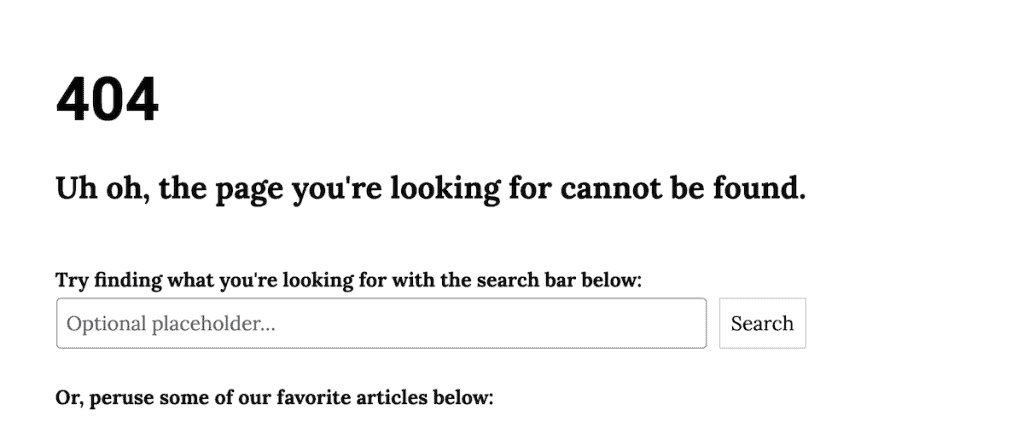
When the page is ready, go to Appearance > 404 Error Page and select it from the dropdown. Click Save Changes and you’re done.

The real advantage here over editing the 404.php file directly is that your custom page lives inside WordPress like any other piece of content. You can update it any time without touching code, a theme update won’t wipe it out, and it works with whatever theme you’re running. If you switch themes down the road, your custom 404 page stays exactly as you built it.
WordPress 404 Error FAQs
What’s the quickest fix for a WordPress 404 error?
Go to Settings > Permalinks and click Save Changes without changing anything. This resets the rewrite rules and clears most 404 errors in WordPress. It takes less than a minute and requires no code.
Do 404 errors hurt SEO?
Yes. Pages returning a 404 get dropped from search engine indexes over time. If a page was ranking before it broke, that ranking disappears along with the traffic it was generating. Setting up a 301 redirect to a relevant working page recovers that traffic and preserves the link value the old URL had built up.
How do I find all the 404 errors on my site?
Google Search Console shows crawl errors, including 404s, under the Pages report in the Indexing section. The Redirection plugin also logs 404 errors automatically as they happen, which gives you a running record of which broken URLs are being hit most often.
Why is my WordPress admin page showing a 404 error?
If you’re getting a 404 when trying to access wp-admin, the most likely cause is a permalink issue or a corrupted .htaccess file. Try resaving your permalink settings first. If that doesn’t work, replace your .htaccess file with the default WordPress version using the code in the fix above.
Why are my WordPress category pages returning a 404?
This is almost always a permalink issue. Go to Settings > Permalinks and click Save Changes. If category pages are still broken after that, check whether your .htaccess file contains the correct WordPress rewrite rules.
How often should I check my site for 404 errors?
It depends on how often your site changes. If you’re regularly updating content, deleting old posts, or restructuring pages, checking monthly is a good habit. For sites that change less frequently, quarterly is usually enough. Google Search Console will flag new crawl errors as they appear, so keeping an eye on that is the most passive way to stay on top of it.
Closing Thoughts: Fixing the WordPress 404 Error
Most WordPress 404 errors come down to a small number of causes. A permalink reset fixes the majority of them in seconds. If that doesn’t work, a corrupted .htaccess file or a missing redirect covers most of what’s left. Plugin and theme conflicts are less common but worth checking if the simpler fixes don’t resolve things.
If you’ve recently migrated your site and are seeing 404 errors across multiple pages at once, start with the permalink reset and the .htaccess fix. Those two steps together resolve most post-migration problems.
Setting up a custom 404 page is worth doing regardless of how many errors your site currently has. It won’t fix broken URLs, but it gives visitors somewhere useful to go when they do land on one.
And if you’ve worked through everything above and the errors are still there, reach out to your hosting provider. Some server configurations interfere with how WordPress handles URL rewriting, and their support team will be able to tell you if something at the server level needs adjusting.
Now over to you. Which of the solutions above fixed the 404 error on your site? Share your experience in the comments below.
Ready to build your WordPress site?
Try our service free for 14 days. No obligation, no credit card required.


