

If you still write your posts in the classic WordPress editor, you’ve probably noticed the rest of the WordPress world moving on without you. New themes assume you’re working with blocks. Most tutorials show block screenshots. Every feature that ships in a WordPress release is now built around the block editor.
Maybe you want to make the switch, but you’re worried about the hundreds of posts you already wrote the old way. That’s a reasonable concern, and it’s the part most guides gloss over.
This article covers two parts of moving from classic to block editor in WordPress. First, how to make the block editor your default again. Then, how to convert your existing classic content into blocks, whether you’re sitting on five old posts or five thousand.
Table of Contents
The Classic Editor and the Block Editor in Plain Terms
The classic editor is the original WordPress writing screen. It runs on the open-source TinyMCE tool and behaves like Microsoft Word. You get a single text area, a formatting toolbar, alignment buttons, and ways to add images or links. This was the default editor for WordPress until version 5.0 launched in December 2018.

The block editor, still called Gutenberg by most, became the default in the 5.0 release. The difference is how content is stored. Instead of one big text area, each element is a block: paragraph, image, heading, list, button, or gallery. Each is a separate block you can move and style individually.
Blocks did not stop at posts and pages. Since WordPress 5.9 in early 2022, they also power the Site Editor, letting you build your header, footer, and templates without code. The current release, WordPress 7.0, expands those features and a lot more. In short, WordPress development now revolves around blocks. Moving over keeps you in step with where the software is going.
One thing to clear up before we go further. Switching your default editor and converting your old content are two separate jobs. You can flip the default editor in a few seconds, but that alone won’t reshape posts you already published in the classic editor. Those need a second step, and we’ll get to it.
Why You Might Still Be on the Classic Editor
Plenty of people deliberately held onto the classic editor, and the numbers back that up. The official Classic Editor plugin still has more than 9 million active installations. That’s a lot of sites still using the classic editor.

There’s a lot of reasons site owners prefer the classic editor. First, it’s is quick and familiar. If you mostly write text-heavy blog posts and don’t need fancy layouts, it gets out of your way. And once you get used to using something it can be hard to learn a new system.
However, the Classic Editor plugin was always meant as a bridge, not a permanent solution. WordPress support for it was first promised through 2021, then extended to 2022, then 2024, and the deadline keeps moving because many sites still rely on it.
The current promise is support through at least the end of 2026. Support will likely continue for a while, but your goal should be to move away from it eventually.
A lot of the pressure comes from the wider WordPress ecosystem, not a hard cutoff date. New WordPress themes are built for blocks. Block-based themes and the Site Editor don’t play nicely with classic markup. Many newer features only make sense if your content is organized into blocks. Staying on the classic editor, even if the plugin sticks around, slowly cuts you off from the growing parts of WordPress.
Still, your existing classic content will continue to display correctly on the front end, whether you convert it or not. So you’re not racing against a site that’ll eventually break.
Back Up Before You Change Anything
Switching editors rarely causes issues on up-to-date sites. Before you convert you’ll want to backup your site, since converting old content rewrites posts in the database.
Save both your files and your database. You can use a backup plugin like UpdraftPlus, or rely on the backups built into your hosting. SupportHost plans include automatic backups, and you can also create a manual backup before you start.
If you have access to a staging site, use it. Staging gives you a copy of your live site where you can test the switch, run a conversion, and check the results before touching anything visitors can see. This matters most if you’re about to do a bulk conversion across a large number of posts.
One more thing to check. Some security plugins or custom code can block the WordPress REST API, which the block editor depends on. If your editor screen ever loads blank or refuses to start, a blocked REST API is a common cause.
How to Make the Block Editor Your Default
If you’re running an old version of WordPress, you won’t see the block editor, since it only became available in WordPress 5.0 and later. To get it, run a full backup of your files and database first.
Then, update WordPress by going to Dashboard > Updates in your admin area and installing the latest version. If possible, use a staging site to test the update and confirm everything works. Once updated, you’ll have the block editor by default, so you can proceed to content conversion.
Typically, WordPress is up to date, but the Classic Editor still appears because its plugin is active and overrides the default. To fix this, go to Plugins > Installed Plugins, find Classic Editor, and click Deactivate. Next time you open a post or page, the block editor will load.

If you’d rather not deactivate the plugin outright, you can keep it installed and control its behavior. Go to Settings > Writing, set the block editor as your default, and turn on the option that lets you switch back to the classic editor on a per-post basis. This is a good middle ground if a few old posts depend on the classic interface and you don’t want to commit fully just yet.

How to Convert Your Content from Classic to Block Editor in WordPress
Once the block editor is your default, open one of your older posts. You’ll notice the whole thing sits inside a single Classic block rather than being split into individual paragraph, image, and heading blocks.
WordPress wraps your old content in a single block, so it remains functional. The post looks fine to visitors, but you can’t use block editing until you split that block into individual blocks. There are three ways to do this, and the best method depends on how many posts you have.
Method 1: Convert Posts One at a Time
This is the manual route, and it’s the right call when you only have a handful of posts, or when you’d rather convert each old post the next time you happen to edit it.
Open a post that was written in the classic editor, then click once on the Classic block that holds your content. In the block toolbar, open the options menu (the three vertical dots) and choose Convert to blocks.
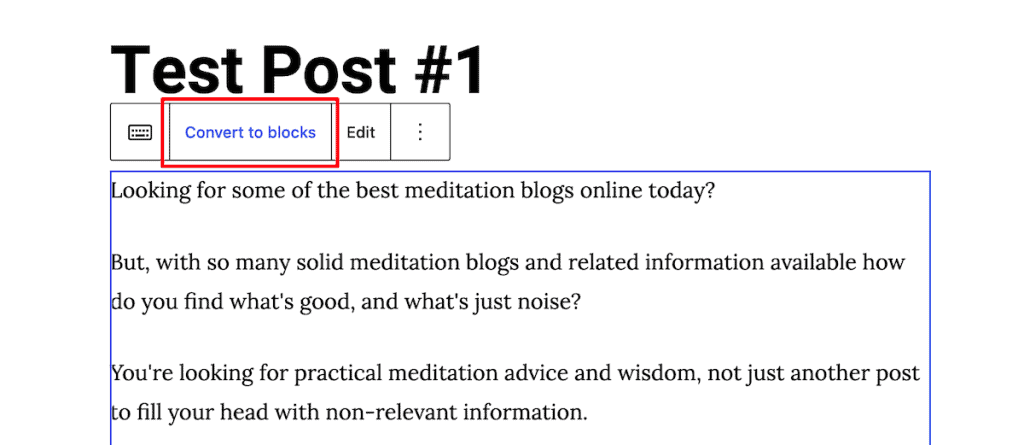
WordPress splits the content apart so each paragraph, image, and heading becomes its own editable block. Be aware that Convert to Blocks can strip or alter some inline HTML, so if a post relies on hand-written markup, then hover over the new block, and click Edit Code to check your existing code.

Before you save, click Preview and look the post over. If something shifted, hit Undo to step back before committing. When everything looks right, click Update to save the converted version.
Method 2: Convert Automatically as You Edit
If you’d rather not click Convert to blocks on every single post, the free Convert to Blocks plugin handles it for you. It converts a classic post into blocks the moment you open it for editing, then saves that new structure when you update the post.
To set it up, go to Plugins > Add New, search for Convert to Blocks, then click Install Now, then Activate.

After that, open any post created in the classic editor, and the plugin parses the content into blocks on the spot. You review it, then click Update or Save. The plugin also adds an Editor column to your Posts list, so you can tell at a glance which posts are still classic and which have moved to blocks.

Keep in mind that, the plugin only converts posts you actually open and save. It doesn’t touch your whole library on its own. For that, you need the third method.
Method 3: Bulk Convert with WP-CLI
If you have hundreds or thousands of posts to convert, doing it by hand isn’t realistic. However, the same Convert to Blocks plugin we used above includes a command-line option that works through your content in batches with almost no manual input.
This method requires WP-CLI, the WordPress command-line tool, and terminal or SSH access to your server. WP-CLI is included on all SupportHost shared plans, so if you’re hosting with us, you can use it straight away.
You’ll open the terminal directly from cPanel, or connect over SSH if you prefer. Because this rewrites a lot of posts at once, back up your site first or run the whole thing on staging and apply the changes only once you’re happy with the result.
The flow is short once the plugin is installed and you’re in terminal. Use the cd command to move into your WordPress installation folder, which might be your root directory, a subdomain, or a subfolder, depending on your setup. Then, start the conversion with wp convert-to-blocks start, or target a single post type if you want to leave pages alone, for example, wp convert-to-blocks start --post_type=post.

The command prints a URL, which you copy and open in a browser tab. That tab is what actually drives the conversion, opening and saving each post one after another, so leave it open while it runs. You can watch progress in the terminal, check where things stand with wp convert-to-blocks status, and stop early if you need to with wp convert-to-blocks stop. When it finishes, you’ll see a message confirming the migration completed successfully.

If the command line isn’t for you, there are interface-based bulk converters too. Plugins like Bulk Classic to Block let you scan your site, see which posts still use the classic editor, and convert them in batches from the normal admin screen.

Which Method Should You Use?
Method | best for | Needs the command line | risk level |
|---|---|---|---|
Manual “Convert to blocks” | A few posts, or converting as you edit | No | Low |
Convert to Blocks plugin (on edit) | Converting gradually without extra clicks | No | Low |
Convert to Blocks via WP-CLI | Hundreds or thousands of posts at once | Yes | Higher, back up first |
For most small blogs, the manual method or the Convert to Blocks plugin is all you’ll ever need. The command-line route is better suited for large sites where doing it by hand would take days.
What to Check After Converting
Conversion is usually pretty seamless, but you’ll want to check for a few things, especially on older posts with custom formatting.
First, go through the converted blocks and confirm each one displays the way you want. Pay attention to image alignment and captions, as they occasionally shift when a Classic block splits.

Next, if a post used shortcodes or embedded HTML, check that they landed in a Shortcode or Custom HTML block and still work. Some block types may need a manual nudge too, for instance, an old quote might come through as a plain Quote block when you wanted a Pullquote.
Use the editor’s Preview, including the responsive preview, to see how the post looks across screen sizes before you publish. And take a moment to review your images and confirm the alt text has carried over, because that text matters for SEO and accessibility. If anything looks off and you haven’t saved yet, click Undo to roll back the conversion so you can try again.
How to Go Back to the Classic Editor
Maybe you switch over, give blocks a real try, and decide the classic editor is still better suited for your needs. Here’s how you go back to the classic editor.
All you have to do is reactivate the Classic Editor plugin from your Plugins list, and the classic interface returns as your default. If you’d rather keep the option to move between both editors, go to Settings > Writing, set your preferred default, and turn on the setting that lets you switch editors per post. From there, you’ll see a Switch to classic editor or Switch to block editor link inside individual posts whenever you need it.
Classic to Block Editor WordPress FAQs
Do I have to convert my old classic posts?
No. Posts written in the classic editor keep working and display correctly on the front end, even if you never touch them. The main reasons to convert are if you want to edit a post using blocks, or if a new block-based theme is causing display issues with your old classic markup. Many WordPress site owners simply convert each post the next time they edit it and leave the rest alone.
Will switching to the block editor change how my site looks?
Usually not. The published version of a post generally looks the same to visitors before and after conversion. The exceptions tend to come up with block themes, where older classic content can occasionally render differently. This is exactly why it’s a good idea to use a staging site and preview your changes before updating.
Is the Classic Editor plugin going to be removed soon?
Support has already been extended several times and currently runs at least through the end of 2026. Even so, it was designed as a temporary bridge, and the wider ecosystem keeps shifting toward blocks, so it’s a good idea to plan your move rather than wait for a forced deadline.
Can I bulk convert without using the command line?
Yes. Plugins like Bulk Classic to Block scan your site and convert classic posts in batches from a normal admin screen. Just remember the conversion can’t be reversed without a backup, so create one before you start the conversion process.
What’s the difference between “Convert to blocks” and “Convert to HTML”?
Convert to blocks breaks your classic content into individual, editable blocks, which is what you want most of the time. Convert to HTML keeps the original markup intact inside a single Custom HTML block, which is the safer choice when a post contains complex shortcodes or hand-coded HTML you don’t want to get messed up.
Final Thoughts on Moving From the Classic to Block Editor in WordPress
Moving from the classic to block editor in WordPress really comes down to two steps. Set the block editor as your default by updating WordPress or deactivating the Classic Editor plugin, then convert your existing content using whichever method best suits your site.
If you only have a few posts, you can convert them manually as you edit. If you have a steady stream of older content, the Convert to Blocks plugin handles it quietly in the background as you go. And if you’re managing a large archive, the WP-CLI command will process everything in batches, which is straightforward on SupportHost plans since WP-CLI is already available.
Finally, make sure you create a website backup, use site staging if you can, and check your converted posts before you publish.
Now over to you. Have you already moved your site to the block editor, or are you still using the classic editor? Let me know how the conversion went in the comments.
Ready to build your WordPress site?
Try our service free for 14 days. No obligation, no credit card required.


