

Slow-loading pages cost you visitors. When someone clicks your article and the page loads image after image, most people will leave before the content finishes loading.
Learning how to lazy load WordPress images is one of the simplest fixes for this. Instead of forcing the browser to download every image and video the moment a visitor lands on a page, lazy loading defers anything below the visible area until the reader actually scrolls down to it.
The good news is that WordPress already handles a lot of this for you out of the box. The better news is that you can take it further with a plugin if you need more control. In this article, you’ll learn how lazy load works in WordPress, how to enable it, how to test that it’s working, and when to disable it for certain images.
Table of Contents
What Lazy Load WordPress Actually Means
When a browser opens a web page, it typically tries to download all elements on the page at once. A long blog post with lots of screenshots is a heavy loading task for the browser and the connection.
Lazy loading changes the execution order. The browser only loads what’s visible in the window when the page first opens. Anything sitting further down the page waits until the visitor scrolls close to it. At that point, the browser fetches the image and shows it.
The result is a faster initial paint, fewer HTTP requests during page load and less wasted bandwidth on images the visitor might never reach. If someone reads the first three paragraphs of your post and bounces back, the images further down are never downloaded.
Lazy load works because of an HTML attribute called loading. When you mark an image with loading="lazy", the browser knows to defer that file. When you mark it loading="eager", the browser treats it as a priority and loads it immediately. Every modern browser supports this attribute, which is why it’s the default approach.
Why Lazy Load Matters for WordPress Performance
Page speed goes beyond user experience. Google uses Core Web Vitals as a ranking signal, and lazy loading helps improve two of the main metrics, Largest Contentful Paint and First Contentful Paint.
If your page loads 30 images at once, the browser allocates bandwidth and processes them all at the same time. By deferring offscreen images with lazy load, the browser focuses on what’s actually visible. This improves your LCP and FCP scores.
There’s a smaller benefit on the hosting side too. Fewer simultaneous requests means less strain on your server, which matters on shared hosting plans where resources are restricted.
When Lazy Loading Helps Most
Lazy loading makes the biggest difference on pages with a lot of images or embedded media. Long blog posts with screenshots, recipes with step-by-step photos, product pages with image galleries, portfolios and any page with embedded YouTube videos or Google maps.
If your site is mostly text with few images, lazy loading still helps but offers smaller gains. The savings grow with more media you can defer loading.
How Native Lazy Load WordPress Functionality Works
WordPress added native lazy load in version 5.5. Since then, every new WordPress install has been doing this automatically, without you needing to install anything.
Any <img> tag in your post content, post excerpts, text widgets, or avatar images gets the loading="lazy" attribute added automatically. The same applies to <iframe> tags, which means YouTube embeds, Google Maps embeds, and similar embedded content also get deferred.
However, there’s one important condition. WordPress only adds the lazy loading attribute to images and iframes that have width and height attributes defined. Without those dimensions, the browser doesn’t know how much space to reserve for the image, which can cause layout shifts when the image finally appears.
Also, the first image on a page is not lazy-loaded because it’s often the largest, above-the-fold image. Lazy loading it would hurt your LCP score.
Checking If Native Lazy Load Is Working
You can confirm if lazy loading is working in about thirty seconds. Open any post on your site, right-click somewhere on the page, and choose View Page Source from the menu.

In the source code, search for loading="lazy". You should see this attribute on most image tags, except for the first content image. If you see it, native lazy loading is doing its job.

For a more visual test, open your browser’s developer tools (F12 in Chrome) and go to the Network tab. Filter by Img to show only image requests. Then, refresh the page without scrolling. You should see only the above-the-fold images in the list. As you scroll down, more images will appear in the request list as the browser fetches them.

Where Native Lazy Load Falls Short
Native WordPress lazy loading covers the basics well, but it has gaps that matter on more complex sites.
For example, it doesn’t handle CSS background images. If you have section backgrounds defined in your theme’s CSS, those will load with the page regardless. Native lazy loading only targets <img> and <iframe> tags.
It doesn’t handle <video> tags either, only iframe embeds from platforms like YouTube. It also doesn’t generate preview thumbnails for videos.
A YouTube iframe is heavy because it pulls in the entire YouTube player and associated JavaScript, even if the visitor never clicks play. A dedicated plugin can go further by replacing the iframe with a static preview image until someone actually clicks to play.
There’s also no settings panel. If you want to selectively turn off lazy loading on a specific page or exclude certain images, you’d need to edit code in your theme’s functions.php file or use a plugin.
How to Lazy Load WordPress Images with a Plugin
A plugin gives you support for more file types, and the ability to fine-tune which images get lazy-loaded and which don’t. Let’s walk through three of the most widely used options.
Option 1: LazyLoad by WP Rocket
LazyLoad by WP Rocket is the lightest dedicated lazy load WordPress plugin available. The script is only about 2KB, doesn’t rely on jQuery or any heavy JavaScript library, and the setup takes about a minute. It’s from the team behind WP Rocket, which is one of the most respected caching plugins for WordPress.
To install it, go to Plugins > Add New, search for LazyLoad by WP Rocket, then click Install Now and Activate. After that, head over to Settings > LazyLoad to configure it.
You’ll see a short list of options. You can enable lazy loading for images, iframes, and videos, or have the plugin replace YouTube iframes with a preview thumbnail. This replacement offers the biggest performance gain if you often embed videos, as it prevents the YouTube player from loading until the visitor clicks play.

Check the boxes for the media types you want to defer, then save.
This plugin is a good fit if you want lazy loading and nothing else, and you want to keep your site’s footprint as small as possible.
Option 2: a3 Lazy Load
If you need more control, a3 Lazy Load is a solid choice. It works with images, iframes, videos, and CSS background images.
To set it up, go to Plugins > Add New, search for a3 Lazy Load, then install and activate it. Next, go to Settings > a3 Lazy Load to configure the plugin.

The settings panel is more detailed than WP Rocket’s LazyLoad. You can decide whether to keep native WordPress lazy loading enabled alongside the plugin or replace it entirely. Enabling lazy loading does work side-by-side with the built-in WordPress functionality.
For images, you can control whether lazy loading applies to content images, widget images, post thumbnails, and avatars.
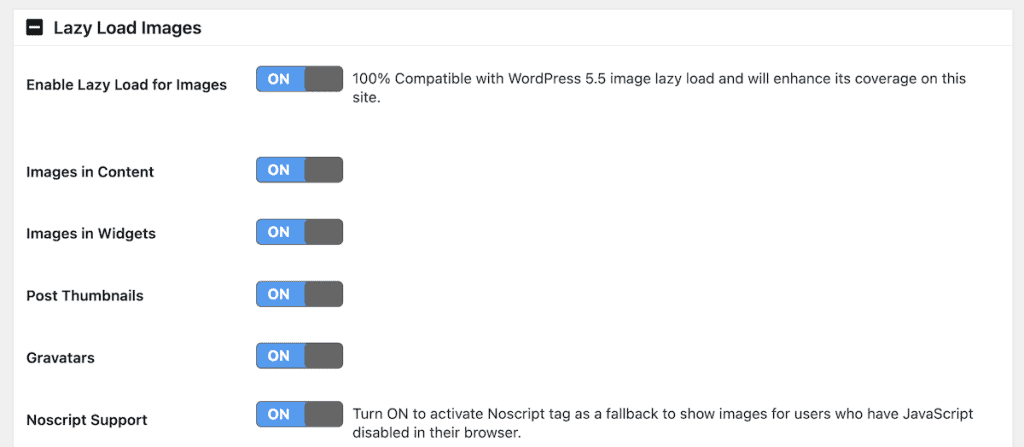
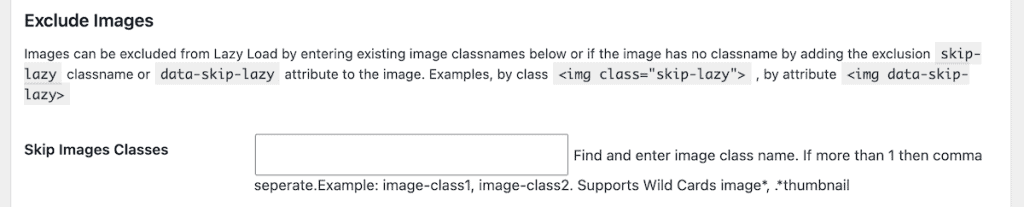
You can exclude specific images by CSS class or by adding a data-skip-lazy attribute to them. There’s also a noscript fallback, which displays images normally for visitors who have JavaScript disabled.
For videos and iframes, you have similar control. You can enable lazy loading for embedded YouTube videos, HTML5 videos, and iframes.

Plus, you can apply effects like a fade-in transition when images appear, and adjust how many pixels before the viewport an image should start loading.

a3 Lazy Load is the better choice when you have a complex site, multiple types of media, or specific exclusions you need to manage from a dashboard rather than from code.
Option 3: Using a Caching Plugin’s Built-In Lazy Load
If you already use a caching plugin like WP Rocket (paid version), LiteSpeed Cache, or W3 Total Cache, there’s a good chance lazy loading is already built into it. In that case, installing a separate lazy load WordPress plugin would just create conflicts.
You’ll find the lazy load settings within the optimization settings for each plugin.
For example, LiteSpeed Cache has its lazy loading settings under LiteSpeed Cache > Page Optimization > Media Settings. The options are similar. You’ll find lazy load images, lazy load iframes, and a section for excluding specific images by URL or class.

The rule of thumb is simple. If your caching plugin includes lazy loading and you’ve enabled it there, don’t install another lazy loading plugin on top. Running two lazy-loading systems against the same images is one of the most common causes of broken images and conflicts.
How to Disable Lazy Load WordPress Sitewide
Sometimes you don’t want lazy loading active. For example, maybe a specific image is breaking because of a slider script. Or, your theme already handles deferred loading. Or, you just want to turn it off across the site entirely.
Here’s how you do it:
Disable Native WordPress Lazy Load Site-Wide
If you want to switch off the built-in WordPress lazy loading entirely, add this snippet to your child theme’s functions.php file:
add_filter( 'wp_lazy_loading_enabled', '__return_false' );You can also use a plugin like Code Snippets to add this without editing theme files directly. If you don’t have a child theme set up, use a code snippet plugin to be safe, because edits to a parent theme will be overwritten the next time the theme updates.
There’s also a dedicated plugin called Disable Lazy Load that does exactly this and nothing else.
Exclude a Specific Image from Lazy Load
Sometimes you only want to disable lazy loading for a single image, like a hero image that needs to load immediately.
If you’re using the HTML block to insert an image, just write the img tag with loading="eager" instead of letting WordPress add loading="lazy":
<img src="https://example.com/hero.jpg" loading="eager" alt="Hero image" width="1200" height="600">If you’re using a plugin like a3 Lazy Load, you can add the skip-lazy class to the image, or add a data-skip-lazy attribute. With WP Rocket, the equivalent attribute is data-no-lazy="1".
Disable Lazy Load on a Specific Page
If you want to turn off lazy loading for an entire page but keep it active elsewhere, the cleanest way is through a plugin that supports per-page exclusions. WP Rocket’s paid plugin has this option in the post editor sidebar.
If you want to do it through code, you can hook into the wp action and check whether you’re on a specific page. For example, here’s a snippet to to disable lazy loading on the front page only:
add_action( 'wp', function () {
    if ( is_front_page() ) {
        add_filter( 'wp_lazy_loading_enabled', '__return_false' );
    }
});
You can swap is_front_page() for is_home() for your blog page, is_single() for single posts, or is_page() for all pages.
Common Lazy Load WordPress Problems and How to Fix Them
Lazy loading works smoothly most of the time, but a few recurring issues come up. Here’s how you can fix the most common ones:
Hero Image Loading Slowly
If your hero image or featured image is being lazy-loaded, your LCP score will suffer. WordPress tries to skip the first content image automatically, but this doesn’t always catch the right one. If your layout has a small logo or icon before the hero image, WordPress might lazy-load the hero because it counts as the second image, not the first.
The fix is to explicitly mark the hero image with loading="eager", or add fetchpriority="high" to tell the browser to prioritize it. If you’re using a plugin like a3 Lazy Load, add the skip-lazy class to the hero image.
Layout Shifts When Images Load
When an image loads after the surrounding text has loaded, the page can jump as the browser inserts the image and pushes content down. This is bad for Cumulative Layout Shift, which is another Core Web Vital.
The fix is to make sure every image has explicit width and height attributes. WordPress does this automatically for images inserted through the media library, but custom HTML or page builder images sometimes skip these.
Multiple Lazy Loaders Conflicting
If you have native WordPress lazy loading, plus a caching plugin with lazy loading enabled, plus a dedicated lazy loading plugin, you’ve got three different systems modifying the same images. That’s almost guaranteed to cause issues, ranging from images not loading at all to flickering on scroll.
Instead, pick one solution and disable the others. If you’re using a3 Lazy Load, turn off native lazy loading and any caching plugin’s lazy load. If you’re using WP Rocket’s lazy loading, disable a3 Lazy Load.
Images in Sliders or Galleries Not Loading
Some image sliders, lightboxes, and JavaScript-powered galleries load their images dynamically, which can clash with lazy loading. The slider might try to display an image that’s still being treated as lazy-loaded, resulting in a blank slide.
The fix is to exclude these images from lazy loading. In a3 Lazy Load, add the slider’s CSS class to the exclusion list under settings. In WP Rocket, add the relevant class or container to the exclusions field in the Media panel.
Lazy Load and SEO
Can search engines index lazy-loaded images?
The short answer is yes, as long as you’re using native browser lazy loading or a reputable plugin. Googlebot supports the loading="lazy" attribute and crawls lazy-loaded images without issue.
The problem comes from older JavaScript-only implementations that hide the actual image source behind JavaScript until the user scrolls. To stay safe, use a plugin with a noscript fallback, like a3 Lazy Load, and make sure your images have descriptive alt text.
You can verify that Google is seeing your lazy-loaded images using the URL Inspection tool in Search Console. Enter the URL, run the test, then click View Crawled Page to see the rendered HTML.
Lazy Load WordPress FAQs
Does WordPress lazy load images by default?
Yes. Since WordPress 5.5, the core software automatically adds the loading="lazy" attribute to <img> and <iframe> tags, as long as they have width and height attributes defined.
Do I need a lazy load WordPress plugin if it’s already built in?
Not always. For simple blogs with images in posts, native lazy loading is enough. You’d want a plugin if you need to lazy load CSS background images, replace YouTube embeds with preview thumbnails, exclude specific images through a settings panel, or apply visual effects like fade-in animations.
Does lazy load hurt SEO?
Not when used the right way. Google supports native lazy loading and indexes lazy-loaded images without an issue. Just make sure you’re not using an older JavaScript-only solution that doesn’t include fallbacks.
Should I lazy load my hero image?
No. Hero images and any other image visible above the fold should load immediately. Lazy loading these will hurt your Largest Contentful Paint score. WordPress tries to skip the first image automatically, but you should verify it’s not being lazy-loaded and use loading="eager" or fetchpriority="high" if needed.
How do I test if lazy load is working in WordPress?
The easiest way is to view your page source and search for loading="lazy". You should see it on most image tags below the fold. For a more thorough test, open browser developer tools, go to the Network tab, filter by Img, and refresh the page. Then, see which images load as you scroll.
Closing Thoughts on How to Lazy Load WordPress Images
If your WordPress site is running a current version, then lazy load is already active for images and iframes in your post content. That should be enough for most sites and blogs.
For more complex sites, a lazy load WordPress plugin gives you more control. LazyLoad by WP Rocket is the lightest option and takes about a minute to set up. a3 Lazy Load is the more featured choice, with a settings panel covering images, videos, iframes, and background images. And if you already use a caching plugin like WP Rocket, LiteSpeed Cache, or W3 Total Cache, check its settings first, since lazy loading is likely already built in.
Now it’s your turn. Are you relying on WordPress’s native lazy loading, or do you use a plugin to get more control? Share what’s worked for you in the comments below.
Ready to build your WordPress site?
Try our service free for 14 days. No obligation, no credit card required.


