

You open the media library to grab an image for a post, and the grid is blank. No thumbnails, no files, nothing. It feels alarming because you’re not sure if your uploads are actually gone or if something else is going on.
In most cases, nothing is seriously wrong. When the media library doesn’t display images, it’s usually due to caching issues, plugin conflicts, insufficient PHP memory, or restrictive server settings. Below, you’ll find the main reasons your WordPress media library not showing images along with the steps you can take to fix the problem.
Table of Contents
What to Do Before You Start
Before making any changes, it’s important to take a backup of your site. This is especially important if you plan to edit core files like wp-config.php or .htaccess. Something like UpdraftPlus or your host’s built-in backup tool (like cPanel) will do the job.
It only takes a few minutes and means you have something to restore from if anything goes wrong. With that said, let’s get into it.
How to Fix the WordPress Media Library Not Showing Images
There are quite a few things that can cause this issue, so the fixes below are ordered starting with the most common causes. Work through them from the top and you’ll avoid spending time on more involved solutions when something simpler would have fixed it.
Method 1. Start With a Hard Refresh and Clear Your Cache
Start with the simplest possible fix before anything else. Press Ctrl + Shift + R on Windows or Cmd + Shift + R on Mac to force your browser to reload the page without using its local cache. This cache is a surprisingly common cause of this issue, and a hard refresh takes about two seconds to try.
If that doesn’t help, clear your browser cache fully. In Chrome, go to Settings > Privacy and Security > Clear Browsing Data, check Cached images and files along with Cookies and other site data, and click Clear Data. Reload the media library after that and see if anything changes.

Testing in a different browser is also worth doing at this stage. If your images load fine in Firefox but not Chrome, the problem is browser-specific, and clearing the cache in your main browser will fix it.
Method 2. Update WordPress, Plugins, and Themes
Running outdated versions of WordPress, plugins, or themes can cause compatibility issues that affect the media library. Keeping everything updated is good practice in general, but it’s also a straightforward fix to try if you haven’t already.
To update WordPress, go to Dashboard > Updates and click Update Now if a new version is available. To update your plugins, go to Plugins > Installed Plugins and look for the update notification at the top of the list. To update your theme, go to Appearance > Themes and look for an update notification below the active theme’s thumbnail.

After updating, reload the media library and check whether the issue is resolved.
Method 3. Clear Your Caching Plugin
If you’re running a caching plugin, it may be serving an outdated version of the media library page. This is a quick check worth doing before you start digging into anything more complicated.
The exact steps vary depending on which plugin you’re using, but most caching plugins have a simple one-click option to purge everything. We cover the full process for the most popular caching plugins in our guide on how to clear the WordPress cache. Once the cache is cleared, reload the media library and check if your images are back.
If you’re using a CDN alongside your caching plugin, clear the CDN cache too. Most CDN providers have a cache purge option inside their dashboard. Cloudflare users can find the purge option under Caching > Configuration. Then, under the Purge Cache section, click Purge Everything.

Method 4. Check Your Plugins
Plugin conflicts are among the most common causes of the media library not loading images. This is especially true if the problem started right after you installed or updated a plugin. Image optimization, social media, and security plugins are the most common offenders.
The quickest way to find the culprit is to deactivate all plugins at once. Go to Plugins > Installed Plugins, use the checkbox at the top to select all plugins, open the bulk actions dropdown, select Deactivate, and click Apply. Then reload the media library. If your images appear, you know a plugin was causing it.

To find which one, reactivate your plugins one at a time. Go back to Plugins > Installed Plugins, reactivate the first plugin in the list, reload the media library, and check whether the problem returns.
Keep going through the list until the media library images disappear again. When they do, the last plugin you activated is the one causing the conflict. Check whether an update is available for it or reach out to the developer. If there’s no quick fix, replacing it with an alternative is usually the most practical route.
Method 5. Switch to a Default Theme
Your theme can interfere with how the WordPress admin loads, particularly if a theme includes custom JavaScript that affects the media library. It’s less common than a plugin conflict, but it does happen.
To test this, go to Appearance > Themes and activate a default WordPress theme like Twenty Twenty-Five or Twenty Twenty-Four. Then, check the media library. If your images load correctly with the default theme active, your current theme is the problem. Check the theme’s support forum for known fixes or contact the developer. There’s often already a patch available if it’s a wider issue.

Method 6. Increase the PHP Memory Limit
WordPress needs enough PHP memory to run properly. If your site is hitting the memory limit, things can fail partway through loading, including the media library. This tends to happen on sites with many active plugins, large media libraries, or both.
You can check your current PHP memory limit by going to Tools > Site Health, clicking the Info tab, and expanding the Server section. Look for PHP memory limit in the list. If it’s sitting at 32MB or 64MB, that’s likely too low and increasing it will probably fix the issue.

The most straightforward way to increase it is by editing your wp-config.php file. First, connect to your server via FTP using a tool like FileZilla or Cyberduck, or open File Manager in your hosting control panel.
Then, navigate to your public_html folder and open wp-config.php. Check whether the file already contains a line that reads something like, define('WP_MEMORY_LIMIT', '64M');. If it does, update the value to 256M or higher.
If it doesn’t, add the following line above the line that reads /* That's all, stop editing! Happy blogging. */:
define('WP_MEMORY_LIMIT', '256M');Next, save the file and upload it back to the server. You can verify the change took effect by going back to Tools > Site Health and checking the PHP memory limit again.
If that doesn’t work, or if your host doesn’t allow changes through wp-config.php, there are a few other methods available including editing your .htaccess file or using the MultiPHP INI Editor in cPanel. We cover all of them in detail in our guide on how to increase the WordPress memory limit.
This method also allows you to resolve issues with WordPress image upload.
Method 7. Check File Permissions
WordPress needs the correct permissions set on your uploads folder to read and display images. If those permissions have been changed, images can fail to load even though the files are still there.
To check and fix this, connect to your server via FTP, navigate to wp-content/uploads, and right-click the folder. Select File Permissions. Set the numeric value to 755, check Recurse into subdirectories, and select Apply to directories only. Click OK. Then go back into the folder permissions, set the value to 644, and this time select Apply to files only. Click OK again.
Then go back into the folder attributes, set the value to 644, and this time select Apply to files only. Click OK again. After updating the permissions, reload the media library and see if images appear.

Method 8. Disable mod_security
Many web hosts run mod_security, a server-level firewall that monitors and blocks requests it considers suspicious. In some configurations it can interfere with WordPress admin requests, including how the media library loads.
If your images stopped appearing without any obvious change on your end, mod_security is worth looking into. In cPanel, check the Security section and look for a ModSecurity option. If it’s available, you can toggle it off for your domain from there.
Not all hosts expose this at the cPanel user level though, so if you don’t see it, contact your hosting provider directly and ask them to check whether mod_security could be blocking your WordPress media library requests.
If that fixes it, don’t leave mod_security disabled permanently. Contact your hosting provider and let them know what you found. They can usually whitelist the specific WordPress requests that were being blocked so you can turn mod_security back on without the issue returning.
Method 9. Check Hotlink Protection
Hotlink protection stops other websites from loading images directly from your server. It’s a useful setting, but if it’s misconfigured, it can sometimes block your site from loading images in the admin.
If you recently enabled hotlink protection and the media library issue appeared around the same time, this is likely the cause. In cPanel, go to Security > Hotlink Protection and click Disable. Then, reload the media library to confirm whether that was the problem.

If disabling hotlink protection fixes it, you can re-enable it with more careful settings. Before turning it back on, make sure your domain and any staging environments you use are listed in the allowed URLs field.
Method 10. Check Your PHP Version
An outdated PHP version can cause unexpected behavior across WordPress, including issues with the media library. As of 2026, PHP 8.3 is fully compatible with WordPress and widely recommended, with PHP 8.4 being the better choice for most sites.
If you’re running PHP 8.1 or older, you should plan an upgrade. PHP 8.1 reached end-of-life at the end of 2025, meaning it no longer receives security patches.
To check your PHP version, go to Tools > Site Health, click the Info tab, and expand the Server section. If your host uses cPanel, you can usually update your PHP version through MultiPHP Manager in the control panel. If you’re not comfortable making that change yourself, your hosting provider’s support team can handle it for you.

Method 11. Enable Debug Mode and Check Error Logs
If you’ve worked through everything above and still can’t get the media library loading correctly, enabling WordPress debug mode will give you more detailed information about what’s failing.
Open your wp-config.php file via File Manager or FTP and find the line that reads define('WP_DEBUG', false);. Change this to true and add a second line below it:
define( 'WP_DEBUG', true ); define( 'WP_DEBUG_LOG', true );Make sure both lines sit above the line that reads /* That's all, stop editing! Happy blogging. */. Then, save the file and upload it back to your server. WordPress will now write errors to a file called debug.log inside your wp-content folder.
Then, connect via FTP, download the file, and open it in a text editor. Look for anything related to the media library, your uploads directory, or plugin names. Even if you can’t fix the error yourself, the information will be useful when contacting your host or a developer.
Once you’re done troubleshooting, remove the code you added and revert WP_DEBUG back to false. For a more detailed walkthrough of the whole process, take a look at our guide on how to find and access WordPress error logs.
Method 12: Force Regenerate Thumbnails
When you upload an image to WordPress, it automatically creates several smaller versions of that image at different sizes for use across your site. If those thumbnail files become corrupted, or if you’ve changed your theme and the required image sizes have changed, the media library can display images incorrectly or not at all.
Regenerating your thumbnails rebuilds all of those image versions from the original uploaded files. A good plugin for this is Force Regenerate Thumbnails, which deletes the existing thumbnail files first before rebuilding them, rather than just overwriting them.
To use it, install and activate the plugin from Plugins > Add Plugin, then go to Tools > Force Regenerate Thumbnails. Then, click Regenerate All Thumbnails and let the process run.
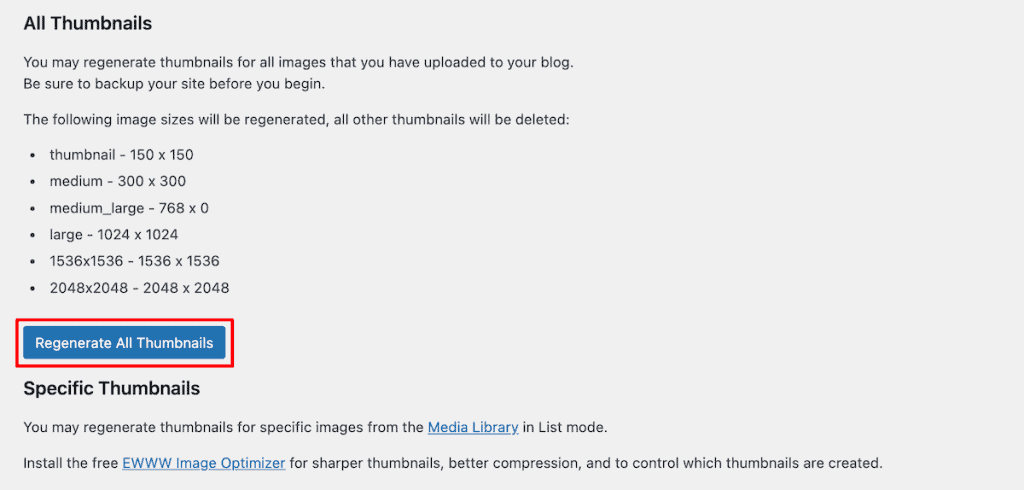
On larger sites with a lot of images this can take a few minutes, so leave the page open until it finishes. Once it’s done, reload the media library and check if your images are displaying correctly.
Last Call: Contact Your Hosting Provider
If none of the fixes above have worked, it’s time to involve your hosting provider. Some issues are server-level and aren’t accessible from the WordPress dashboard. A good host will have WordPress-experienced support staff who can check server error logs and PHP logs, and review server configuration settings you can’t access yourself.
When you contact them, mention when the issue started, what changes were made around that time, and which fixes you’ve already tried. That information helps support staff get to the root cause faster rather than walking you through things you’ve already done.
WordPress Media Library Not Showing Images FAQs
Why is my WordPress media library suddenly blank?
A blank media library is usually caused by a browser cache issue, a plugin conflict, or a PHP memory limit that’s too low. Start by doing a hard refresh and clearing your browser cache. If that doesn’t help, deactivate your plugins one by one to check for a conflict. If images still don’t appear, check your PHP memory limit under Tools > Site Health > Info > Server.
Will I lose my images if the media library isn’t showing them?
Not necessarily. In most cases your files are still on the server, they’re just not displaying correctly. The fixes above address the reasons WordPress can’t load them rather than the files themselves being missing. If you’re genuinely concerned, connect to your server via FTP and check whether your files are still inside the wp-content/uploads folder.
Why did my media library stop working after a plugin update?
Plugin updates can sometimes introduce conflicts with other plugins or with WordPress itself. If the issue started right after an update, deactivate that plugin and check whether the media library loads correctly. If it does, the updated plugin is the cause. Check the plugin’s support forum for known issues or contact the developer.
How do I know if my PHP memory limit is causing the problem?
Go to Tools > Site Health, click the Info tab, and expand the Server section. If your PHP memory limit is set to 32MB or 64MB, it’s likely too low for a site with multiple plugins and a growing media library. Increasing it to 256MB following the steps above should resolve the issue.
Can my hosting provider fix this for me?
Yes. If you’ve worked through the fixes in this article and the problem persists, your hosting provider’s support team can check server-level logs and configuration settings that aren’t accessible from the WordPress dashboard. Give them as much detail as possible about when the issue started and what you’ve already tried.
Closing Thoughts: Fixing the WordPress Media Library Not Showing Images Issue
The WordPress media library not showing images is almost always fixable, and it usually comes down to something that can be resolved in a few minutes. Clearing caches and checking for plugin conflicts will solve it the majority of the time. If those don’t work, a low PHP memory limit or a server-level setting like mod_security or hotlink protection is generally the next place to look.
If you’re regularly running into memory issues, it may be a sign that your current hosting plan has outgrown your site’s needs. Upgrading to a plan with more resources tends to prevent these errors from recurring.
Whatever fix you end up using, make sure you have reliable backups in place before making changes to core files. Knowing you can restore your site quickly takes a lot of the stress out of troubleshooting.
Now, it’s your turn. Did any of the fixes above help you? Please share your experience in the comments below.
Ready to build your WordPress site?
Try our service free for 14 days. No obligation, no credit card required.


