

Building a WordPress site on a live server is like learning to drive on a busy highway. It can work, but one mistake can quickly cause problems.
That’s where XAMPP comes in. This free tool lets you create a local server environment on your computer, a safe space to build, test, and experiment without any risk to a live website. Whether you’re developing a new theme, testing plugins, or just learning how WordPress works under the hood, XAMPP provides everything you need to get started.
In this guide, you’ll learn how to install XAMPP, configure it properly, and set up a fully functional local WordPress site. We’ll also cover troubleshooting tips and best practices to help you get the most out of your local development environment.
Table of Contents
What is XAMPP?
XAMPP is a free, open-source software package that bundles everything you need to run a local web server. The name is actually an acronym that tells you exactly what’s inside. The X stands for cross-platform since it works on Windows, Mac, and Linux. The A stands for Apache, which is the web server software. The M stands for MariaDB, the database management system that replaced MySQL in recent versions. The two P’s stand for PHP and Perl, both scripting languages that power dynamic websites.
Without getting too technical, XAMPP gives you a complete web server environment that runs entirely on your own computer. No hosting account needed. No domain name required. Just download, install, and start building.
XAMPP is maintained by Apache Friends and has been stable and reliable for many years, supported by a large community.
Why Use XAMPP for WordPress Development?
Before we get into the installation process, let’s talk about why you’d want a local development environment.
Safe testing ground. When you’re working on a live WordPress site, every change you make is immediately visible to your visitors. One bad plugin update or a typo in your theme files could take your entire site offline. With XAMPP, you can test everything locally first, then move it to your live site once you know it works.
Faster development. Loading pages from a local server is nearly instant compared to fetching them from a remote host. This might not sound like a big deal, but when you’re refreshing your browser hundreds of times during development, those saved milliseconds add up quickly.
Work offline. Got a long flight ahead? Want to work from a coffee shop with spotty WiFi? With XAMPP, your entire WordPress site lives on your computer, so you can keep working regardless of your internet connection.
Learn without risk. If you’re new to WordPress development, XAMPP lets you experiment freely. Break something? Just delete it and start over. There’s no live site to worry about and no visitors to disappoint.
Create staging environments. Before you push major changes to your production site, you can clone it locally and test your updates in an identical environment. This catches problems before they affect real users.
How to Install XAMPP
Installing XAMPP is straightforward, but there are a few things you’ll want to keep in mind along the way.
Note: We’ll be using a Mac for this tutorial, however the steps will be similar if you’re using a PC or running Linux.
Download XAMPP
Head over to the Apache Friends site to download XAMPP. You’ll see download buttons for different operating systems right on the homepage.

Click the macOS download button. Several versions are available with different PHP versions. For WordPress development, PHP 8.x is recommended for best compatibility with current releases. The download is a .dmg file, the standard Mac installer format.
Run the Installer
Once the download completes, open the .dmg file. This copies all the necessary files to your system.
Depending on your Mac’s security settings, you might see a warning that the app is from an unidentified developer. If this happens, go to System Preferences (or System Settings on newer macOS versions), then Security & Privacy, and click Open Anyway to allow the installation.
Launch XAMPP
Next, double-click the installer and XAMPP will be installed on your computer. Simply follow the steps when prompted by the installer.

When you open XAMPP, your Mac may request your admin password. This is normal. The app window has Welcome, Manage Servers, and Network tabs. You’ll use Manage Servers the most.
How to Configure and Start XAMPP
After installing XAMPP, you need to start the required services before you can use it.
Understanding the XAMPP Interface
Click on the Manage Servers tab in the XAMPP application. You’ll see a list of services, including MySQL Database, Apache Web Server, and ProFTPD.
MySQL handles databases. Apache serves your site at localhost. ProFTPD (FTP) isn’t needed for most local work and can stay off.

Each service shows its status and provides Start/Stop buttons to control it.
Starting the Required Services
For WordPress development, you need both Apache and MySQL running. Select MySQL Database from the list and click the Start button on the right side. Wait for the status to change to Running, which is indicated by a green light.
Then select Apache Web Server from the list, click Start, and wait for it to show as running.

Both services should now display green status indicators. If you see red or yellow warnings, we’ll cover troubleshooting steps later in this guide.
Checking Your Installation
With both services running, open your web browser. Type localhost in the address bar and press Enter to view the XAMPP welcome page. This confirms your local server is running.
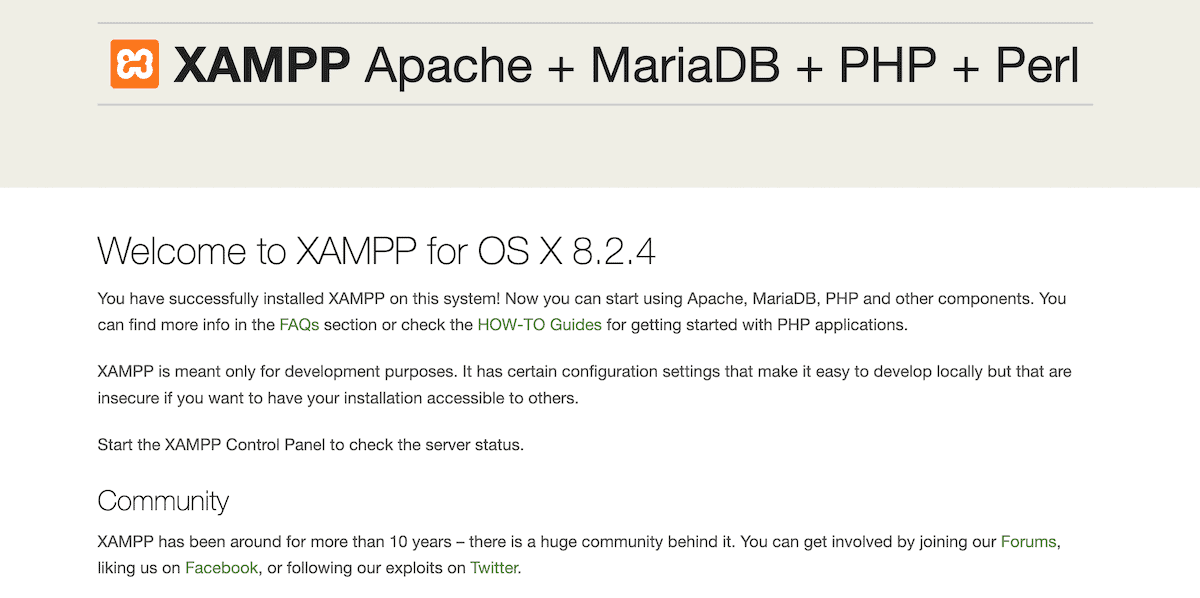
From this dashboard, you can access phpMyAdmin by clicking the link in the top navigation. phpMyAdmin is the web interface you’ll use to manage your databases.
How to Install WordPress on XAMPP
Now that your local server is running, let’s set up WordPress. This process involves creating a database, downloading WordPress, and running through the installation wizard.
Create a Database for WordPress
WordPress needs a database to store all its content. Open phpMyAdmin by going to localhost/phpmyadmin in your browser, then click on the Databases tab at the top of the page.

In the Create database field, enter a name for your database. Something simple like wordpress or testsite works fine. For this tutorial, we’ll use wordpress_local. Leave the collation dropdown set to its default value (usually “utf8mb4_general_ci” or similar) and click the Create button.

You should see a success message, and your new database will appear in the left sidebar list. That’s it for the database setup.
Download WordPress
After that, go to wordpress.org and download the latest WordPress .zip file.
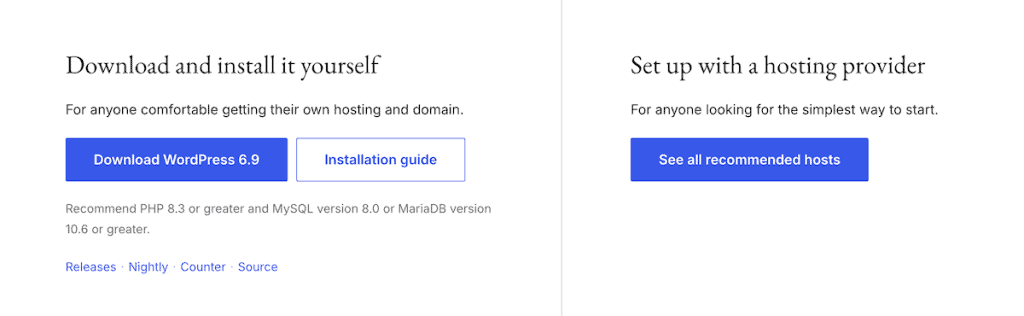
Once the download finishes, find the file in your Downloads folder and double-click to extract it. This creates a folder named wordpress containing all the necessary files.

Move WordPress to Your XAMPP Directory
XAMPP serves files from the htdocs folder. Any files you want accessible through your local server need to be placed here.
On Mac, the htdocs folder is located at /Applications/XAMPP/xamppfiles/htdocs. Open Finder and go to this location.

Then, drag your extracted wordpress folder into the htdocs directory. You can rename this folder to something more descriptive if you’re planning to run multiple local sites. For example, you might rename it to testsite or clientproject. For this tutorial, we’ll keep it as wordpress.
Configure WordPress
Before running the WordPress installer, you need to set up the configuration file that tells WordPress how to connect to your database.
Open the wordpress folder you just moved to htdocs and look for a file named wp-config-sample.php. Make a copy of this file and rename the copy to wp-config.php.

Then, open wp-config.php in a text editor. On Mac, TextEdit works fine, though code editors like VS Code or Sublime Text are better for this kind of work.
Find the line that says define( 'DB_NAME', 'database_name_here' ); and replace database_name_here with the name of the database you created in phpMyAdmin. In our case, that’s wordpress_local.
Next, find the line define( 'DB_USER', 'username_here' ); and replace username_here with root. Then find define( 'DB_PASSWORD', 'password_here' ); and delete password_here entirely, leaving just empty quotes. The DB_HOST line can stay as localhost.
Your updated configuration should look like this:
define( 'DB_NAME', 'wordpress_local' );
define( 'DB_USER', 'root' );
define( 'DB_PASSWORD', '' );
define( 'DB_HOST', 'localhost' );
In a production environment, you’d never use these credentials, but for local development, they’re fine. Save the file and close your text editor.
Run the WordPress Installation
Open your browser and go to localhost/wordpress (or whatever you named your folder). WordPress will detect that this is a fresh installation and launch the setup wizard.
Then, enter your site information, including a site title, an admin username (avoid using admin for security), a strong password, and your email address. The search engine visibility setting doesn’t matter for a local site.

Click Install WordPress and after a few seconds, you’ll see a success message. Click Log In to access your new WordPress dashboard.
Congratulations! You now have a fully functional WordPress site running on your local machine.
Managing Your Local WordPress Site
With WordPress installed, you’ll want to know how to access different parts of your site and keep things running smoothly.
Accessing Your Site
To see your site as visitors would, visit localhost/wordpress in your browser. To access the WordPress admin area, visit localhost/wordpress/wp-admin. And to manage your database directly, visit localhost/phpmyadmin.
Installing Themes and Plugins
Installing themes and plugins on your local site works exactly the same way as on a live WordPress installation. Go to Appearance > Themes > Add Theme or Plugins > Add Plugin in your dashboard and install whatever you need. The benefit of doing this locally is that you can test plugins without worrying about conflicts or performance issues affecting real visitors.

Making Database Backups
Even though this is a local site, backing up your database before making major changes is a good habit. In phpMyAdmin, click on your database name in the left sidebar, then click the Export tab. Leave the default settings (Quick export, SQL format) and click Export to download a backup file. You can restore this backup later by using the Import tab if something goes wrong.

Troubleshooting Common XAMPP Issues
XAMPP usually works without problems, but you might run into a few common issues.
Apache Won’t Start (Port Conflict)
The most common problem is Apache failing to start because another application is using port 80 or 443. On Mac, this might be another web server or even some chat applications.
Finding the conflicting application. Open Terminal and run sudo lsof -i :80 to see which application is using port 80. If you can close that application, do so, then try starting Apache again.
Changing Apache’s port. If you can’t close the conflicting application, you can configure Apache to use a different port. Open Finder and go to /Applications/XAMPP/xamppfiles/etc/ and open httpd.conf in a text editor.
Find the line that says Listen 80 and change it to Listen 8080 (or another unused port). Then find ServerName localhost:80 and change it to ServerName localhost:8080. Save the file and restart Apache. Now you’ll access your local sites at localhost:8080 instead of just localhost.
MySQL Won’t Start
If MySQL fails to start, it might be because another MySQL instance is already running, or the data files are corrupted.
Check for existing processes. To check this, open Activity Monitor and search for mysql, and quit any existing MySQL processes you find.
Reset MySQL data. If the database files are corrupted, you might need to reset them. Be aware that this deletes all your databases. Stop MySQL if it’s running, then go to /Applications/XAMPP/xamppfiles/var/mysql/ and delete everything in this folder except the mysql folder and any .err files. Then restart MySQL.
Site Shows Directory Listing Instead of WordPress
If you visit your WordPress URL and see a file listing instead of your site, it usually means there’s no index.php file in that directory, or Apache isn’t configured to recognize it. Check that your WordPress files are in the correct location and that the folder contains an index.php file.
Best Practices for Local WordPress Development
To get the most out of your XAMPP setup, a few habits will serve you well.
Apache Friends regularly releases updates with security patches and new features. Check their website periodically and update when new versions are available.
Even for local projects, using Git to track your changes is a smart move. This lets you experiment freely, and if something breaks, you can always roll back to a previous version.
If your live site runs PHP 8.1 on Apache with a specific MySQL version, try to match that configuration locally. This prevents the frustrating situation where something works perfectly on your local machine but breaks in production.
If you’re working on several WordPress sites, create separate folders for each in your htdocs directory. You might have folders like /htdocs/client1/, /htdocs/client2/, and /htdocs/personal-blog/. Each site needs its own database, which you can create in phpMyAdmin following the same steps we covered earlier.
Local sites can accumulate over time. Periodically review your htdocs folder and delete projects you no longer need. Also, clean up the corresponding databases in phpMyAdmin to free up space.
Setting Up WordPress Multisite on XAMPP
If you need to manage multiple WordPress sites from a single installation, you can enable multisite on your local XAMPP setup.
Enable Multisite in wp-config.php
Open your wp-config.php file and add the line define( 'WP_ALLOW_MULTISITE', true ); above the comment that says “That’s all, stop editing!” Then save the file.

Configure the Network
Log in to your WordPress admin dashboard and go to Tools > Network Setup. Choose between subdomains or subdirectories (subdirectories work better for local development), enter a network title, and click Install.

WordPress will show you code snippets to add to your wp-config.php and .htaccess files. Follow those instructions carefully.
Create Additional Sites
After completing the setup, you’ll have a new My Sites menu in your admin bar. From there, you can create and manage additional sites within your network.
Moving Your Local Site to a Live Server
Once you’ve finished developing your site locally, you’ll want to move it to a live hosting environment.
Here’s what the process involves:
- Export your database using phpMyAdmin’s Export feature
- Upload your WordPress files to your hosting account via FTP or your host’s file manager
- Create a database on your live server and importing your exported database
- Update wp-config.php with your live server’s database credentials
- Update URLs in the database to replace localhost references with your actual domain
Plugins like Better Search Replace make this last step easy, or you can run SQL queries directly.
If you’re hosting with SupportHost, our team can help with the migration process. We offer free website migrations for new customers, taking the technical complexity off your plate.
WordPress Local Development Alternatives
XAMPP isn’t the only option for local WordPress development.
Depending on your needs, you might also consider Local by Flywheel, which offers a more WordPress-specific experience with features like one-click WordPress installation, easy SSL setup, and live link sharing.
MAMP is similar to XAMPP but developed specifically for Mac (though a Windows version exists), and some developers prefer its interface.
Each tool has its strengths. XAMPP remains popular because it’s free, works on any operating system, and has been around long enough to have solutions for virtually any problem you might encounter.
XAMPP FAQs
What’s the difference between XAMPP and MAMP?
Both XAMPP and MAMP serve the same basic purpose of creating a local server environment for web development. XAMPP is cross-platform and completely free. MAMP has both free and paid versions, with the paid version (MAMP Pro) offering additional features like virtual hosts and cloud backups. For basic WordPress development, either works fine.
Is XAMPP safe to use?
XAMPP is safe for local development, but it’s not designed for production use. The default configuration prioritizes ease of use over security (for example, the root database user has no password). Never expose your XAMPP installation to the public internet.
Can I run multiple WordPress sites on XAMPP?
Yes. Create separate folders in your htdocs directory for each site and set up a corresponding database for each one. You can then access them at localhost/site1, localhost/site2, and so on.
How do I access my XAMPP site from another device?
To access your local site from another device on the same network (e.g., your phone for mobile testing), use your computer’s local IP address instead of localhost. Find your IP address in System Preferences > Network, then access your site at that IP address (for example, 192.168.1.100/wordpress). You may need to adjust firewall settings to allow incoming connections.
Why is my XAMPP site so slow?
Local sites should load almost instantly. If yours is slow, check that you don’t have too many plugins activated, your database isn’t bloated with unnecessary data, and your computer has adequate resources available. Also, make sure no antivirus software is scanning XAMPP files in real time, as this can significantly impact performance.
Closing Thoughts: How to Use XAMPP
XAMPP provides a reliable, free way to set up a local WordPress development environment. Once you get the hang of it, creating new test sites takes just a few minutes.
The key steps are installing XAMPP, starting the Apache and MySQL services, creating a database in phpMyAdmin, downloading WordPress and placing it in your htdocs folder, then running through the installation wizard.
From there, you have a safe sandbox to build themes, test plugins, learn PHP, or develop client sites without any risk to live websites.
If you’re planning to eventually move your local site to a live server, check out our WordPress hosting plans at SupportHost. We offer fast, secure hosting with free migrations to help you get your site online quickly.
Now over to you. Have you used XAMPP for WordPress development before? What’s your preferred local development setup? Share your thoughts in the comments below.
Ready to build your WordPress site?
Try our service free for 14 days. No obligation, no credit card required.


