

Search for filetype:pdf site:yoursite.com on Google, and you might get a surprise. Old price lists, member-only guides, internal checklists, lead magnets you only meant to hand over in exchange for an email address. Google treats PDF files like any other document. If it can access the file, it can index it.
The way to fix this is by noindexing them, but PDFs need a different approach than regular pages. Below, you’ll learn how to check which of your files are already indexed, how to apply noindex to a non-HTML file, how to confirm it worked, and what to do when hiding a file from search isn’t enough.
Table of Contents
Why PDFs End Up in Google
When you upload a PDF to WordPress, it lands in your uploads folder and gets a public URL, usually something like yoursite.com/wp-content/uploads/2026/03/guide.pdf. That URL is accessible to anyone, including Googlebot.
Google reads the text inside your PDF files, extracts a title, and ranks them right alongside your normal web pages. Linking to the file from anywhere on your site is usually enough to get it crawled and indexed, and a link from someone else’s site can do the same thing.
Here are the situations where site owners typically want a file kept out of search results:
- Lead magnets and content upgrades that should only be delivered after someone signs up
- Member-only guides, course workbooks, and paid downloads
- Internal documents like price sheets, contracts, and forms shared with a small group
- Outdated files you no longer want representing your business
- PDF versions of pages that already exist as HTML on your site
That last one catches a lot of people off guard. If you publish a guide as a blog post and also offer a PDF version of it, you now have two documents competing for the same search terms.
How to Check Which of Your PDFs Are Indexed
Before you change anything, it’s worth finding out what’s actually sitting in the index. There are two ways to check, and they’ll give you slightly different answers.
Run an advanced Google search
The quick version takes about ten seconds. Head to Google and combine two search operators, swapping in your own domain: filetype:pdf site:yoursite.com.
The site: operator limits results to your website, and the filetype: operator limits them to a single format, so what comes back is a list of the indexed PDF files on your domain.

This method is fast, but it isn’t complete. Google doesn’t always surface every indexed URL through a site search, so it’s best to treat the result as a sample rather than a full inventory.
Check the Pages report in Search Console
If your site is connected to Google Search Console, you’ll get a more reliable picture there.
Log into your account and select the correct property from the drop-down at the top left, then open the Pages report under the Indexing section in the sidebar. Click View data about indexed pages to pull up the full list of URLs Google has indexed.

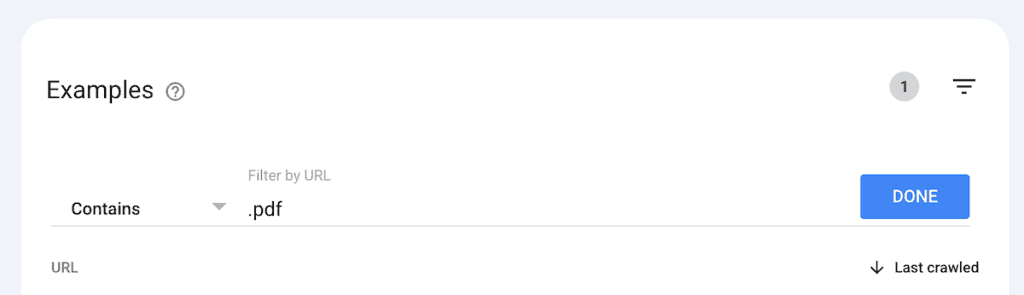
From there, turn on the URL filter, set it to Contains, and enter .pdf as the value. You’ll now see only the PDF files that are currently in the index.
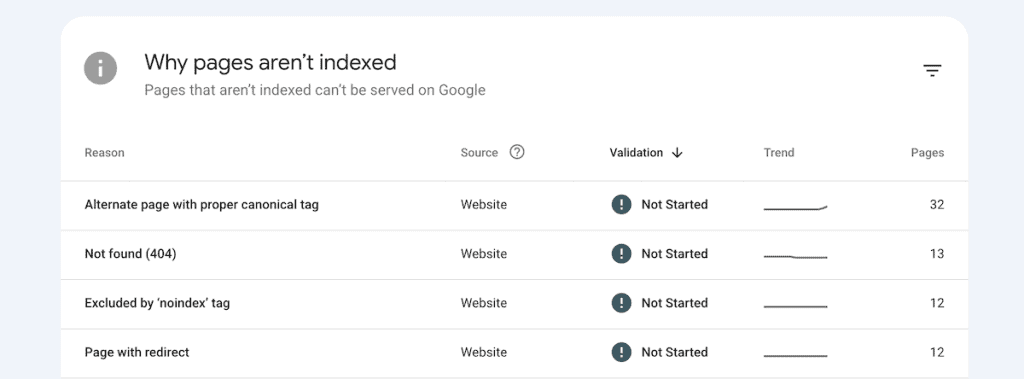
It’s also worth looking at the Not indexed side of the report while you’re here. That’s where files Google has crawled but excluded show up, along with the reason it gave for each one. Keep this report handy, because it’s the easiest way to confirm your files are dropping out of the index over the following weeks.
Why Blocking PDFs in robots.txt Doesn’t Work
Plenty of tutorials suggest adding a rule like this one to your robots.txt file:
User-agent: *
Disallow: /*.pdf$
The rule does something, just not the thing most people expect it to do.
A Disallow line controls crawling, not indexing. You’re telling crawlers not to fetch the file. You aren’t telling them to leave it out of the search results. If another page links to that PDF, Google can add the URL to its index based on the link alone, often with no description attached. In Search Console, these tend to show up under the status “Indexed, though blocked by robots.txt”.
The bigger problem is that when you block a file, crawlers never fetch it, which means they never see any noindex instruction you’ve attached to it. Google’s documentation is clear on this point. For a noindex rule to work, the file has to stay crawlable.
So if you already have a Disallow rule covering your PDFs, remove it before you do anything else. Leave it in place, and the method below won’t have any effect at all.
How to Noindex a PDF With the X-Robots-Tag
For a normal page, you’d add a robots meta tag inside the HTML head, like this:
<meta name="robots" content="noindex">A PDF has no head section and no HTML at all, so that option is off the table. Instead, the instruction has to travel in the HTTP response header when the file is requested, using something called the X-Robots-Tag. It supports every directive the meta robots tag supports, and it works for any file type your server delivers.
Where you add it depends on what your server runs on.
Apache and LiteSpeed servers
Most shared hosting plans run Apache or LiteSpeed, and both of them read the .htaccess file. If your plan includes cPanel, you can edit that file straight from the file manager without touching FTP.
Start by logging in to cPanel and opening File Manager under the Files section. The .htaccess file is hidden by default, so click Settings in the top-right corner, check the Show Hidden Files (dotfiles) box, and save.

Now open your public_html folder, or wherever your WordPress installation lives. Right-click the .htaccess file and choose Edit. Before you change anything, copy the current contents into a text file on your computer. A broken .htaccess file can take your whole site offline, so it’s a good idea to back up your website before touching core files, and keeping the original on hand saves you a support ticket if something goes sideways.

To apply noindex to every PDF on the site, add this:
<Files ~ "\.pdf$">
Header set X-Robots-Tag "noindex"
</Files>
If you also want to stop Google from following any links inside those files, use this version instead:
<Files ~ "\.pdf$">
Header set X-Robots-Tag "noindex, nofollow"
</Files>
Place the code near the top of the file, above the block that starts with # BEGIN WordPress. WordPress rewrites everything between its own BEGIN and END markers, so anything you tuck inside there can be wiped out during an update. Save your changes once the code is in place.
Keep the scope in mind here, because that rule hits every PDF served from the directory and everything below it. If you have public PDFs that are earning traffic, this will pull them out of the search results too, so it’s worth checking before you apply it site-wide.
Noindexing a single PDF
To target one specific file, place an .htaccess file in the same folder as the PDF and name the file directly. WordPress organizes uploads by date, so the path is usually something like /wp-content/uploads/2026/03/.
<Files "internal-price-list.pdf">
Header set X-Robots-Tag "noindex, nofollow"
</Files>
This is the safer route when you only have a handful of files to hide, since there’s no pattern matching involved that could accidentally catch something you wanted to keep public.
When the header doesn’t show up
The Header set directive relies on Apache’s mod_headers module. It’s active on the large majority of hosting accounts, but not quite all of them. If you add the code and the header never appears when you test for it, a missing module is usually the reason.
Your hosting support team can confirm whether the module is enabled, and on managed setups they can often add the rule at the server level for you, which is cleaner than editing .htaccess yourself.
Nginx servers
Nginx ignores .htaccess files completely. The rule belongs in your server configuration block instead, which means you’ll need SSH or server panel access to add it:
location ~* \.pdf$ {
add_header X-Robots-Tag "noindex, nofollow";
}
Reload the configuration after you save it for the change to take effect. If you’re on managed hosting and don’t have that level of access, just open a support ticket and ask them to add it. This is a routine request, and most hosts will handle it in a few minutes.
Cloudflare and other CDNs
If your site sits behind Cloudflare, there’s a third option that skips editing server files entirely. Cloudflare’s Transform Rules can attach a response header to any request that matches a condition you set.
Log in to the Cloudflare dashboard and select your domain, then open Rules and click Overview.

Next, click Create rule and choose Response Header Transform Rule from the menu.

On the create screen, pick the Add static header to response option and click Create from template.

Under If incoming requests match…, select Custom filter expression, since the default of All incoming requests would send the header across your whole site. Then set the condition using the dropdowns: Field to URI Full, Operator to wildcard, and Value to a URL pattern that matches your PDFs, swapping in your own domain:
https://*.yoursite.com/*.pdf
Check the Expression Preview below the fields to confirm it reads as a clean wildcard match on your URL, not a function wrapped in quotes.
Under Then…, open the Select item… dropdown beneath Modify response header and choose Add static. Enter X-Robots-Tag as the header name and noindex as the value, then click Deploy.

This one needs testing carefully, because if you build the condition too broadly, you can end up sending noindex across your entire site, which is a fast way to lose all your search traffic.
The same caution applies to any CDN. If your PDFs are already cached at the edge, the old response without the header can keep getting served until that cache expires, so purge the cache after you make the change.
How to Confirm the Header Is Working
Never assume the rule took effect. Checking takes about a minute, and it saves you from waiting six weeks for a deindexing that was never going to happen in the first place.
Chrome DevTools
Open the PDF URL in Chrome and press F12 to open the developer tools. Click the Network tab and reload the page. Select the file request from the list, then look at the Headers panel on the right. Under Response Headers, you should see x-robots-tag: noindex.

The curl command
If you’re comfortable working in a terminal, this is the faster route. The command works on macOS, Linux, and Windows:
curl -I https://yoursite.com/wp-content/uploads/2026/03/guide.pdfThe -I flag asks for the headers only. Scan the response for the x-robots-tag line. If it isn’t there, the rule isn’t being applied.

How to Speed Up Removal From Google
Adding the header doesn’t remove anything on its own. Google has to recrawl the file before it can act on the instruction, and depending on how often your site gets crawled, that can take anywhere from a few days to several weeks.
When a file needs to disappear quickly, you can use the Removals tool to force the issue.
Open Search Console, select your property, and click Removals under the Indexing section. Click New Request and stay on the Temporarily remove URL tab. Paste the full URL of the PDF, select Remove this URL only, then click Next. Check the URL on the confirmation screen and submit the request.

It usually takes effect within a day. You can follow the status in the same report, where it shows up as “Processing request” first and then “Temporarily removed”.
A removal request expires after roughly six months, and once it does, Google is free to show the file again unless something else is stopping it. The removal buys you time while the X-Robots-Tag does the permanent work, so use both together and never rely on the removal tool on its own.
The Attachment Page Everyone Forgets
WordPress does something behind the scenes that trips up a lot of people. Every file you upload to the media library also gets its own page, called an attachment page. Upload guide.pdf, and WordPress may create a page at yoursite.com/guide/ that displays the file inside your theme layout.
That page is a regular HTML page with a regular URL, and it can be indexed independently of the file itself. An X-Robots-Tag on the PDF does nothing for it.
Most SEO plugins can shut these pages down for you. In Yoast SEO, go to Yoast SEO > Settings > Advanced > Media pages and switch Enable media pages off. With that disabled, attachment URLs redirect to the file itself and stop existing as separate pages.

In Rank Math, go to Rank Math > General Settings > Links and turn on the option to redirect attachments.

It’s worth thinking about the page you’re linking from as well. If you have a landing page whose only job is delivering a private download, that page probably shouldn’t rank either. Both plugins let you set a page to noindex from the Advanced section of the SEO panel in the editor, which is a single checkbox.

What Noindex Does Not Do
The X-Robots-Tag keeps a PDF out of the search results. It does not make the file private. The file stays completely public, and anyone with the link can open it, forward it, or post it somewhere else.
If the content is confidential, or if you’re charging money for it, noindex on its own isn’t enough. You need something that checks who’s asking before it hands the file over.
File protection plugins
Prevent Direct Access is built for exactly this job. Once you mark a file as protected in the media library, direct requests from unauthorized visitors get sent to your 404 page, or to a custom page like a login screen. The plugin also generates a private download link with a random string in it, so you can share the file with specific people without making it public. The free version protects unlimited files, while the paid version adds folder-level protection and more granular access rules.
Membership plugins
When your PDFs are part of a paid offering, a membership plugin is a better fit. Tools like MemberPress tie file access to subscription levels, so only members on the right plan can download a given document. You get access control and billing in the same place, instead of stitching two separate systems together.
Download managers with password and role locks
For simpler setups, a plugin like Download Manager does the job well. Your files live in a dedicated section of the dashboard, and you drop a download button anywhere on the site using a shortcode or a Gutenberg block. Access can be restricted by user role, and even the free version includes password locks, which is handy when you’re sharing a file with a small group who don’t have accounts on your site. You also get download limits and CAPTCHA locks to keep bots away.
Email delivery for lead magnets
When the PDF is a lead magnet, the goal isn’t really secrecy, it’s making sure the email address gets captured first. Delivering the file by email after signup, rather than linking it publicly on a thank-you page, closes most of the leak on its own. Pair that with a noindex header, and the file stays out of search while it still does its job for you.
Noindex PDF FAQs
Can I noindex a PDF with Yoast or Rank Math?
Not the file itself. SEO plugins add robots directives to the HTML pages that WordPress generates, and a PDF is served directly by your web server without passing through WordPress. Both plugins can noindex the attachment page and any landing page linking to the file, but the PDF itself needs an X-Robots-Tag header set at the server or CDN level.
How long does it take for a PDF to drop out of Google?
Usually somewhere between a few days and a few weeks. Google has to recrawl the file before it can act on the header, and crawl frequency varies quite a bit from one site to the next. Submitting a removal request through Search Console hides the file within about a day while the permanent change works its way through.
What’s the difference between robots.txt and the X-Robots-Tag?
A robots.txt rule asks crawlers not to fetch a file. The X-Robots-Tag tells them not to index it once they have. Since a blocked file can still appear in the search results based on links pointing to it, and since blocking prevents the noindex from ever being read, the header is the right tool for keeping a PDF out of the index.
Does noindex stop people from downloading my PDF?
No. The file stays publicly accessible to anyone who has the URL or manages to guess it. Restricting access requires a file protection plugin, a membership plugin, or a download manager with password and role controls.
Can I use the same method for Word and Excel files?
Yes. The X-Robots-Tag works for any file type your server delivers. Just change the file extension in the rule, or match several at once with a pattern like \.(pdf|docx|xlsx)$.
Closing Thoughts: Noindex PDFs in WordPress
Keeping PDFs out of the search results comes down to a short sequence. Find out what’s indexed with a filetype: search or the Pages report in Search Console. Add an X-Robots-Tag noindex header through .htaccess, your Nginx config, or Cloudflare, and clear out anything in robots.txt that would stop crawlers from reading it. Then confirm the header is live with curl or DevTools before you move on.
For files that are already sitting in the results, a removal request clears them out quickly while the header handles the long term.
And if the content genuinely needs to stay private, add a layer that checks permissions before serving the file. Hiding a URL from Google solves one problem. Controlling who can open it is a separate problem, and a header won’t solve that one for you.
If you’re hosting with SupportHost, the Apache side of all this takes a couple of minutes in the cPanel file manager, and our support team can confirm the header is being sent correctly if anything looks off. If you’re weighing up a move, our WordPress hosting plans are built for speed and security, and migrating over is straightforward.
Now over to you. Have you found PDFs from your site showing up in search results where they shouldn’t be? Let us know how you handled it in the comments below.
Ready to build your WordPress site?
Try our service free for 14 days. No obligation, no credit card required.


