

Weebly got you started, but now you need more. A lot of people start with Weebly because it’s free, simple, and lets you get a basic website online quickly.
But as your site grows, the limitations become harder to ignore. Customization options are restricted, there’s no real plugin ecosystem, updates are rare, and the feature set hasn’t kept pace with what modern websites need.
WordPress solves these problems. It offers unlimited flexibility, thousands of themes and plugins, and complete ownership of your content. Plus, migration is totally doable, even if you’re not super technical. Below, you’ll learn three different methods you can use to migrate Weebly to WordPress.
Table of Contents
Why Migrate Weebly to WordPress?
WordPress powers over 43% of all websites on the internet, and that dominance exists for good reason.
With WordPress, you get access to more than 60,000 plugins that can add virtually any feature you can imagine. Weebly’s limited app marketplace simply can’t compete with this level of extensibility.
Themes are another major advantage. WordPress offers thousands of free and premium themes, giving you far more control over your site’s appearance than Weebly’s template system allows. And if you want something truly custom, developers can build exactly what you need.
Full ownership matters too. With Weebly, your site lives on their platform and plays by their rules. With WordPress, you own your files, can host anywhere you choose, and aren’t locked into a single provider. If you ever want to switch hosts, you take everything with you.
SEO capabilities are significantly better on WordPress, too. Plugins like Yoast SEO and Rank Math give you granular control over how search engines see your content. Weebly’s built-in SEO tools are basic by comparison.
And if you’re selling products, WordPress with WooCommerce is one of the best ways to build an eCommerce store. Weebly takes 3% on the free plan, which adds up quickly as sales grow.
What You Need Before Starting
Before you migrate Weebly to WordPress, getting set up requires a few things in place.
First, you’ll need WordPress hosting. The easiest option is a host like SupportHost, where WordPress comes pre-installed and ready to use. This saves time and ensures everything is configured correctly from the start.
Second, make sure you can access your Weebly account. You’ll need to log in to export content and adjust settings during the migration process.
Finally, set aside about one to two hours for the migration. The process isn’t difficult, but it does require focused attention to get everything transferred correctly.
Back Up Your Weebly Site
Before making any changes, create a backup of your Weebly site. This serves as your safety net if anything goes wrong.
In your Weebly site editor, go to Settings, then General, and scroll down to the Archive section. Enter your email address and click Email Archive. Weebly will send you a ZIP file containing your site’s HTML files and assets.

Note: This backup can’t be directly imported into WordPress, but it preserves all your content in case you need to reference it later or something goes sideways during migration.
A Note About SSL
If you plan to use the converter tool method described below and you’re using a custom domain with Weebly, you may need to temporarily disable SSL. To do this, go to Settings, then General, then find the SSL option and click Disable.

This step is only required for custom domains, not for Weebly subdomains like yoursite.weebly.com. You’ll re-enable SSL on your WordPress site after migration is complete.
Set Up Your WordPress Site Foundation
With a WordPress hosting plan active, you’ll need to access your new WordPress installation.
If you’re using SupportHost’s WordPress hosting, WordPress is already installed and waiting. For other hosts, you can typically install WordPress with one click through Softaculous in your hosting control panel.
Log in to your WordPress dashboard by visiting yoursite.com/wp-admin and entering your credentials. Take a moment to look around, but don’t worry about choosing themes or installing plugins yet. The priority right now is getting your content migrated.

A useful approach is to set up WordPress on a temporary domain or subdomain during migration. This keeps your Weebly site live and accessible to visitors while you work on the new version. Once everything is tested and ready, you can point your main domain to your WordPress site.
How to Migrate Weebly to WordPress
There are three ways to get your content from Weebly to WordPress. Each has its strengths depending on your situation.
The converter tool (method one below) works best for most people because it exports both blog posts and pages in one go. The RSS method is completely free and works well if your site is primarily a blog, but you’ll need to recreate pages manually. While, Manual migration makes sense for very small sites where copying and pasting a handful of pages takes less time than setting up tools.
Method 1: Using the Weebly to WordPress Converter Tool
This is the most popular way to migrate Weebly to WordPress because it exports both posts and pages into a format WordPress can import directly.
If you’re using a custom domain with Weebly, make sure you’ve disabled SSL as described in the preparation section above. Take note of your Weebly site URL since you’ll need to enter it in the converter tool.
Export Your Content
Navigate to weeblytowp.com in your browser. This free tool scans your Weebly site and converts the content into a WordPress-compatible format.
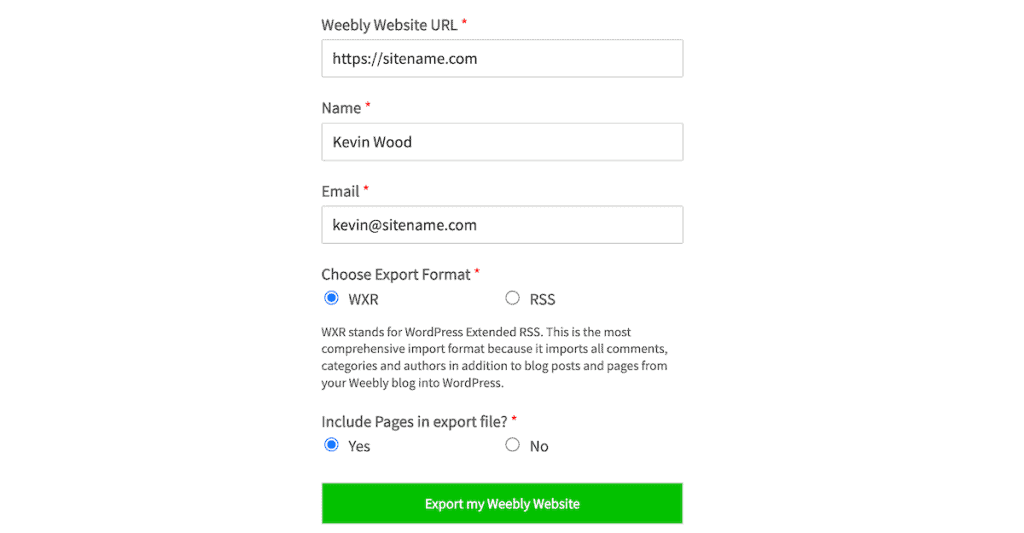
Enter your Weebly site URL in the field provided. If you disabled SSL, use http:// rather than https:// at the beginning of the URL. Fill in your name and email address.
For the export format, WXR is the recommended choice. It preserves categories, comments, and author information. The RSS option works for simpler blogs but loses some of that metadata. Then, select Yes when asked about including pages in the export. Then, click Export my Weebly Website to start the process.
When the export finishes, right-click the download button and select Save link as to download the export.xml file to your computer.
Import Into WordPress
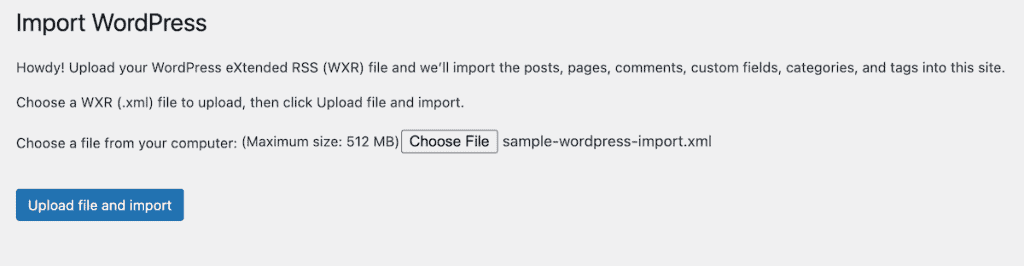
In your WordPress dashboard, navigate to Tools > Import. Then, find WordPress in the list of available importers and click Install Now. Once installed, click Run Importer.

After that, click Choose File and select the export.xml file you downloaded and click Upload file and import.
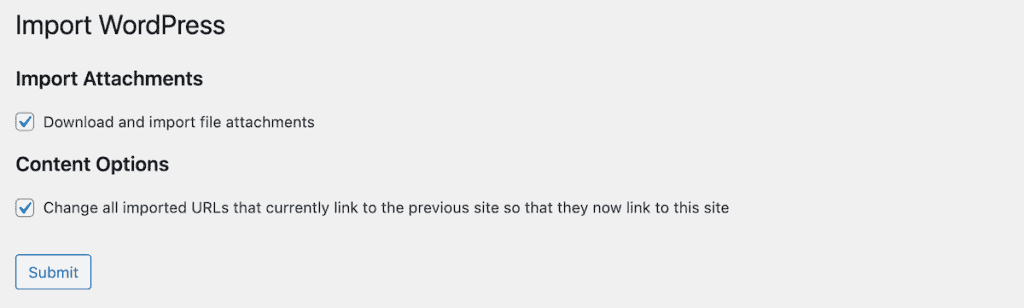
On the next screen, make sure to check the box for Download and import file attachments and you can check the box that says Change all imported URLs that currently link to the previous site so that they now link to this site. This tells WordPress to pull your images from Weebly and add them to your media library and update your links to your new site. Click Submit to begin the import.
Verify the Import
Once the import completes, WordPress displays a success message. Now it’s time to verify everything came through correctly.
First, go to Posts > All Posts to see your imported blog content. Then, go to Pages > All Pages to confirm your static pages made it over. Then, visit the Media Library to verify your images were imported.
Next, open a few posts and pages to spot-check the content. Make sure text, images, and formatting look correct. Some minor formatting adjustments may be needed, but the bulk of your content should be intact.
If you disabled SSL on your Weebly site earlier, you can leave it disabled for now since you’ll be pointing your domain to WordPress soon anyway. Your WordPress site will have its own SSL certificate configured through your hosting provider.
Method 2: Using RSS Feed and Feedzy Plugin
This method works well for blog-heavy sites and doesn’t require any external tools. It’s completely free and handled entirely within WordPress.
The limitation to understand upfront is that RSS feeds only contain blog posts, not pages. If your Weebly site has static pages like About, Contact, or Services, you’ll need to recreate those manually in WordPress after importing your posts.
Find Your Weebly RSS Feed URL
Every Weebly blog has an RSS feed that contains all your published posts. The URL typically follows the format yoursite.com/1/feed for your first blog. If you have multiple blogs on your Weebly site, subsequent ones would be /2/feed, /3/feed, and so on.
Another way to find the feed URL is to visit your Weebly blog page and look for the RSS icon, usually in the sidebar. Right-click it and copy the link address.
Test the feed URL by pasting the link into your browser. You should see XML content containing your blog posts. If you get an error, double-check the URL format.

Install Feedzy RSS Aggregator
In your WordPress dashboard (on your new WordPress install), go to Plugins > Add Plugin. Search for Feedzy RSS Aggregator and find the plugin by Starter Theme (it has over 50,000 active installations). Then, click Install Now and Activate once installation completes.

Create an Import
With Feedzy active, go to Feedzy > Import Posts. Click the New Import button to set up your migration.

Give the import a descriptive name like Weebly Migration so you can identify it later. In the Source field, paste your Weebly RSS feed URL.

Under the Map content section, you can set the Post Status to Draft rather than Publish. This lets you review each imported post before it goes live on your new site. Assign a default category and author for the imported content.

Click Save & Activate Importing to create and start the import. Feedzy will fetch your RSS feed and create WordPress posts from the content. Depending on how many posts you have, this may take a few moments.

Once it’s done, go to Posts > All Posts to see your imported content. Open several posts to verify the content transferred correctly. You can publish the posts live after you’ve reviewed them.

Since RSS doesn’t include pages, you’ll need to recreate your Weebly pages in WordPress by hand.
Go to Pages > Add New in your WordPress dashboard. Open your Weebly site in another browser tab. Copy the content from each Weebly page and paste it into a new WordPress page. Save and repeat for all your pages.

For sites with only a few pages, this process goes quickly. The content is already written, so you’re just moving it to a new home.
After the import is complete and verified, you can deactivate and delete the Feedzy plugin. It’s only needed for the migration itself.
Method 3: Manually Migrate Your Weebly Site to WordPress
For small sites with limited content, manual migration sometimes makes the most sense. If you have fewer than ten pages and posts combined, copying and pasting may actually be faster than configuring import tools.
This method also gives you complete control over how content is structured in WordPress. You can reorganize, consolidate, or update content as you transfer it rather than importing everything exactly as it existed on Weebly.
Create Your Site Structure First
Before copying content, create the pages and posts in WordPress. Go to Pages > Add Page for each page on your Weebly site. Then, do the same under Posts for each blog entry. Creating the structure first speeds up the actual content transfer since you won’t have to stop and create new pages as you go.

Transfer Your Content
Then, open your Weebly site in one browser window and your WordPress dashboard in another. Position them side by side if your screen allows.

Navigate to a page on your Weebly site and select all the text content. Copy it and switch to WordPress. Open the corresponding page you created and paste the content into the editor. Review the formatting and make any needed adjustments, then save.
Repeat this process for all pages and posts. It’s methodical work, but for small sites, it doesn’t take long.
Handle Images
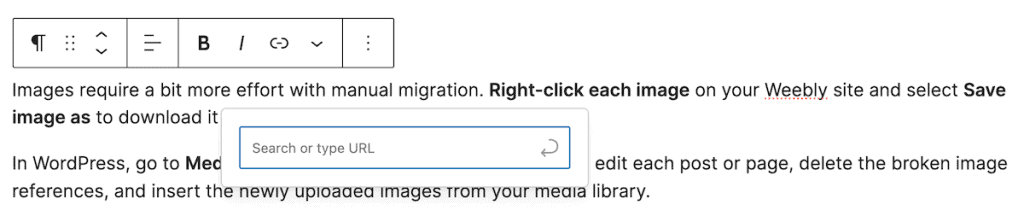
Images require a bit more effort with manual migration. Right-click each image on your Weebly site and select Save image as to download it to your computer.
In WordPress, go to Media > Add New to upload your images. Then edit each post or page, delete the broken image references, and insert the newly uploaded images from your media library.
Update Internal Links
As you transfer content, watch for internal links that point to other pages on your site. These will still reference your Weebly URLs and need to be updated to point to the corresponding WordPress pages.
Click each link in the WordPress editor and update the URL to the correct WordPress page address.
Import External Images From Weebly to WordPress
Regardless of which migration method you used, images don’t always transfer perfectly. Some may still be linked to your old Weebly site rather than stored in your WordPress media library. One way to fix this is using the Smart Auto Upload Images plugin. This plugin scans your posts for external images and imports them directly into your WordPress media library. It doesn’t have a ton of reviews, but testing the plugin it worked great.
Go to Plugins > Add Plugin and search for Smart Auto Upload Images. Install and activate the plugin. The great thing about this plugin is that it’ll find and download your external images automatically. Whenever you save a page or post the plugin will automatically check for external images.
Once the plugin is installed you can review the plugin settings by going to Settings > Smart Auto Upload Images. The default settings should work fine for most site owners.

After that, you can open an individual page or post and click Save and your images will automatically update.
If you want to update images on multiple posts, then go to Posts > All Posts. Select multiple posts using the checkboxes. Open the Bulk Actions dropdown and choose Edit and click Apply. After that, click Update and it’ll save all the posts on your site.

Once you’re finished, you can deactivate the plugin so it won’t interfere with any future images.
Setting Up Your Website Permalinks
Your URL structure affects both user experience and SEO. Matching your Weebly URLs as closely as possible helps preserve any search engine rankings you’ve built. Weebly typically uses a URL format like yoursite.com/blog/post-title for blog posts. To match this in WordPress, go to Settings > Permalinks.
Then, select Custom Structure and enter /blog/%postname% in the field and click Save Changes.

Handle .html Extensions
If your Weebly pages used .html extensions in their URLs (like yoursite.com/about.html), you can replicate this in WordPress.
To do this, you’ll want to install the Add Any Extension to Pages plugin. You can install and activate this plugin just like any other plugin above. After activation, go to Settings > Add Any Extension to Pages. Then, enter .html in the field and click Update Settings.

After that, return to Settings > Permalinks, and click Save Changes again. This flushes the permalink cache and activates the new extension. You don’t have to do anything else, the permalinks will update automatically.
Set Up Redirects
Redirects ensure visitors who have bookmarked your old URLs or find them in search results can still reach your content. You’ll want to make sure all of your redirects works properly, so you don’t end up with any 404 errors.
If you used a custom domain with Weebly, you’ll redirect by updating your domain’s DNS settings.
Log in to your domain registrar (wherever you purchased the domain). Find the nameserver settings and update them to point to your WordPress host. SupportHost and other providers will give you the specific nameserver addresses to use.

After making DNS changes, allow up to 48 hours for propagation. During this time, some visitors may see your old Weebly site while others see the new WordPress site. This is normal and resolves itself as DNS updates spread across the internet.
If your Weebly site uses a subdomain like yoursite.weebly.com, then the situation is different. You don’t own that domain, Weebly does, which means you can’t set up a true 301 redirect.
The reality for anyone using a Weebly subdomain is your search rankings you’ve built won’t follow you to your new WordPress site. You’re essentially starting fresh with a new domain.
To make things easier, make sure you update any external links like social media profiles to your new WordPress site. Then, focus your energy on improving your SEO with WordPress. The good news is WordPress has all kinds of incredible SEO plugins and tools that go well beyond what Weebly offers.
Final Migrate Weebly to WordPress Steps
With content migrated and URLs configured, there are a few more things to do to complete your WordPress website.
Choose and Customize a WordPress Theme
Weebly and WordPress use completely different design systems, so your site won’t look the same automatically. If you like your existing site design, then you’ll need to find a WordPress theme that matches the appearance. You can navigate to Appearance > Themes to browse the current free theme selection. For more information on finding the perfect theme see our guide on choosing a WordPress theme.

Once your theme is installed and active you may have some built-in theme customization options. You can also customize your theme by going to Appearance > Customize and using the site editor to adjust colors, fonts, navigation, and more.

Install Essential WordPress Plugins
Unlike Weebly, where features are built into the platform, WordPress uses plugins to add functionality. There are literally thousands of WordPress plugins that can add basically any feature you require to your site. For example, there are SEO plugins that can help improve your search engine rankings and get more traffic, form plugins to collect leads, create contact forms, take payments, and more, and security plugins that can elevate your website security.
Yes, plugins can add a ton of useful features to your site, but make sure you’re only installing the plugins that you need, since installing too many can slow down your site.
FAQs: Migrate Weebly to WordPress
Will I lose my Google rankings?
Not if you migrate Weebly to WordPress properly. Setting up 301 redirects from old URLs to new ones transfers most of your SEO value. After migration, submit your new sitemap to Google Search Console so Google can discover and index your updated site. Some temporary fluctuation in rankings is normal, but they typically stabilize within a few weeks.
Can I migrate my Weebly online store?
Yes, but e-commerce migration is more complex than a standard content site. You’ll need to export your products as a CSV file from Weebly, then import them into WooCommerce on WordPress. Order history and customer data require separate handling and may need custom solutions depending on your needs.
How long does migration take?
Most sites can be migrated in one to two hours of focused work. Larger sites with extensive content take longer. Keep in mind that DNS propagation after pointing your domain to WordPress can take up to 48 hours, though it often completes much faster.
Do I need to delete my Weebly site immediately?
No, and you shouldn’t. Keep your Weebly site active until you’ve thoroughly tested your WordPress site and confirmed everything works correctly. Only cancel your Weebly account after you’re completely confident the migration is successful.
Can I keep my domain name?
Absolutely. Your domain name is separate from your hosting. If you registered the domain through Weebly, you can either transfer it to a different registrar or simply update the nameservers to point to your WordPress host. Either way, you keep the same domain.
What if I don’t want to do this myself?
If you’re migrating from Weebly, you’ll need to handle the bulk of the migration yourself. That’s why it’s so important to spend time up front choosing a platform you’re going to use over the long term. However, if you’re transferring between a previous WordPress host, then you can use migration assistance to take care of the migration for you.
Closing Thoughts: Migrate Weebly to WordPress Successfully
This guide covered what you need to do before migrating, three different methods for transferring content, and the post-migration steps required to get your WordPress site fully operational.
The converter tool method works best for most people since it handles both posts and pages in one export. The RSS method with Feedzy is a solid free option for blog-focused sites. While, manual migration makes sense for very small sites where the simplicity outweighs the time investment.
Whichever method you choose, WordPress offers far more flexibility than Weebly once the migration is complete. The plugin ecosystem, theme options, and complete ownership of your site open up possibilities that simply don’t exist on closed platforms.
If you’re looking for WordPress hosting that makes migration easy, SupportHost offers plans with WordPress pre-installed and migration support available. The team can help ensure your transition goes smoothly.
Now it’s your turn. Have you migrated from Weebly to WordPress? Which method worked best for you? Let us know in the comments.
Ready to build your WordPress site?
Try our service free for 14 days. No obligation, no credit card required.


