

Are you looking for the right keywords for your website but don’t want to pay for expensive research tools? You’re not alone. Most popular keyword tools charge $100 or more per month, which isn’t realistic if you’re just getting started with SEO or running your first Google Ads campaign.
Google Keyword Planner solves this. It’s free, uses Google’s data, and works for both organic and paid keywords. Its main focus is advertisers, so using it for SEO requires some know-how.
Below, you’ll learn how to access Google Keyword Planner, how to find and filter keywords, and how to use the tool for both SEO and Google Ads. We’ll also cover tips and workarounds to help you get more value out of the tool than most people realize. Let’s get into it.
Table of Contents
What Is Google Keyword Planner?
Google Keyword Planner is a free keyword research tool built into the Google Ads platform. It helps you discover new keywords, view search volume estimates, check advertiser competition levels, and forecast how keywords might perform in paid campaigns.
The tool has two main features. Discover new keywords lets you enter seed keywords or a website URL to generate keyword ideas. Get search volume and forecasts lets you analyze an existing keyword list and see performance predictions.
Google built this tool for advertisers. That means some of the data, like the Competition column, measures ad competition, not organic ranking difficulty. That said, Keyword Planner is still one of the most useful free tools for SEO when you know how to work with it.
How to Access Google Keyword Planner
Before you can use Keyword Planner, you need a Google Ads account. The good news is you don’t need to spend money on ads. You do, however, need to go through the account setup process, which includes adding billing information.
Don’t worry. Google won’t charge you unless you actually launch an ad campaign. Let’s walk through the setup.
1. Create a Google Account
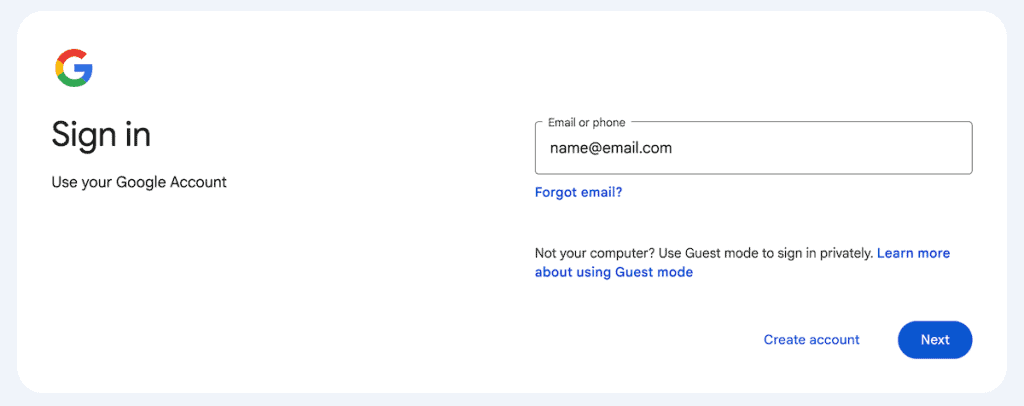
If you don’t already have a Google account, head to accounts.google.com and follow the prompts. You can use an existing email or create a new Gmail address during the process.
2. Set Up a Google Ads Account
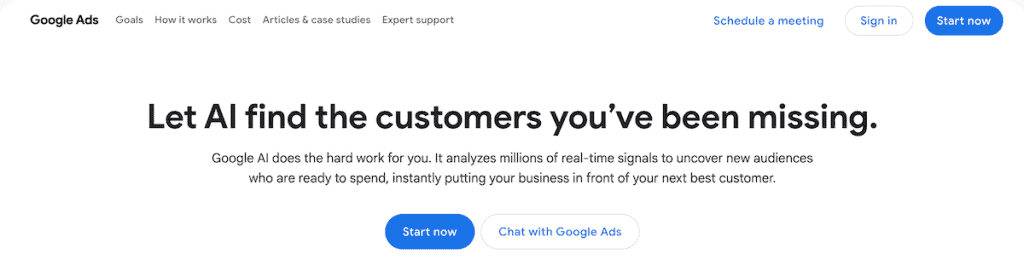
Next, go to ads.google.com and click Start Now. You’ll need to enter some basic information like your website domain name, however, you can bypass the rest of the campaign information and fill it out later.
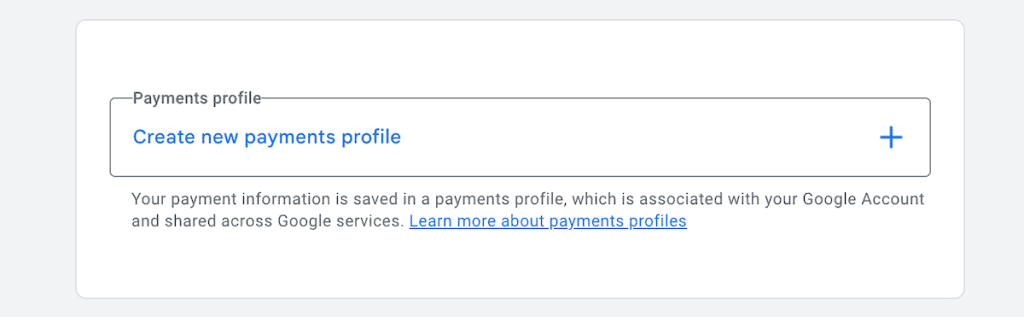
Next, choose your billing country, time zone, and currency. Google will then prompt you to set up a payment profile and enter a payment method. If you use a credit card, Google may place a temporary hold (usually $1–$10), which is removed within a week.
Next, you’ll go through some verification questions before your account is finalized. Once your account is ready, navigate to Tools > Planning > Keyword Planner in the left-hand menu. You’re in.

How to Find New Keywords with Keyword Planner
Inside Keyword Planner, you’ll see two options: Discover new keywords and Get search volume and forecasts. For finding new keyword ideas, click Discover new keywords.
From here, you have two ways to start your research.
Start with Keywords
This is the most common method. Enter up to 10 seed keywords related to your business or topic. For a coffee shop, try “coffee beans,” “espresso,” and “cold brew.”
You can set your target language and location before running the search. There’s also an optional field to enter your website URL, which tells Google to filter out irrelevant keywords.
Click Get Results, and Keyword Planner will generate a list of keyword ideas based on your seed terms.

Start with a Website
The second option is to enter a website URL instead of keywords. You can use your own site or a competitor’s. This is a great way to see which keywords Google associates with a specific page or domain.

You can choose to scan the entire domain or a single page. If you’re writing a blog post on a specific topic, scanning a competitor’s article on that same topic can surface keyword ideas you might not have thought of.
Understanding the Keyword Ideas Table
After running your search, Keyword Planner displays a table with several metrics. Here’s a quick breakdown of each one.

Average Monthly Searches shows how often a keyword is searched per month, displayed as a range like 100–1K or 1K–10K. These are broad ranges, not exact numbers. You’ll only see precise volumes with active ad campaigns running.
Competition measures advertiser competition, not organic SEO difficulty. It’s displayed as Low, Medium, or High based on how many advertisers are bidding on the keyword.
Top of Page Bid (Low and High Range) shows the estimated cost-per-click advertisers pay. Even for SEO, this is useful because a high CPC usually means the keyword has strong commercial value.
Three Month Change shows the percentage change in search volume over the last three months compared to the previous quarter. Great for spotting seasonal keywords.
Year-over-Year Change compares volume to the same period last year. A high value might indicate a trending topic.
How to Refine and Filter Your Keyword List
Your initial search will likely return hundreds or thousands of keyword ideas. Not all of them will be relevant. Here’s how to narrow things down.
Using Built-In Filters
Click the Add Filter button above the keyword table to access filtering options. You can filter by competition level, keyword text, top-of-page bid, and more.

The Keyword text filter is one of the most useful. It lets you include or exclude keywords containing specific words.
For example, if you sell leather handbags and don’t carry faux leather, you can exclude keywords containing “faux.” You can also use Semantic Match, which extends the filter to keywords with a similar meaning.
Using the Refine Keywords Feature
Click Refine Keywords to access category-based filters. Depending on your list, you might see filters for brand vs. non-brand terms, product categories, platforms, and more.

This is a quick way to clean up your list without setting up individual text filters for every irrelevant term.
Excluding Negative Keywords
If certain terms keep showing up but aren’t relevant, add them to a negative keyword list. Navigate to the Negative Keywords tab in your keyword plan and add any terms you want removed.

This is especially important for Google Ads, since targeting irrelevant keywords means paying for clicks that won’t convert.
Saving Keywords to Your Plan
Once you’ve narrowed your list, select the keywords you want and click Add keywords to create plan. You’ll choose a match type: broad, phrase, or exact. Save your best keywords so you don’t lose them when you exit the Ideas tab.

You can find everything under the Saved Keywords tab.
How to Use Keyword Planner for SEO
Keyword Planner was designed for advertisers, but it’s still useful for organic keyword research. You just need to know its strengths and work around its limitations. Let’s break it down.
Finding Long-Tail Keywords
Long-tail keywords are longer, more specific search queries that tend to have lower competition. These are often the best keywords to target if you’re building a new website or competing in a crowded niche.
Sort your results by average monthly searches, starting from the lowest. Lower-volume keywords tend to be more specific and often easier to rank for. That said, low volume doesn’t automatically mean low competition, so verify difficulty with another tool.

Spotting Seasonal and Trending Keywords
Two of the most underused columns are Three Month Change and Year-over-Year Change. Keywords with a high quarterly change often have a seasonal pattern, which is helpful if you’re planning content around holidays or recurring events.

A high year-over-year change might indicate a trending topic. Catching these early gives you a head start before competitors create content around it.
Spying on Competitor Keywords
One of the most valuable SEO features is entering a competitor’s URL in the Start with a website option. For best results, use the Use this page only option and enter a specific article or product page.

You’ll get a more targeted list compared to scanning their full domain.

Understanding the SEO Limitations
There are a few things Keyword Planner doesn’t do well for SEO. It doesn’t provide a keyword difficulty score for organic search, and the Competition column only measures advertiser activity.
Search volume is also shown as broad ranges unless you have active ad spend. A keyword with a range of 1K–10K could have 1,500 searches or 9,000, and there’s no way to tell.
To fill these gaps, pair Keyword Planner with free tools like Google Search Console (for real click and impression data), AnswerThePublic (for question-based keyword ideas), or browser extensions like Keywords Everywhere (for SEO difficulty scores in your search results).
The best approach is to use Keyword Planner to generate keyword lists, then analyze those lists with other tools for exact volume and difficulty data.
How to Use Keyword Planner for Google Ads
If you’re running paid search campaigns, Keyword Planner really comes into its own. This is what the tool was built for. Let’s walk through the key features.
Using the Forecast Tab
After saving keywords to your plan, click the Forecast tab. This is where Keyword Planner estimates how your keywords might perform in a paid campaign.

You’ll see projections for clicks, impressions, cost, average CPC, and click-through rate. These forecasts refresh daily based on the last 7 to 10 days of data, adjusted for seasonality.
You can also add conversion metrics by entering your estimated conversion rate and the value of each conversion. This gives you a clearer picture of potential ROI for your keyword plan.
Adjusting Your Bid Strategy
By default, Keyword Planner uses a Maximize Clicks strategy. You can switch this to Maximize Conversions or set a Manual CPC limit.

Manual CPC is particularly useful for simulations. Adjust the cost-per-click up and down to see how it affects projected clicks and spend. This lets you test different budget scenarios before committing real money.
Leveraging Location and Device Breakdowns
A relatively recent update added the ability to break down forecasts by city, region, and device type (mobile, desktop, and tablet). This is valuable if you’re targeting specific areas or your audience skews toward mobile.
Access these breakdowns through the charts in the Forecast tab. For example, you might discover that 70% of projected clicks come from mobile, which could influence your ad creative and landing page design.

You can also narrow your analysis to specific cities and postal codes, which is useful for local businesses or region-specific campaigns.
Tips to Get More Out of Google Keyword Planner
Keyword Planner has more depth than most people realize. Here are a few tips to help you get more from the tool.
Get More Precise Search Volumes Without Running Ads
The broad search volume ranges are one of the biggest complaints. Here’s a workaround.
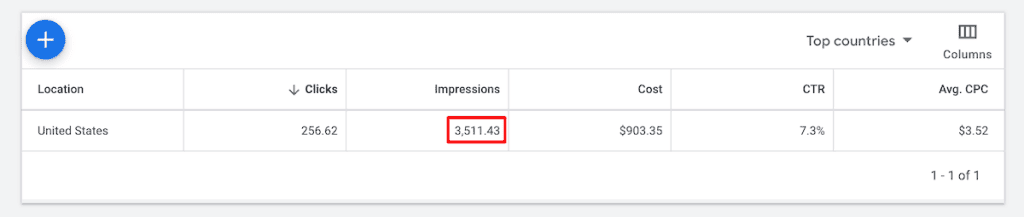
Search for the keyword you want to analyze, select it, set the match type to Exact, and add it to your plan.

Navigate to the Forecast tab and switch to Manual CPC with the maximum value.

You’ll see monthly click projections that give you a better sense of actual demand. This method is still an estimate and tends to be more accurate for commercial keywords. But it’s a solid free alternative to paying for a third-party tool.
Work Around the 10-Keyword Seed Limit
Keyword Planner only lets you enter 10 seed keywords at a time. To research more terms, run your initial search and save the generated ideas to your plan. Then go back, remove the original seeds, enter new ones, and search again.
The new ideas will be added alongside what you’ve already saved.
Use Local Search Volumes for Local SEO
Most paid keyword tools only show volume at the country level. Keyword Planner lets you drill down to regions, cities, and postal codes. If you’re a local business or working on a local SEO strategy, this data is incredibly valuable.
Change the location setting in the Forecast tab from the country level to a smaller area, like a state or city.

Export Your Keyword Lists
You can download keyword ideas and saved plans as CSV files. This makes it easy to analyze data in a spreadsheet, share it with your team, or import it into other SEO plugins and tools for further analysis.
Combine Keyword Planner with Google Search Console
Google Search Console shows you the actual keywords people use to find your site, along with real click and impression data.
Cross-referencing this with Keyword Planner helps you spot new opportunities. If Search Console shows impressions for a keyword you’re not targeting, research it in Keyword Planner to see its full potential.
Limitations of Google Keyword Planner
While Keyword Planner is a great starting point, it has some clear limitations for SEO.
The biggest is the broad search volume ranges. Without active ad spend, you’re working with estimates like 1K–10K, making it tough to prioritize keywords or forecast traffic accurately.
There’s also no organic keyword difficulty metric. The Competition column only reflects advertiser activity. If ranking difficulty matters to your strategy (and it should), you’ll need another tool.
Keyword Planner also generates fewer keyword suggestions than paid tools. Where Semrush or Ahrefs might return tens of thousands of ideas, Keyword Planner typically returns a few thousand at most.
That said, it has unique advantages. It pulls data directly from Google, it can suggest keywords that don’t contain your seed terms (something many paid tools can’t do), and it offers local search data at the city level. The best approach is to use it alongside other tools rather than relying on it alone.
Google Keyword Planner at a Glance
Here’s a quick overview of the features you get access to when you have a free account, or an account with active ad spend:
Feature | Free Account | Active ad spend | details |
|---|---|---|---|
Discover New Keywords | Yes | Yes | Up to 10 seed keywords per search |
Search Volume Data | Broad ranges | Exact numbers | Ranges like 1K–10K vs. precise counts |
Ad Competition Data | Yes | Yes | Low, Medium, or High |
SEO Difficulty Score | No | No | Use a third-party tool |
Forecasts (Clicks, CPC) | Yes | Yes | Refreshed daily |
Location Breakdowns | Yes | Yes | Country, region, city, postal code |
Device Breakdowns | Yes | Yes | Mobile, desktop, tablet |
Competitor URL Analysis | Yes | Yes | Full domain or single page |
Google Keyword Planner FAQs
Is Google Keyword Planner free?
Yes, it’s completely free. You need a Google Ads account to access it, and Google will ask for billing information during setup, but you won’t be charged unless you create and run an ad campaign.
Do I need to run ads to use Keyword Planner?
No. You can create a Google Ads account without launching a campaign and still access Keyword Planner. The main difference is that accounts without active ad spend see search volume as broad ranges instead of exact numbers.
Can I use Keyword Planner for SEO?
Yes, it’s useful for discovering keyword ideas, spotting trends, and analyzing competitor content. It doesn’t provide organic keyword difficulty scores, though, so you’ll want to pair it with another tool for that.
How accurate is the search volume data?
The data is directional rather than exact. Without active ad spend, volumes appear as ranges. Even “exact” numbers with ad spend are rounded estimates. For the most accurate picture, combine Keyword Planner data with Google Search Console and other keyword tools.
What’s the difference between the Competition column and SEO difficulty?
The Competition column measures how many advertisers are bidding on a keyword in Google Ads. It has nothing to do with organic ranking difficulty. For that, you’ll need a separate SEO tool.
Closing Thoughts: Getting the Most Out of Google Keyword Planner
Google Keyword Planner is one of the best free tools for keyword research, whether you’re focused on SEO, running Google Ads, or both. It’s not perfect, and it works best when paired with other tools, but it gives you data that comes directly from Google. That’s hard to beat.
For SEO, use it to generate keyword ideas, spy on competitor content, and spot seasonal or trending terms. Then, verify your best keywords with tools like Google Search Console or Keywords Everywhere for difficulty and exact volume data.
For paid campaigns, take advantage of the Forecast tab to simulate budget scenarios and use location and device breakdowns to fine-tune your targeting.
The most important takeaway is not to rely on a single tool for keyword research. Keyword Planner is a strong starting point, and combining it with other data sources gives you a much clearer picture of which keywords are worth going after.
Now over to you. Have you used Google Keyword Planner for your SEO or ad campaigns? Share your experience in the comments below.
Ready to build your WordPress site?
Try our service free for 14 days. No obligation, no credit card required.


