

You’ve just finished creating your first digital product. It could be a simple eBook, a set of Photoshop brushes, or even a WordPress plugin. You’re ready to start selling, but where do you begin?
Gumroad takes 10% of every sale. Shopify charges $29 monthly whether you sell anything or not. And WooCommerce? It works great, but it’s more complex than you need.
Luckily, selling digital products on WordPress doesn’t have to drain your wallet or require hours to set up.
That’s where Easy Digital Downloads comes in. It’s free, built for digital products, and you can have your first product up for sale in as little time as possible.
Below, we’ll dive deep into Easy Digital Downloads. You’ll learn how to set it up, which settings matter, and the differences between the free and pro versions, so you can decide what’s right for you.
Table of Contents
What Makes Easy Digital Downloads Different
Before we dive into the setup, let’s highlight some of the main reasons Easy Digital Downloads could be the right WordPress plugin for you.
It’s not just another eCommerce plugin. It’s laser-focused on digital products. No shipping calculations. No inventory management. No physical product complications. Just clean, simple digital sales.
The plugin currently powers over 50,000 stores (for the free version), and has a 4.7/5 star rating with over 500+ five-star reviews.
Here’s what the free version includes:
- Unlimited products
- Unlimited transactions
- No commission fees
- Complete shopping cart
- Payment processing (Stripe, PayPal, Square)
- Customer management
- Basic reporting
For comparison, platforms like Gumroad charge 10% per transaction, while services like SendOwl and Sellfy start at $15-29 monthly. Whether that matters depends on your sales volume and needs.
The main advantage of Easy Digital Downloads is data ownership. Your customer list, sales data, and entire business stay on your server. You’re not dependent on a third-party platform that could change terms, raise prices, or shut down.
How to Install Easy Digital Downloads (The Right Way)
Now that you understand the benefits of the plugin, let’s install it and get it going on your WordPress site. It only takes about 5 minutes if you follow these steps.
1. Install the Plugin
First, log in to your WordPress admin area and navigate to Plugins > Add Plugin. Then, search for Easy Digital Downloads and click Install Now, then click Activate.

Once it’s installed, you’ll have a new menu option called Downloads in your sidebar.
2. Run the Setup Wizard
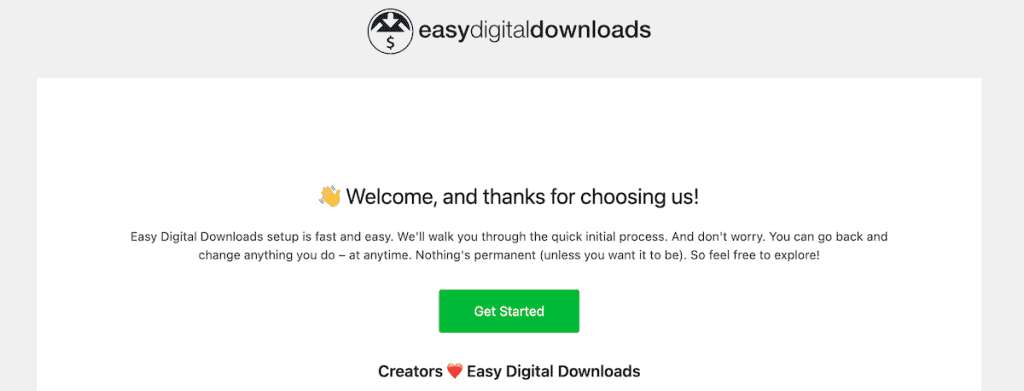
After activating the plugin, Easy Digital Downloads automatically launches a setup wizard. Don’t skip this, it handles important configuration that can be annoying to set up manually. First thing, click Get Started.
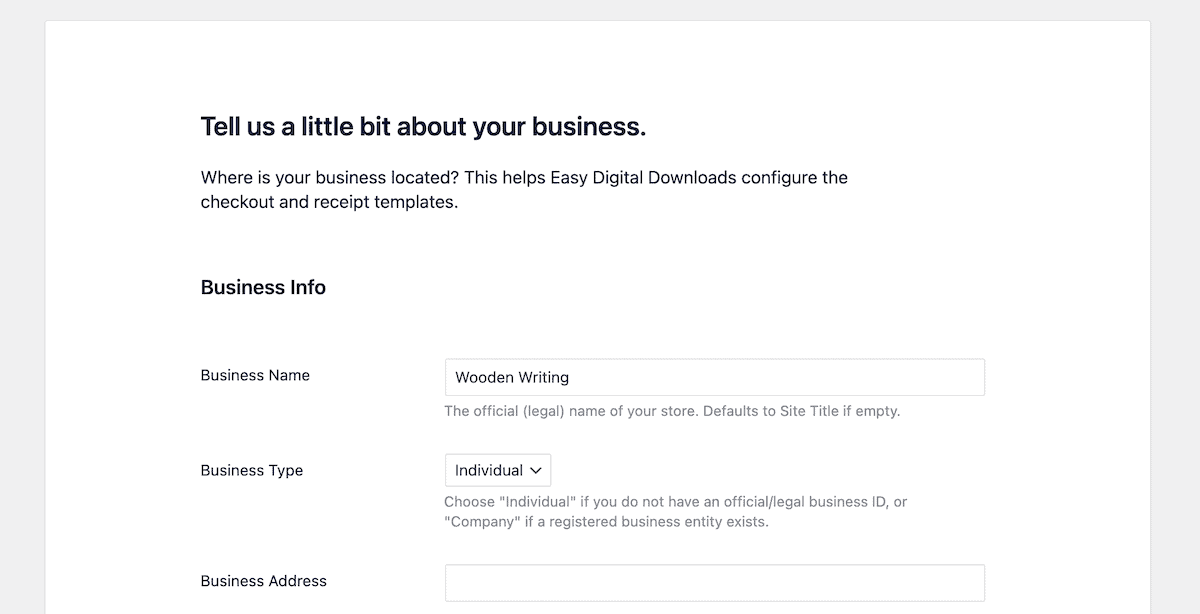
Then, you’ll need to give a little information about your business, including your business name, address, business type, and currency. This info will determine your tax rates and available payment methods.
After that, you have the option to immediately connect with Stripe. It’s one of the most commonly used payment methods online and makes selling and collecting payments incredibly easy. However, other payment options are available, including PayPal and Square.
If you want to get started with Stripe, then click the Connect with Stripe button.

If you need more information, read the article on how to integrate Stripe on a WordPress site.
On the next screen, you can customize how your receipts will display, and you can customize your message. Note that this also includes the download links for the digital products they just purchased.

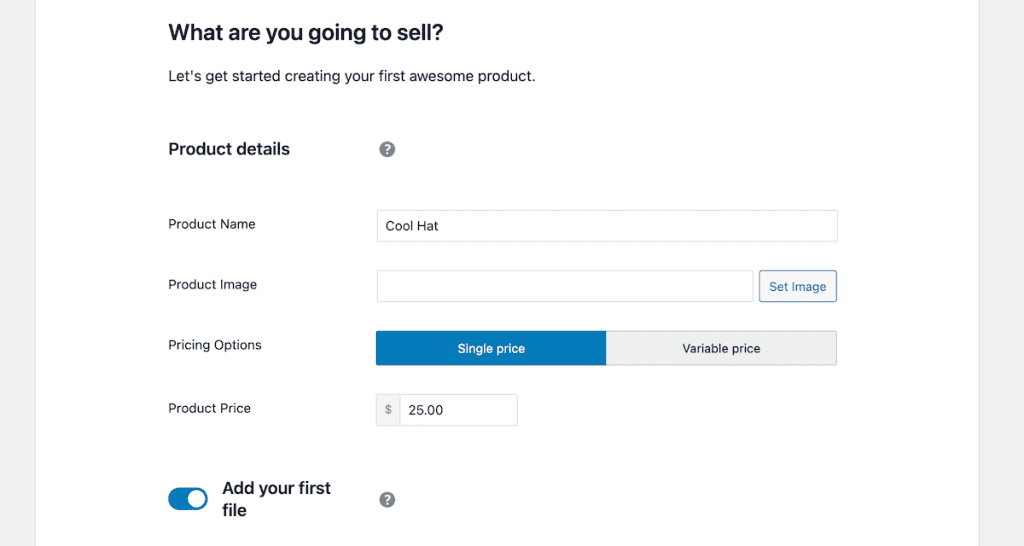
Finally, you’ll be asked to enter information about your product. You’ll need to enter your product name, image, choose your price and pricing options, and then upload your first file.
You can add more product information later, and this won’t publish your product live, but simply gives you a head start on creating your first product listing later.
3. Configuring Additional Store Settings
If you followed the setup wizard above, then you have a great foundation. Below, we’ll go through a few more of the settings that are worth customizing. You can keep the default settings, but we’ll offer a few recommendations that can improve your conversions.
First, navigate to Downloads > Settings and you’ll see a bunch of tabs. In the General Settings section, you can keep most of the settings the same. However, make any changes you see fit.
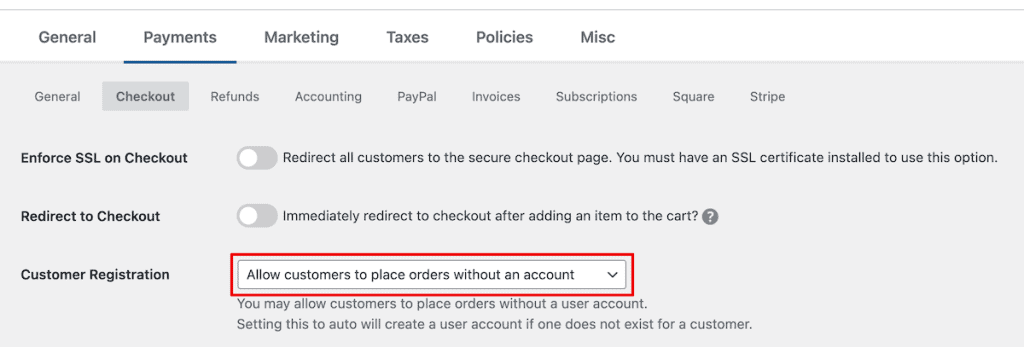
Next, you have the Payments tab. First, click Checkout and then make sure the Allow customers to place orders without an account option is selected in the the Customer Registration section. This makes it so you’re not forcing users to create an account and adding friction to the checkout process.
Then, you’ll want to configure your payment method of choice. You can click the PayPal, Square, or Stripe tabs and setup your preferred payment processor.
Easy Digital Downloads includes four payment gateways for free:
- Stripe. This lets you accept credit cards directly on your site. Customers never leave your checkout page. Processing fees are 2.9% + 30¢ per transaction.
- PayPal. The old reliable. Redirects customers to PayPal to pay, then back to your site. Same fees as Stripe, but a clunkier checkout experience.
- Square. This payment processor is similar to Stripe and very easy to setup. It works great for US-based payments and the fees are 2.6% + 10¢ per transaction.
- Test Gateway. For testing before you go live. It simulates successful payments without real money. You can enable this by going to Payments > General.
The best option is to use Stripe. (If you used the setup wizard above then you might already have Stripe connected).

PayPal makes customers leave your site to pay. That’s an extra step where they might bail. Stripe keeps everything on your site, supports Apple Pay and Google Pay automatically, and handles international payments better.
To set up Stripe:
- Create a free account at stripe.com
- Get your API keys from the Stripe dashboard
- Enter them in Easy Digital Downloads settings
- Test a purchase before going live.
That’s it. You’re now ready to accept payments from 195 countries.
Email Configuration
Listen carefully because this is where most stores fail.
Your customers receive their digital products via email. If emails don’t arrive, you’ll deal with angry customers, chargebacks, and bad reviews.
WordPress doesn’t send emails reliably by default. To send emails effectively you need to use WordPress SMTP.
First, install WP Mail SMTP (it’s free). Configure it with one of these services:
- SendGrid. 100 emails/day free forever
- Brevo. 300 emails/day free
- Mailgun. First 5,000 emails free
- Amazon SES. $0.10 per 1,000 emails (cheapest for volume)
Once SMTP is configured, go to Downloads > Emails and customize your Purchase Receipt and other email templates.

Clicking on the Settings tab will give you additional options to upload your logo, set the From Name to your business name, set your email address, and more.

Test this thoroughly. Send test purchases to different email providers. Check spam folders. Make sure everything arrives.
4. Creating Your First Digital Product
Alright, now it’s time to create your first digital product. Navigate to Downloads > Downloads and click Add New.
This looks like the regular WordPress post editor because that’s exactly what it is. Easy Digital Downloads products are just special posts with commerce features attached.
Name your product clearly. “Ultimate Social Media Templates Pack” beats “Templates Package v2” every time.
Write your description like you’re explaining it to a friend. What problem does it solve? What’s included? Why should they care?
Use the WordPress editor normally. Add images, format text, and embed videos. This page becomes your product page.

Uploading Your Files
Next, scroll down to the Download Files box. This is crucial, do not upload files through the media library. Always upload through EDD’s interface.
Files uploaded through Easy Digital Downloads get protected automatically. They’re stored in /wp-content/uploads/edd/ with security rules preventing direct access.
Click Add New File and upload your product. You can attach multiple files to one product.

Maybe you’re selling:
- Main PDF guide
- Quick start video
- Bonus templates
- Future updates file
Each file gets its own row. Name them clearly so customers know what they’re downloading.
For files over 100MB, consider using Amazon S3 (requires the Amazon S3 extension). Large files can timeout during download on shared hosting.
Now it’s time to set your price.
The Download Prices box controls your pricing. You can select from a few different product types: single, bundle, or service.

You can choose standard pricing, or click the Create price variations for this download toggle to turn on variable pricing.

The variable price works for tiered pricing. For example, you could have a basic license for $19, a professional license for $49, and a developer license for $99.
Variable pricing dramatically increases average order value. People often choose the middle option just to be safe.
Viewing Sales Data and Reports
Another useful feature of this plugin is the ability to view your sales data. This will show you your store’s sales and income over time. If you’re selling multiple products, then you’ll be able to see which products are performing the best.
To view your data navigate to Downloads > Reports and you’ll see an overview of your sales data. The initial screen shows you a visual breakdown of your sales and earnings, average order value, new customers, and more.

Beyond that, you can dive deep into:
- Your top selling downloads
- Your most valuable download
- Your sales trends over time
- Your earnings by category
- Refund data
- Breakdown by payment gateway
- Tax breakdown
- Total number of refunds
- Discount performance
- And your customer list
You also have full control over the time period you’re viewing and can export your data for more detailed analysis, or to import into your accounting tools.
The Free Version vs Paid Tiers (What You Actually Get)
Now that you’re well-versed in how the plugin works, let’s look at the main differences between the free and pro versions of the plugin.
The free Easy Digital Downloads plugin includes:
- Unlimited products
- Unlimited transactions
- Complete shopping cart
- Stripe, PayPal, and Square payments
- Customer management
- Discount codes
- Detailed reporting
- File protection
- Guest checkout
- RESTful API
- No transaction fees (besides payment processing)
That’s actually really good. You could run a successful six-figure business on just the free version.
When to Upgrade to the Premium Version
The paid versions add professional features through four tiers:
Personal – $99.50/year
Here are the features it adds:
- Recurring payments (subscriptions)
- Email marketing integrations
- Priority email support
If you want to sell subscriptions or memberships, then this plan is worth it.
Extended – $199.50/year
Everything in Personal plus:
- Product reviews
- Recommended products
- Cart abandonment recovery
- Advanced payment gateways
This plan helps to improve your marketing and gives you conversion optimization tools.
Professional – $299.50/year
Everything in Extended plus:
- Software licensing (huge for developers)
- Frontend submissions (marketplace features)
- Commissions (for multi-vendor)
- Invoicing
This plan is a good idea if you’re selling software or building a marketplace.
All Access Pass – $499.50/year
Everything. All 70+ extensions. Future extensions included.
If you’re an agency or running multiple stores, then this plan might be right for you.
The best way to do it is to start with the free version and upgrade once you require more features.
Run your store for at least a month on the free version. You’ll quickly learn what features you actually need versus what sounds cool but won’t impact your business.
Troubleshooting Download and Payment Issues in Easy Digital Downloads
Even with careful setup, you might run into problems. Here’s how to fix the most common ones.
When Downloads Won’t Work
If customers report 404 errors or “access denied” messages when trying to download their files, your file protection probably isn’t configured correctly.
First, check that your files are actually in the /wp-content/uploads/edd/ directory. Next, verify the .htaccess file exists and contains the proper rules. If you’re on Nginx, you’ll need to manually add rewrite rules to your server configuration.
Test the download links using an incognito browser window. If you can access files directly by URL without purchasing, the protection isn’t working.
When Purchase Emails Don’t Arrive
Missing purchase receipts are usually caused by one of three issues: no SMTP configuration, incorrect SPF/DKIM records, or aggressive spam filtering.
Check your email logs first (WP Mail SMTP provides these). If emails are being sent but not received, the problem is on the receiving end. If they’re not being sent at all, your SMTP configuration needs attention.
Always test with multiple email providers. What works for Gmail might fail for Outlook or Yahoo. Corporate email servers are particularly strict about accepting automated emails.
When Payments Fail to Process
Payment failures typically come down to incorrect API keys or misconfigured webhooks.
Double-check that you’re using the right keys for your environment. Live keys won’t work in test mode, and test keys won’t process real payments. Make sure your Stripe or PayPal webhook URLs are correctly entered and responding with 200 status codes.
If payments process but don’t show in EDD, webhooks are usually the culprit. Check your payment gateway’s webhook logs for failed delivery attempts.
When Checkout Takes Forever
Slow checkout pages will cost sales. The usual suspects are caching conflicts, too many active plugins, or inadequate hosting.
Make sure your caching plugin excludes the checkout page completely. Some plugins like security scanners or backup tools can severely impact checkout performance. Try disabling plugins one by one to identify the culprit.
If everything else checks out, your hosting might not be up to the task. Checkout pages require more resources than regular pages because they process forms, validate data, and communicate with payment processors.
Easy Digital Downloads FAQs
Can you use Easy Digital Downloads with any WordPress theme?
Yes, Easy Digital Downloads works with virtually any WordPress theme. Unlike WooCommerce, which often requires a compatible theme, Easy Digital Downloads integrates cleanly without special support. The checkout and product pages adapt to your theme’s styling automatically.
Do you need coding knowledge to use Easy Digital Downloads?
No coding required for basic setup and operation. The plugin uses a visual interface for everything from product creation to payment configuration. Advanced customizations might need CSS or PHP, but standard stores run fine without touching code.
What’s the difference between Easy Digital Downloads and WooCommerce for digital products?
Easy Digital Downloads is built exclusively for digital products, making it lighter and simpler. WooCommerce handles both physical and digital products but requires more configuration for digital-only stores. Easy Digital Downloads typically loads faster and has features specific to digital sales like software licensing and file protection built in.
How many products can you sell with the free version?
Unlimited. The free version has no restrictions on products, sales, or customers. You could theoretically run a million-dollar business on the free plugin. The paid versions add features, not capacity.
Is Easy Digital Downloads secure for selling digital products?
Yes, Easy Digital Downloads includes automatic file protection, secure download links, and PCI-compliant payment processing through Stripe and PayPal. Files are stored in protected directories with unique, expiring URLs for each purchase.
Can customers re-download their purchases?
Yes, customers can access their purchase history and re-download files within the limits you set. Default is unlimited downloads for 24 hours, but you can adjust both the number of downloads and time period.
In Closing: Your Next Steps With Easy Digital Downloads
You now know everything needed to launch a successful digital products store, and Easy Digital Downloads could be the plugin that helps you get there. Here’s a quick overview of the steps:
- Install EDD
- Run the setup wizard
- Configure SMTP immediately
- Set up Stripe for payments
- Create your first product
- Test the entire purchase flow
- Fix any issues you find
- Launch and start selling
The entire process takes maybe 2 hours if you follow this guide. Compare that to weeks of development with custom solutions.
Remember, Easy Digital Downloads is just a tool. Success comes from great products, solid marketing, and excellent customer service. The plugin handles the technical stuff so you can focus on growing your business.
One last thing to keep in mind is, start simple. Don’t try to build a complex marketplace on day one. Launch with one product, get some sales, learn what customers want, then expand.
The perfect store that never launches makes zero dollars. The imperfect store that starts selling today builds a real business.
Now over to you. Have you used Easy Digital Downloads? We’d love to hear about your experience in the comments below.
Ready to build your WordPress site?
Try our service free for 14 days. No obligation, no credit card required.


