

Adding dynamic content to your WordPress site usually means writing custom code. Maybe you want to display a photo gallery, embed a contact form, or insert an ad block into the middle of a blog post. Without the right tools, that means digging into PHP, HTML, or JavaScript every single time.
WordPress shortcodes let you skip all of that. These small snippets of code, wrapped in square brackets, act as shortcuts for more complex functions. Instead of writing dozens of lines of code, you paste a short tag like [ gallery ] into your content, and WordPress handles the rest.
Below, you’ll learn exactly what shortcodes are, how they work behind the scenes, and how to create your own. You’ll also find out where you can use them on your site and how to fix common issues if something goes wrong.
Table of Contents
What Are WordPress Shortcodes?
A WordPress shortcode is a small piece of text wrapped in square brackets that tells WordPress to execute a specific function. When WordPress encounters a shortcode in your post, page, or widget, it replaces that snippet with the output of whatever function is tied to it.
Here’s a quick example:
[gallery ids="1,2,3" columns="3"]Instead of writing a block of HTML and CSS to display three images in a grid, you paste that one line of code, and WordPress builds the gallery for you.
Shortcodes were introduced back in WordPress 2.5 to solve a real problem. Before shortcodes existed, adding dynamic elements to your content meant inserting raw PHP directly into posts. That was messy and a security risk. Shortcodes created a cleaner way to add functionality without touching backend code.
Here’s the basic anatomy of a shortcode:
- Opening bracket
[signals the start - Name tells WordPress which function to run (e.g.,
gallery,audio,video) - Attributes are optional parameters that customize the output (e.g.,
columns="3") - Content sits between an opening and closing tag (only for certain shortcodes)
- Closing bracket
]signals the end
You don’t need to be a developer to use shortcodes. Most WordPress plugins that add features like forms and sliders give you a shortcode you can copy and paste wherever you need it.
Shortcodes are also useful for developers and more experienced users. One of the biggest advantages is centralized management. If you use the same shortcode across 20 different pages and need to change something, you only edit the function once. That single change updates everywhere the shortcode appears.
Types of WordPress Shortcodes
Before you start using or creating shortcodes, it helps to understand the two main types. Each one works a little differently.
Self-Closing Shortcodes
A self-closing shortcode is a standalone tag that doesn’t need a closing bracket. You drop it into your content, and it does its thing.
Here’s an example:
[gallery ids="101,102,103" size="medium"]This tells WordPress to display a gallery using specific images at a medium size. There’s no content wrapped inside the shortcode. It handles everything on its own.
Self-closing shortcodes are the most common type you’ll come across, especially with WordPress plugins. Contact form plugins, gallery plugins, and slider plugins almost always use this format.
Enclosing Shortcodes
An enclosing shortcode has both an opening tag and a closing tag, with content placed in between. The shortcode applies its function to whatever content sits between those tags.
Here’s an example:
[highlight color="yellow"]This text will be highlighted.[/highlight]In this case, the shortcode wraps around the text and applies the highlighting effect. Notice the closing tag uses a forward slash / before the shortcode name, just like HTML.
Enclosing shortcodes give you more control because you can modify specific pieces of content rather than inserting a standalone element.
Built-in WordPress Shortcodes
WordPress comes with six native shortcodes that are ready to use right out of the box. You don’t need to install any plugins or write any code. These work regardless of which theme or page builder you’re using.
Here’s a breakdown of each one.
[ audio ] lets you embed an audio file directly into your content. Point it to the file URL, and WordPress will display a built-in audio player. Here’s an example:
[audio src="https://yoursite.com/audio-file.mp3"][ caption ] adds a caption to an image or another element. You wrap the content inside the shortcode and specify alignment and width. It’ll look something like this:
[caption id="attachment_1" align="aligncenter" width="300"]Your caption text here[/caption][ embed ] gives you more control when embedding external content like YouTube videos. WordPress can auto-embed URLs on its own, but this shortcode lets you set specific dimensions.
[embed width="600" height="400"]https://www.youtube.com/watch?v=example[/embed][ gallery ] creates an image gallery from your media library. You can specify which images to include, how many columns to display, and what size thumbnails to use.
[gallery ids="10,11,12" columns="3" size="thumbnail"][ playlist ] displays an interactive playlist of audio or video files. Visitors can play tracks directly on the page.
[playlist ids="20,21,22" type="audio"][ video ] embeds a video file with a built-in player. You can set the width, height, and source file.
[video width="640" height="360" src="https://yoursite.com/video-file.mp4"]These built-in shortcodes cover a lot of basic media needs. But if you want to add more advanced functionality, like inserting a form or displaying a pricing table, you’ll need to create your own.
How to Create a Custom WordPress Shortcode
Creating a custom shortcode involves two core steps: writing a PHP function that generates the output you want, and registering that function as a shortcode so WordPress knows what to do when it encounters it.
There are a few different ways to go about this.
1. Creating a Shortcode With a Code Snippets Plugin
If you’re not comfortable editing theme files directly, using a plugin like Code Snippets is the easiest route. It lets you add custom PHP code from within your WordPress dashboard without touching any core files.
First, install and activate the Code Snippets plugin. You can find it by going to Plugins > Add New and searching for “Code Snippets”.

Once the plugin is active, you’ll see a Snippets option in your left-hand dashboard menu. Then, click Add New to create a new snippet. Give it a name you’ll recognize, then write your callback function in the editor.

This is the PHP function that tells WordPress what to output when it encounters your shortcode.
Here’s a basic example:
function supporthost_cta_shortcode() {
    return '<div class="custom-cta"><p>Ready to get started? Check out our hosting plans today.</p></div>';
}
add_shortcode('cta_box', 'supporthost_cta_shortcode');
In this example, the function returns a simple HTML block. The add_shortcode line registers it, so anytime WordPress finds [ cta_box ] in your content, it runs the function and displays that HTML.
After that, click Save Changes and Activate at the bottom of the screen. Your shortcode is now live and ready to use.
You can also make your shortcode more flexible by accepting attributes:
function supporthost_cta_shortcode($atts) {
    $attributes = shortcode_atts(array(
        'text' => 'Check out our hosting plans today.',
        'color' => 'blue',
    ), $atts);

    return '<div class="custom-cta" style="color:' . esc_attr($attributes['color']) . '"><p>' . esc_html($attributes['text']) . '</p></div>';
}
add_shortcode('cta_box', 'supporthost_cta_shortcode');
Now you can customize the shortcode output each time you use it:
[cta_box text="Sign up for free hosting" color="green"]The shortcode_atts function sets default values for each attribute, so the shortcode still works even if you don’t pass any parameters.
2. Creating a Shortcode With a Custom Plugin
For more complex shortcodes, you might want to create a custom plugin instead. This keeps your code separate from your theme, which means it won’t break if you switch themes later.
First, connect to your site via FTP using a tool like FileZilla or Cyberduck. Then, navigate to the wp-content/plugins/ directory and create a new folder. Name it something descriptive, like custom-shortcodes.
Inside that folder, create a new PHP file with the same name, like custom-shortcodes.php. Open the file and add the following code:
<?php
/**
 * Plugin Name: Custom Shortcodes
 * Description: A custom plugin for site shortcodes.
 */

function my_custom_greeting_shortcode($atts, $content = null) {
    return '<div class="greeting-box">' . $content . '</div>';
}

function register_custom_shortcodes() {
    add_shortcode('greeting', 'my_custom_greeting_shortcode');
}

add_action('init', 'register_custom_shortcodes');
?>
A couple of things to note here. The plugin header at the top (the comment block with “Plugin Name”) is what tells WordPress this is a plugin. You only need the name field, but you can add a description, author, and version if you want.
The add_action('init', 'register_custom_shortcodes') line makes sure the shortcode is only registered after WordPress has finished loading. This prevents conflicts with other plugins or themes.
Once you’ve saved the file and uploaded it to your server, go to Plugins in your WordPress dashboard and activate your new plugin. Now you can use [ greeting ]Hello, welcome to our site![ /greeting ] anywhere on your site.
3. Adding a Shortcode to Your Theme’s functions.php File
You can also add shortcode functions directly to your theme’s functions.php file. The catch with this approach is that if you switch themes, your shortcodes will stop working.
If you go this route, make sure you create a child theme first. That way, your changes won’t be overwritten when the parent theme gets updated.
Navigate to Appearance > Theme File Editor in your dashboard, then select your child theme’s functions.php file. Add your shortcode function and registration code at the bottom of the file, save, and you’re all set.

For most situations, the Code Snippets plugin or custom plugin method is a better choice. Both keep your shortcode code independent of your theme, which makes things easier to manage long-term.
How to Add Shortcodes to Your WordPress Site
Once you have a shortcode ready to go, you need to know where and how to insert it. Here are the most common methods.
Adding a Shortcode in Posts and Pages (Block Editor)
If you’re using the Gutenberg block editor, adding a shortcode takes about 10 seconds.
Open the post or page where you want the shortcode to appear. Then, click the + button to add a new block and search for Shortcode. Then, select the Shortcode block, paste your shortcode into the text field, and save or update your post.
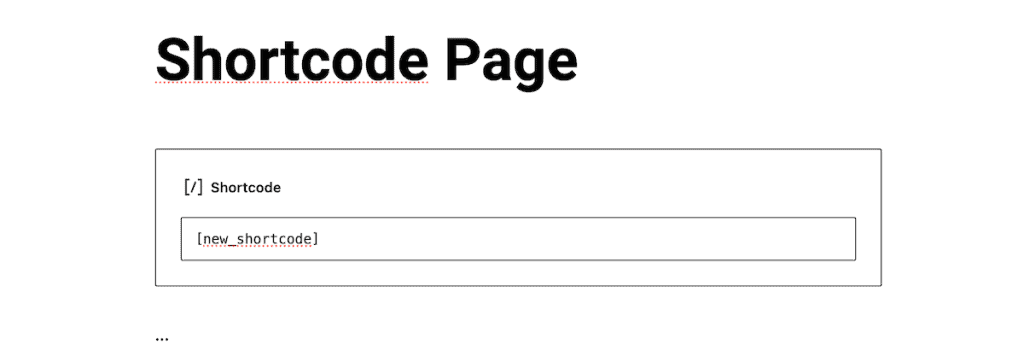
When you preview the page, the shortcode output will appear in place of the tag. The Shortcode block won’t show a live preview in the editor, though. You’ll see the raw shortcode text while editing, and the actual output only appears on the published page.
Adding a Shortcode in Sidebar Widgets
You can also use shortcodes inside WordPress sidebar widgets.
Navigate to Appearance > Widgets in your dashboard. Then, click the + button to add a new block and search for the Shortcode widget block. Drop it into your sidebar, paste the shortcode, and click Update.

This is a great way to add forms or calls to action to your sidebar without editing any template files.
Adding a Shortcode in Theme Files
Sometimes you’ll want to display a shortcode inside a theme template file, like your header or footer. WordPress makes this possible with the do_shortcode() function.
Add this line of PHP wherever you want the shortcode to appear:
<?php echo do_shortcode('[your_shortcode]'); ?>Replace [ your_shortcode ] with your actual shortcode. Make sure you’re comfortable editing theme files before going this route, and always back up your site first.
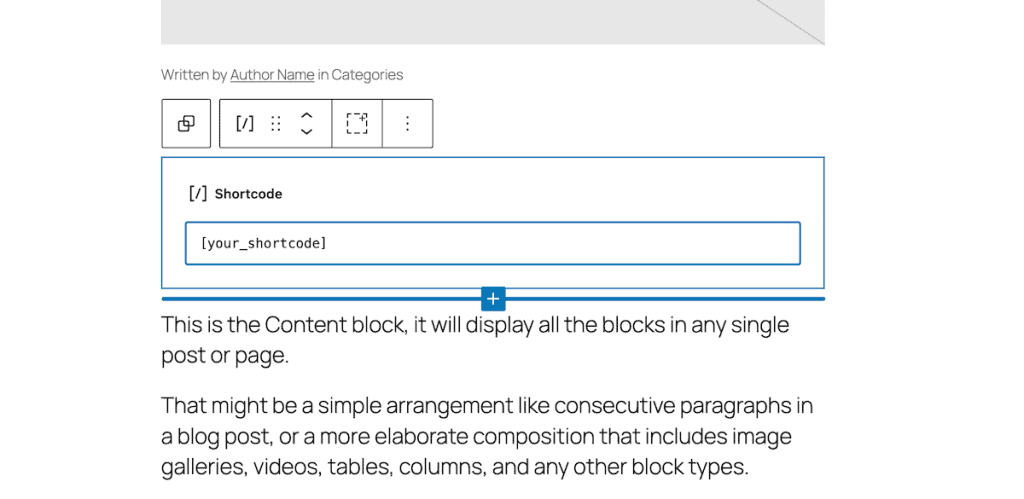
If you’re using a block theme with the Full Site Editor, you can skip the PHP entirely. Navigate to Appearance > Editor in your dashboard, which will open the site editor with your home template. From there, choose the template you want to edit.

Then, click the + block inserter, search for Shortcode, and drop it wherever you need it. Type in your shortcode, hit save, and you’re done.
Shortcodes vs. Gutenberg Blocks
With the introduction of the Gutenberg block editor, you might be wondering whether shortcodes are still worth using.
Blocks and shortcodes both let you add dynamic content to your site. The main difference is the experience. Blocks give you a visual interface where you can see a preview of the output right inside the editor. Shortcodes are text-based, so you paste the tag and don’t see the result until you preview or publish the page.
Many popular WordPress plugins now offer dedicated Gutenberg blocks alongside their shortcodes. For example, a contact form plugin might give you both a [ contact_form ] shortcode and a drag-and-drop form block. In those cases, the block is usually easier to work with because you can see exactly what the form looks like while editing.
Shortcodes still have their place, though. They’re often simpler for quick insertions, they work in areas where blocks aren’t available (like certain widget areas or theme template files), and they’re easier to manage when you need the same element across dozens of pages.
If a plugin offers both options, go with whichever feels more natural to you. There’s no performance difference between the two.
Troubleshooting Common Shortcode Issues
Shortcodes are generally reliable, but things can go wrong. Here are some of the most common issues and how to fix them.
Shortcode Displays as Plain Text
If your shortcode appears as raw text on the published page instead of rendering its output, there are a few things to check.
First, make sure the shortcode is properly registered. If you’re using a plugin that provides the shortcode, confirm the plugin is installed and activated. If you created a custom shortcode, double-check that the add_shortcode() function is in place and that the snippet or plugin is active.
Next, check for typos. The shortcode name in your content needs to match exactly what you registered. Even a small difference, like a missing underscore or a capital letter, will cause it to fail.
Finally, make sure your function uses return instead of echo. This is one of the most common mistakes when writing custom shortcodes. Shortcode functions need to return their output. Using echo will cause the content to appear in the wrong place on the page or not at all.
Shortcode Breaks the Page Layout
If your page layout looks off after adding a shortcode, the issue is usually unclosed HTML tags in the shortcode’s output. Open the function code and make sure every <div>, <p>, or other HTML element has a matching closing tag.
Another common cause is the shortcode outputting content in the wrong location, like inside the <head> section. Using return instead of echo in your function (as mentioned above) will prevent this.
Attributes Aren’t Working
If the attributes you pass to a shortcode aren’t having any effect, make sure the function is using shortcode_atts() to define and parse them. This function maps the attributes you pass in the shortcode to the variables in your PHP function. Without it, WordPress won’t know what to do with the parameters.
Here’s the correct pattern:
$atts = shortcode_atts(array(
    'color' => 'blue',
    'size' => 'medium',
), $atts);
Shortcodes Stop Working After a Theme Switch
This is a common issue for shortcodes defined inside a theme’s functions.php file. When you switch themes, the old theme’s functions file is no longer active, so any shortcodes defined there will stop working.
The fix is to move your shortcode code into a plugin (either a code snippets plugin or a custom plugin). Plugins remain active regardless of which theme you’re using.
Shortcode Conflicts With Other Plugins
If your shortcode is causing issues with other plugins, there’s a good chance the shortcode name is too generic. Names like [ button ] or [ box ] could conflict with other plugins that use the same names.
Use a unique prefix for all your custom shortcodes to avoid this. For example, instead of [ cta ], use [ sh_cta ] or [ yoursite_cta ]. This keeps your shortcodes separated from everything else.
WordPress Shortcode FAQs
What is a shortcode in WordPress?
A shortcode is a small tag wrapped in square brackets, like [ gallery ], that acts as a placeholder for a more complex function. When WordPress encounters a shortcode, it replaces it with the output of the function tied to that tag.
Are WordPress shortcodes still relevant?
Yes. While Gutenberg blocks have replaced some shortcode use cases, shortcodes are still widely used by plugins and developers. They work in areas where blocks aren’t available, and they’re often the quickest way to insert dynamic content across multiple pages.
Can I use shortcodes with page builders like Elementor?
Most page builders, including Elementor, Divi, and Beaver Builder, support shortcodes. They typically include a dedicated shortcode widget or module that you can drop into your layout. Paste the shortcode inside the widget, and it will render the output in your design.
Do shortcodes slow down my site?
A well-coded shortcode shouldn’t have a noticeable impact on site speed. However, if a shortcode runs heavy database queries or loads large external resources every time a page loads, it can slow things down. Keep your shortcode functions lean and consider caching the output if the function does a lot of processing.
Closing Thoughts: Using WordPress Shortcodes
WordPress shortcodes give you a way to add dynamic, reusable content to your site without writing code in every post or page. Whether you’re using the built-in shortcodes for media embeds, relying on plugin-generated shortcodes for forms and galleries, or building your own from scratch, they’re a practical tool that can save you a lot of time.
If you’re new to shortcodes, start with the native WordPress ones like [ gallery ] and [ video ] to get a feel for how they work. From there, try creating a custom shortcode using a plugin like Code Snippets. Once you’re comfortable with the basics, you can build more advanced shortcodes with attributes and dynamic content.
The key is to keep your shortcodes organized, use unique prefixes, and always test them before pushing changes live.
Now over to you. Are you using shortcodes on your WordPress site? Have you built any custom ones? Share your experience in the comments below.
Ready to build your WordPress site?
Try our service free for 14 days. No obligation, no credit card required.


