

QR codes have made a major comeback. After years of sitting on the sidelines, they’re now everywhere, from restaurant menus to business cards to product packaging. And here’s why. Over 40 million QR codes are scanned every single year.
If you’re running a WordPress website, adding QR codes can bridge the gap between your online and offline presence. Whether you want to offer coupons on future purchases, link to downloadable resources, or drive traffic to specific landing pages, QR codes make it dead simple for visitors to access your content with a quick scan.
Below, you’ll learn exactly how to create and add QR codes for WordPress and add them to your site using four different methods, plus discover practical ways to use them for your business.
Table of Contents
What Are QR Codes and How Do They Work?
QR stands for Quick Response, and that name tells you everything you need to know. These square barcodes store information that smartphones can read instantly. Unlike traditional barcodes that only hold about 20 digits, QR codes can store up to 7,089 numeric characters or 4,296 alphanumeric characters.
Every QR code shares a few key features. The three squares in the corners help scanners identify it as a QR code. The smaller square near the bottom right keeps the code readable even if it’s printed at an angle. And those black and white patterns represents data, whether that’s a website URL, contact information, or plain text.
Most modern smartphones can scan QR codes directly through their camera apps. No special software needed. Just point, scan, and tap the notification that pops up.
Why Add QR Codes to Your WordPress Site?
QR codes solve a real problem. They eliminate friction between physical and digital interactions. Instead of asking customers to type long URLs or search for your business online, they can scan and arrive exactly where you want them.
Here’s what you can do with QR codes on your website.
Digital Downloads and Resources
You can place QR codes on printed materials that link directly to PDF guides, ebooks, coupons, or video tutorials on your WordPress site. Perfect for trade shows, conferences, or anywhere you’re handing out physical materials. Authors can include codes in printed books for bonus chapters, while product packaging can link to exclusive guides or tips.
Contact Information Sharing
Create vCards that automatically save your contact details to someone’s phone. Much faster than manually entering business card information. Real estate agents and other service professionals can use this on yard signs and vehicle wraps and make it easy for potential clients to save their contact info. You can even link this back to more detailed listing information you have on your website.
Event Registration and Ticketing
Generate unique QR codes for event attendees. They can show the code on their phone for quick check-in, eliminating paper tickets. Works great for recurring events like fitness classes or conference sessions where you need to track attendance. If you’re using a WordPress events plugin to showcase your events, using QR codes can be an easy way to track attendance.
Product Information and Manuals
You can link physical products to online documentation, assembly videos, or warranty registration pages. Customers get instant access to help when they need it. Furniture companies use this for assembly guides while electronics brands link to troubleshooting videos and firmware updates. This also acts as a great bridge for eCommerce store owners to bring buyers back to your site.
Social Media Connections
QR codes make it easy for people to follow your social accounts. One scan can take them directly to your profile where they can hit follow. You can even create codes for leaving Google My Business reviews, making it dead simple for happy customers to share feedback. The same goes for getting people to join your email list. If you have a physical location, you have QR code printed that’ll automatically take people to the opt-in page.
4 Ways to Use QR Codes for WordPress
Below you’ll find four different methods you can use to add QR codes to your site and use them throughout your marketing and other creative applications.
Method 1. Using the Kaya QR Code Generator Plugin
The Kaya QR Code Generator plugin offers the most straightforward way to create QR codes directly within WordPress. This free plugin handles everything from simple URLs to complex vCard data.
First, you need to install and activate the Kaya QR Code Generator plugin from your WordPress dashboard. To do this, navigate to Plugins > Add New, search for “Kaya QR Code Generator”, then click Install Now and Activate.

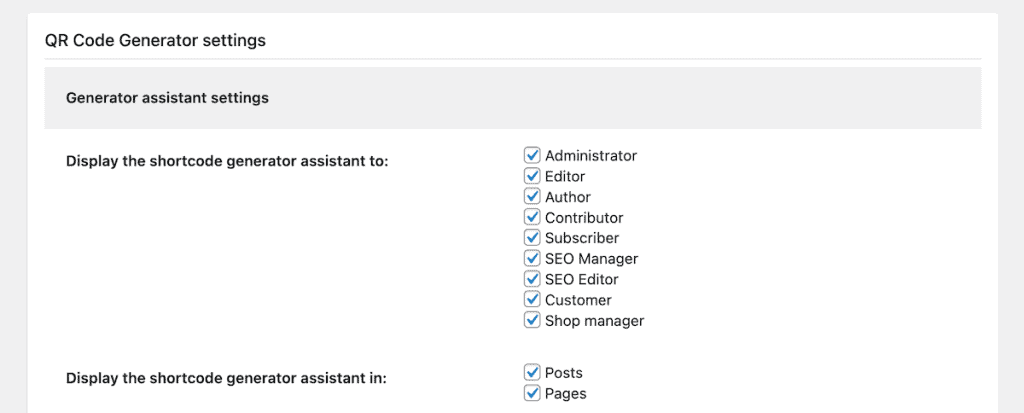
Once activated, navigate to Kaya Studio > QR Code Generator in your WordPress admin menu. This brings you to the QR code settings page.

The first section lets you control where the QR code option appears in your post/page meta boxes. You can choose where you want the QR generator assistant to appear.
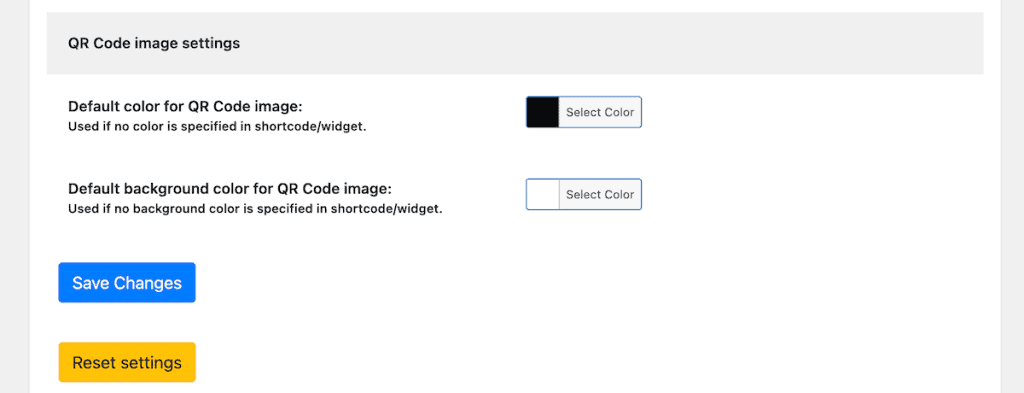
Below that, you can adjust the default color scheme for the QR code. The default will be the standard black/white color combination.
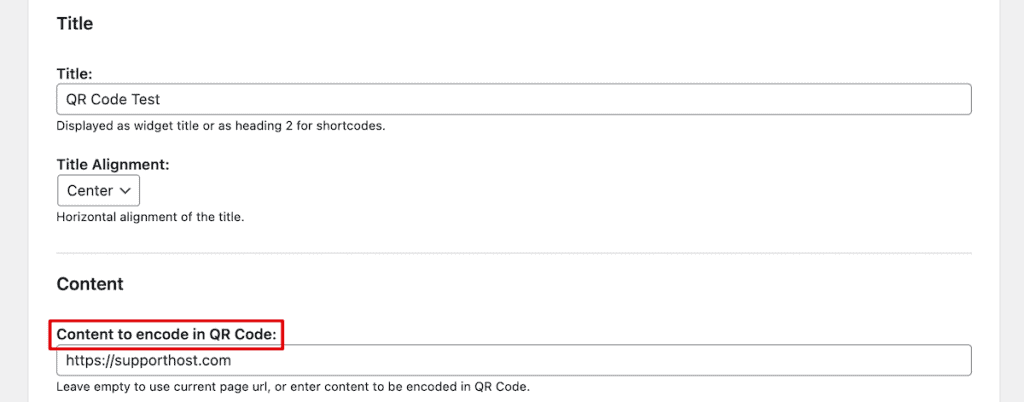
Then, you’ll see all of the fields for customizing the destination of your QR code. First, you can add a title and specify the alignment. Below that, you’ll see a field called, Content to encode in QR Code. In this box, enter the destination URL.
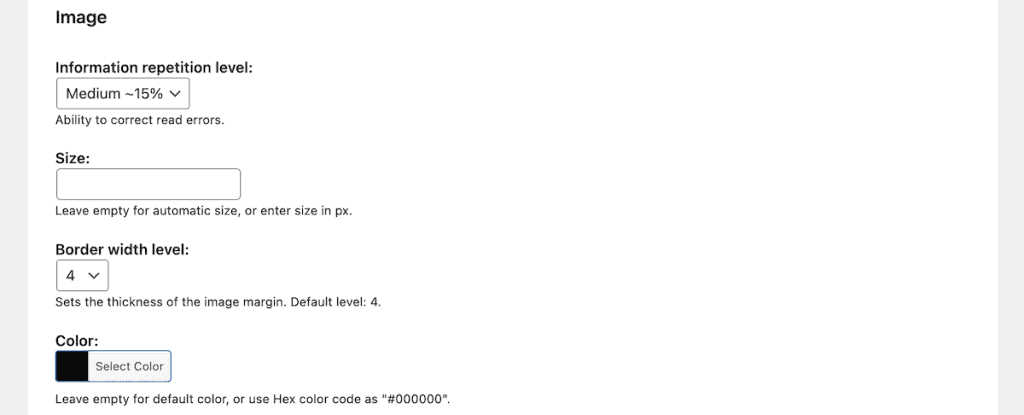
Under that, you’ll have some options to customize how the QR code image displays. You can specify the image repetition level, the size, background colors, alignment, and more.
Next, you have the Clickable Link section. Here, you’ll want to add the same URL as the destination URL above. This makes the QR code clickable as well. You also have the option to add a download button, but this doesn’t make sense for most uses.
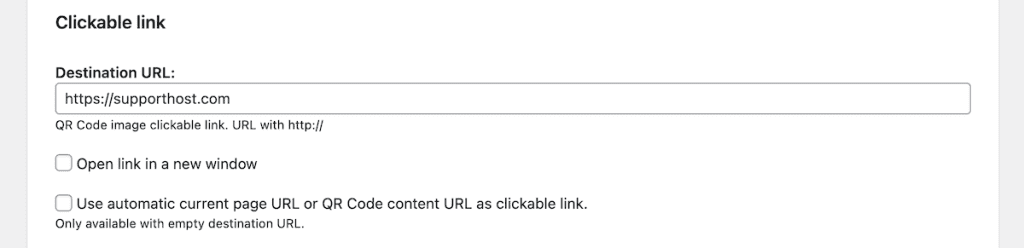
As you make changes to the QR code it’ll automatically generate at the top of the page. So once you’re finished, just scroll back up and you’ll see the shortcode you can add to your site and the QR code that you can download.

To add it to your site, just open up the page where you want the shortcode to appear. Then, click the Plus add block icon and search for shortcode. Then, paste the generated shortcode into the box and save your changes.
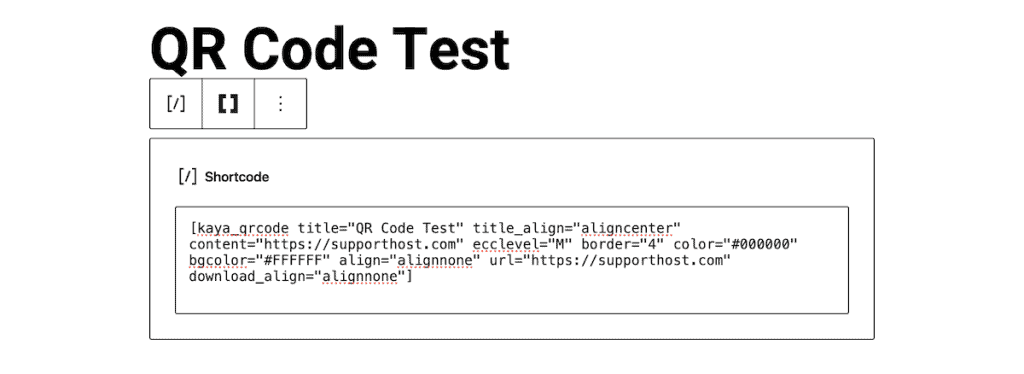
Here’s what the shortcode will look like live on your site. Now, when someone uses the shortcode they’ll automatically be taken to the destination page you set. We didn’t customize this page a lot, but the shortcode is functional (try it for yourself).

Method 2. Using the Shortcodes Ultimate Plugin
Shortcodes Ultimate takes a different approach by letting you insert QR codes anywhere using shortcodes. This method works particularly well if you need to generate multiple codes across different pages or want more design flexibility.
To use this plugin you’ll follow the same installation and activation instructions as the plugin above. After activation, you’ll see a new Shortcodes menu item in your admin panel.

To add a QR code to any post or page, edit the post or page where you want the QR code to appear. Add a Shortcode block in the block editor, then click the Insert shortcode button (two brackets).
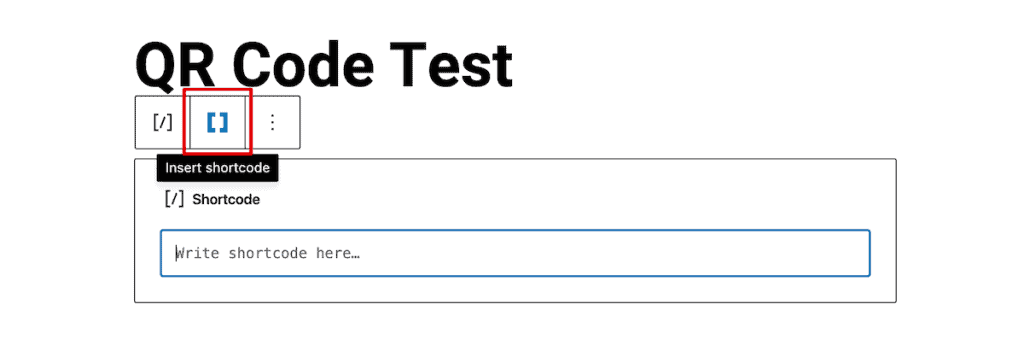
In the pop-up search for QR code in the shortcode list.

Once selected it’ll bring up all the shortcode customization options. The Data field is where you enter your URL, text, or any information the code should contain. The Title sets the alt text for accessibility.
You can adjust pixel dimensions with the Size setting. Add white space around the code with Margin. Position the code left, center, or right with Align. Make the QR code image clickable with the Link option. Once you’re finished customizing make sure to click the Insert Shortcode button.

Your basic shortcode looks like this:
[su_qrcode data="https://yoursite.com" size="200"]For a customized version with colors and alignment it’ll look something like this:
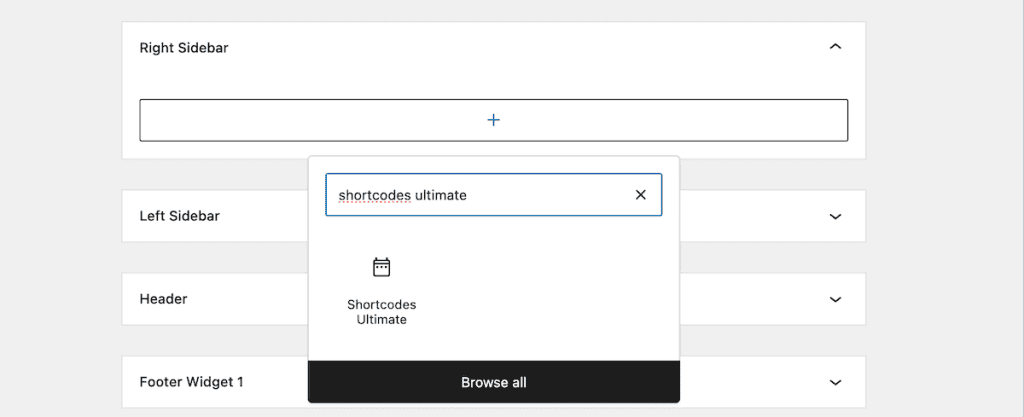
[su_qrcode data="https://yoursite.com" size="250" align="center" primary="#0073AA" background="#FFFFFF"]Shortcodes Ultimate also lets you add QR codes to widget areas. To do this, navigate to Appearance > Widgets, then add at Shortcodes Ultimate block, search QR code, and replicate the same steps as above.
Here’s what it looks like live in a sidebar widget:

The plugin generates code on the fly, meaning it updates automatically if you change the shortcode parameters. This makes it perfect for temporary promotions or frequently changing information.
Note: This plugin doesn’t let you download the QR code directly from the app. But, you can right-click and save any QR code since they’re image files and print them out for physical use.
Method 3. Using Your Web Browsers Built-In QR Code Generator
Sometimes you need a quick QR code without installing anything on your WordPress site. The best way to do this is by using the built-in features of your web browser.
Google Chrome includes a native QR code generator that works on any webpage. To use it, go to the page you want to create a code for. Then, right-click anywhere on the page and select Create QR code for this page.

A QR code appears with the dinosaur mascot. Click Download to save the image.

The Chrome generator creates a standard black and white code at 280×280 pixels. While you can’t customize the appearance, it’s perfect for quick sharing or testing. To add the QR code to your website, you’ll just upload the image to your WordPress media library and use it like you would any other image.
Method 4. Using Online QR Code Generators
Online generators offer the most features without requiring WordPress plugins or browser extensions. They’re ideal when you need advanced customization or tracking capabilities. Here’s a look at how you can use the tool QR Code Generator.
This free tool handles basic QR codes with some customization options. Visit the website and select your data type, in this case URL, and enter where you want the QR code to go. In this case, we added a URL.

You can customize the layout, add your logo, and change the color to match the rest of your site/brand. Then, once you’re finished, click the Download button.
After that, all you need to do is upload the image to WordPress, or print your QR code. The free version of this tool includes basic analytics showing total scans. While premium plans add location tracking, device information, and time-based analytics.
There’s a variety of other QR code generators online like QR Code Monkey, but they all work relatively the same.
A Quick Note on Creating Trackable Links
If you’re going to be using QR codes for WordPress marketing campaigns, then you’ll want to track performance. One easy way to do this is by using UTM parameters. These communicate with Google Analytics, so you can login to your Google Analytics account and see the performance of your links.
Your links will end up looking something like this:
https://yoursite.com/?utm_source=print&utm_medium=flyer&utm_campaign=summer-sale
To create your own trackable links you can use this tool from Google. All you need to do is enter your campaign information, and it’ll give you a link you can use with the tools above.
Best Practices for QR Codes for WordPress
QR codes may be simple, but here are some best practices to help make them more effective and ensure people actually use them.
Size and Placement of QR Codes Matter
Your QR code needs to be large enough to scan easily but not dominate your design. For print materials, follow the 10 to 1 rule. If someone scans from 10 inches away, make your code at least 1 inch square. On websites, 200×200 pixels works well for sidebar widgets, while 150×150 pixels fits nicely in blog posts.
Test Everything Before Sharing
Always test your QR codes with multiple devices. What works on your iPhone might fail on an older Android device. Test in different lighting conditions if you’re printing codes. Dark restaurants or bright outdoor venues can affect scan reliability.
Include a Clear Call-to-Action
Don’t assume people know what your QR code does. Add text like “Scan for 20% off your first order” or “Scan to download our free guide.” Make sure you tell people exactly what they’ll get and what device they need. It’s also a good idea to include a short URL or text instructions as a backup.
Mobile-Optimize Your Landing Pages
People scanning QR codes are on mobile devices. Make sure your landing pages load fast, display properly on small screens, and have large, tappable buttons. A beautiful desktop site that’s impossible to navigate on mobile defeats the purpose. Most WordPress themes are mobile-responsive but it can be helpful to create specialized pages for your QR code landing page.
Common QR Code Mistakes to Avoid
Here are the most common QR code mistakes that’ll make them harder to use and create a poor experience for your potential customers and leads.
- Using Low Contrast Colors. Stick with dark colors on light backgrounds.
- Making Codes Too Small. Tiny QR codes look clean but fail in practice.
- Linking to Non-Mobile Sites. Sending mobile users to a desktop-only site or PDF that requires pinching and zooming creates a terrible experience.
- Forgetting to Test After Printing. Colors can shift during printing and what looks perfect on screen might be unscannable on paper.
- Overcomplicating the Design. Logo additions and fancy patterns look cool, but can interfere with scanning. People know what to expect with a standard QR code design, no need to reinvent the wheel.
QR Code for WordPress FAQs
What size should a QR code be on a WordPress website?
For WordPress websites, aim for 150×150 to 200×200 pixels for QR codes in blog posts or pages. Sidebar widgets work best at 200×200 pixels. If you’re creating codes for print, use at least a 1-inch square for scanning from 10 inches away. The key is making them large enough to scan easily without overwhelming your design.
Can I track who scans my QR codes?
Yes, but it depends on the method you use. Free QR code generators typically don’t offer tracking. For detailed analytics, use dynamic QR codes from services like QRCode Studio or add UTM parameters to your URLs before generating codes. This shows QR code traffic in Google Analytics, including which campaigns perform best.
Do QR codes expire?
Static QR codes never expire. Once created, they’ll work forever as long as the destination exists. Dynamic QR codes from paid services might expire based on your subscription plan. If you cancel your subscription, the QR code stops redirecting to your content.
What’s the difference between static and dynamic QR codes?
Static QR codes encode information directly and can’t be changed after creation. If you need to update the destination URL, you’ll need to create a new code. Dynamic QR codes use a redirect service, letting you change the destination anytime without reprinting. Dynamic codes also offer scan tracking and advanced features like password protection.
Can I customize QR code colors to match my brand?
Absolutely. Most QR code generators let you customize colors, but be careful. Keep a high contrast between the code and the background. Dark patterns on light backgrounds work best (there’s a reason nearly all QR codes you see are black and white). Avoid light colors like yellow or pastels for the pattern. Test thoroughly before printing, as some color combinations that look good on screen fail when scanned.
Closing Thoughts: How to Use QR Codes for WordPress
QR codes offer a simple way to connect your WordPress website with the physical world. Whether you’re driving trade show traffic to landing pages, managing and tracking event attendance, or giving away exclusive coupons for eCommerce buyers, the technology just works.
Start with the method that fits your needs. If you want QR codes integrated directly into WordPress, go with the Kaya plugin or Shortcodes Ultimate. Need a quick one-off code? Use Chrome’s built-in generator. Want advanced tracking and dynamic codes? Try a premium online tool, or add UTM tracking to your links.
The key is starting simple. Create one QR code, test it thoroughly, then expand from there. Track what works, adjust what doesn’t, and remember that QR codes are tools, not magic bullets. They work best when you give people a clear reason to scan.
Now it’s your turn. What will you use QR codes for on your WordPress site? Drop a comment below and share your ideas or questions about implementing QR codes for your business.
Ready to build your WordPress site?
Try our service free for 14 days. No obligation, no credit card required.


