

Not every page on your site belongs in Google. Your checkout page, a thank-you page after someone fills out a form, the internal search results that WordPress generates, and a members-only resource you’d rather keep quiet. These pages need to stay live for the people who use them, but showing up in search results does nothing for you and can actually work against you.
That’s what the noindex tag is for. It tells search engines to exclude a specific page from their results while keeping it fully accessible to anyone who visits it directly. Used well, it helps Google spend its time on the pages you actually want ranking, instead of wading through the ones you don’t.
Below, you’ll learn what a noindex tag is, how it differs from robots.txt and nofollow, the two ways to add one, how to apply it in WordPress with Yoast or Rank Math, and how to confirm it’s working.
Table of Contents
What a Noindex Tag Actually Does
A noindex tag is a directive that tells search engines not to index a page. If a page isn’t in the index, it can’t appear in search results.
The most common form is a meta tag placed in the <head> section of a page’s HTML:
<meta name="robots" content="noindex">The name="robots" part means the instruction applies to all search engine crawlers that support it. You can also target a single crawler by naming it directly, so a tag aimed only at Google would look like this:
<meta name="googlebot" content="noindex">By default, search engines treat every page as indexable, so you never need to add an “index” tag to get a page ranking. The noindex tag is the exception you add when you specifically want a page left out.
One thing worth understanding early is that noindex works on a single page at a time. The tag only affects the exact URL it sits on. If you want to keep an entire section of your site out of search results, you can either apply the tag to each page or use the site-wide settings in an SEO plugin, which we’ll cover further down.
When You Should Use a Noindex Tag
It might seem strange to hide pages from Google deliberately, but there are plenty of situations where it’s the right call. Here are the most common ones.
Thin or low-value pages. Tag archives, author pages, and paginated archives often carry little unique content. Keeping them out of the index helps protect your site’s overall quality signals.
Duplicate or near-duplicate pages. A printer-friendly version of an article, for example, competes with the original for the same search terms. Noindex on the duplicate points search engines to the version you want ranking. (For true duplicates, a canonical tag is usually the better tool, which we’ll get to.)
Conversion funnel pages. Thank-you pages, order confirmation pages, and download-delivery pages exist to serve people mid-action. They have no reason to appear in search.
Internal search results. WordPress can generate a page for every search a visitor runs on your site. Left indexable, these create endless low-quality URLs.
Members-only or gated content. Pages meant for a specific audience shouldn’t be discoverable through a Google search. Keep in mind that noindex hides a page from results but doesn’t restrict access to it, a distinction that matters a lot and one we’ll come back to at the end.
Staging and development pages. Any work-in-progress you don’t want the public stumbling onto.
Noindex vs Robots.txt
Both a noindex tag and the robots.txt file give instructions to crawlers, but they control completely different things.
Robots.txt controls crawling. It tells search engines which parts of your site they’re allowed to fetch. A typical rule looks like this:
User-agent: *
Disallow: /private/
That tells all crawlers not to fetch anything in the /private/ directory.
A noindex tag controls indexing. It lets crawlers fetch the page but tells them not to list it in search results.
That means, blocking a page in robots.txt does not keep it out of search results. If other pages link to a blocked URL, Google can still index it based on those links alone, usually showing it with no description because it was never allowed to read the content.
Worse, the two directives actively work against each other when combined on the same page. For Google to see and obey a noindex tag, it has to be able to crawl the page. If you block that page in robots.txt, the crawler never fetches it, never sees the noindex, and the page can sit in search results indefinitely while you assume it’s hidden.
So the rule is simple. Never block a page in robots.txt if you’re trying to noindex it. Let crawlers reach the page so they can actually read the instructions.
Noindex vs Nofollow
Noindex and nofollow are both robots directives that often appear together, but they serve different purposes.
Noindex keeps a page out of search results. Nofollow tells search engines not to follow links on that page, preventing link authority from passing through them. On its own, a nofollow directive in the head looks like this:
<meta name="robots" content="nofollow">You can combine the two when a page shouldn’t be indexed, and its links shouldn’t pass authority either:
<meta name="robots" content="noindex, nofollow">This pairing is common on login and thank-you pages, where the page needs to exist but neither it nor its links should factor into search results.
One more thing to be clear about. Nofollow is not a substitute for noindex. Adding nofollow to the links pointing at a page won’t keep that page out of Google. If a page needs to stay out of search results, it needs the noindex tag.
How to Add a Noindex Tag
There are two ways to apply noindex, and which one you use depends on whether you’re dealing with a normal page or something else.
The meta robots tag
For any standard HTML page, the meta tag is the preferred method. It goes in the <head> section like this:
<meta name="robots" content="noindex">On a WordPress site, you rarely add this by hand. An SEO plugin inserts it for you through a simple toggle, which we’ll walk through next. On other platforms, you’ll usually find the option in the page’s own settings.
The X-Robots-Tag HTTP header
Some resources lack an HTML <head> section to add a meta tag. PDFs, images, and videos are the obvious examples. For those, the noindex instruction travels in the HTTP response header instead, using the X-Robots-Tag:
X-Robots-Tag: noindexSetting this means editing your server configuration, either the .htaccess file on Apache or the server block on Nginx. It takes more technical comfort than a meta tag, and it’s mainly worth reaching for when you’re dealing with non-HTML files.
Whichever method you use, the result is the same. The next time a crawler fetches the page or file, it reads the noindex directive and drops the resource from the index.
How to Noindex a Page in WordPress With Yoast
If you’re using Yoast SEO, adding a noindex tag takes a few clicks and no code at all.
Open the post or page you want to hide in the WordPress editor. Scroll down to the Yoast SEO meta box below the content area, or open the Yoast sidebar using the icon at the top right of the editor. Either way works.
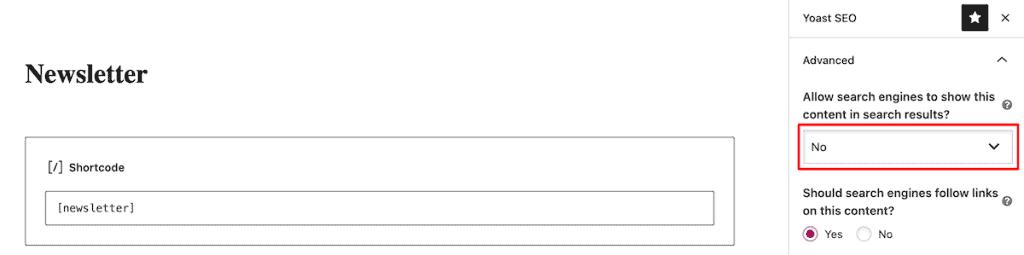
Click the Advanced tab inside the meta box. The first option you’ll see is “Allow search engines to show this content in search results?” with a dropdown set to Yes by default. Change it to No, then update or publish the page. That single change adds the noindex tag to the page’s HTML.
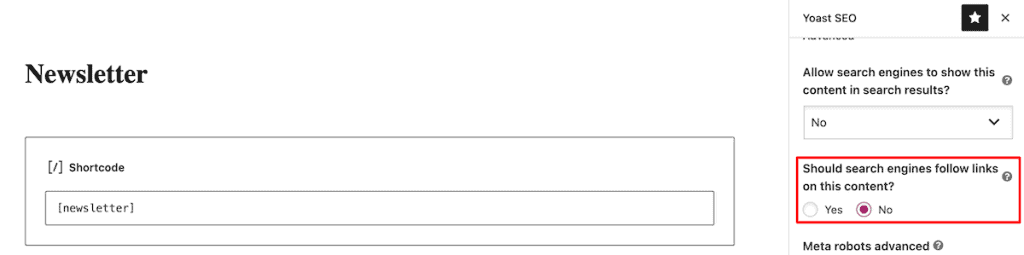
Just below that, there’s a second dropdown, “Should search engines follow links on this content?” For most noindexed pages, you can leave this on Yes, but if you want the equivalent of noindex, nofollow, set it to No as well.
By default, only editors and administrators can see the Advanced tab, so if it’s missing, check your user role.
To noindex an entire content type at once, such as every post in a certain category, head to Yoast SEO > Settings and adjust the visibility under the relevant Content Types or Categories section, rather than doing it page by page.

How to Noindex a Page in WordPress With Rank Math
The process is just as quick is you’re using Rank Math.
Open the post or page in the editor and click the Rank Math SEO icon in the top-right corner to open its meta box.
Click the Advanced tab. If you don’t see it, go to Rank Math SEO > Dashboard and switch on Advanced Mode first. Inside the Advanced tab, find the Robots Meta section and tick the No Index checkbox, then update the page.

Rank Math’s Robots Meta section also gives you checkboxes for No Follow, No Archive, and No Image Index, so you can combine directives on the same page without touching any code.
If you want to set noindex as the default for an entire post type or taxonomy, you can do that under Rank Math SEO > Titles & Meta. Pick the post type or taxonomy, enable its Robots Meta option, and choose No Index. One thing to remember here is that a setting on an individual post always overrides the global one, so if you noindex a whole post type but manually set one post to Index, that post stays indexed.

How to Check Whether a Page Is Noindexed
Adding the tag is only half the job. It’s worth confirming that the page actually carries the directive and that Google has acted on it later.
Check the page source
The quickest check works on any page you can open in a browser. Load the page, right-click, and choose View Page Source (or press Ctrl+U on Windows, Option+Command+U on Mac). Use your browser’s find function to search the code for noindex. If the tag is present, you’ll see the <meta name="robots" content="noindex"> line.

This confirms the tag exists, but it doesn’t tell you whether Google has processed it yet. For that, you need Google Search Console.
Use the URL Inspection tool
For pages on a site you own, Google Search Console gives you the definitive answer. Select your property, click URL Inspection in the sidebar, and paste in the URL. If the page is being kept out of search because of the tag, Google will report it as “Excluded by ‘noindex’ tag.”

This tool only works for verified properties, but it’s the most reliable way to see how Google is actually treating the page rather than just what your HTML says.
Best Practices for Using Noindex
A noindex tag is easy to apply and just as easy to misuse. A few habits will keep you out of trouble.
Keep noindexed pages crawlable. This is the big one. Don’t block a page in robots.txt if you’ve noindexed it, or Google will never read the tag. Let crawlers reach the page.
Add a self-referential canonical. On a noindexed page, pointing the canonical tag at the page’s own URL reinforces the signal. It prevents confusion when the page is accessible via multiple URLs, such as those with tracking parameters.
Don’t use noindex for duplicate content. When two pages are genuinely duplicates, a canonical tag is the better fix. It consolidates ranking signals onto your preferred version, whereas noindex drops the duplicate entirely and passes nothing along.
Monitor your indexation regularly. Mistakes happen. A noindex tag can get removed during a site update, or an important page can get hidden by accident. The Page Indexing report in Search Console lists which pages are indexed and which are excluded, along with the reason for each. Checking it every so often lets you catch a valuable page that’s been accidentally noindexed before it costs you traffic.

Noindex Tag FAQs
Does a noindexed page still pass link authority?
For a while, yes. A noindex, follow page will have its links followed at first. But if the noindex stays in place long term, Google eventually stops crawling the page and treats it like noindex, nofollow, at which point it no longer passes authority. Don’t rely on a permanently noindexed page to funnel link authority to other pages.
Is the meta tag or the X-Robots-Tag better for noindex?
They work equally well. The meta tag is much easier to add to a standard WordPress page, especially with a plugin that handles it. The X-Robots-Tag is the one to use for non-HTML files like PDFs and images, where there’s no HTML head to place a meta tag in.
How long does it take for a noindexed page to drop out of Google?
It isn’t instant. Google has to recrawl the page before it can act on the tag, which can take anywhere from a few days to a few weeks, depending on how often your site gets crawled. You can check progress with the URL Inspection tool in Search Console.
Will noindex stop people from accessing the page?
No. Noindex keeps a page out of search results, but it remains fully accessible to anyone with the URL. If you need to restrict who can actually open a page or file, you’ll need password protection, a membership plugin, or another access-control method.
Can I noindex a whole category or post type at once?
Yes. Both Yoast and Rank Math let you set noindex at the content-type or taxonomy level in their settings, so you don’t have to tag each page individually. Just remember that a setting on an individual page overrides the global one.
Closing Thoughts: Using the Noindex Tag in WordPress
The noindex tag is a small technical SEO tool that gives you real control over what shows up when people search for your site. Used on the right pages, thin archives, funnel pages, internal search results, gated content, it keeps Google focused on the content that matters and away from the pages that don’t.
The main things to remember are straightforward. Use the meta tag for normal pages and the X-Robots-Tag for files. Never block a noindexed page in robots.txt, or the tag can’t be read. And check your work in Google Search Console so an accidental noindex on an important page doesn’t slip past you.
If you’re on WordPress, Yoast or Rank Math handles all of this with a single toggle, so there’s no reason to touch code for standard pages. Set it, confirm it, and keep an eye on your indexation report from time to time.
Now over to you. Which pages on your site have you set to noindex, and did you run into anything confusing while setting them up? Let us know in the comments below.
Ready to build your WordPress site?
Try our service free for 14 days. No obligation, no credit card required.


