

WordPress 7.0 is the first major release of 2026, and it brings some of the biggest changes the platform has seen in years. From AI tools built into the core, to a redesigned admin interface, to a long list of block improvements, this update reshapes how you’ll work with WordPress on a daily basis.
Below, we’ll go through every major change in WordPress 7.0, what it actually does, and whether it matters for your site.
Table of Contents
What’s New in WordPress 7.0?
WordPress 7.0 brings changes that touch nearly every part of the platform. The biggest additions include a native AI framework, a redesigned admin interface, two new blocks, and several meaningful improvements to existing blocks.

Before getting into the features, one thing worth flagging on requirements. WordPress 7.0 stops support for PHP 7.2 and 7.3. The minimum supported PHP version is now 7.4, and PHP 8.3 or higher is recommended for the best performance and security.
If your site is running an older PHP version, you’ll want to update it before installing WordPress 7.0. You can check your current PHP version by going to Tools > Site Health > Info > Server in your WordPress dashboard.

With that said, let’s get into the new features:
AI Integration in WordPress 7.0
The biggest change in WordPress 7.0 is the addition of a native AI framework. Until now, if you wanted to use AI on your WordPress site, you had to install a plugin for each provider you wanted to use. WordPress 7.0 changes that by introducing a single interface that lets you connect any supported AI provider directly to your site.
This isn’t a small feature. It’s a foundational shift that enables WordPress to interact with AI models in a standardized way, opening the door for plugins and themes to add AI features without building their own integrations from scratch.
How the New Connectors Screen Works
The new AI controls live under Settings > Connectors in your WordPress dashboard. WordPress 7.0 ships with three default connectors:
- OpenAI
- Anthropic

To connect a provider, click the Install button for the one you want to use, then paste in your API key. Once you save, that connection becomes available to any compatible plugin on your site. You don’t have to enter the same key in five different plugin settings pages anymore.

WordPress doesn’t send any data to AI providers by default. You have to explicitly install a connector and then use a plugin or feature that calls it. Nothing happens automatically behind the scenes.
Trying It Out With the AI Experiments Plugin
If you want to see what’s actually possible with the new AI framework, the easiest starting point is the official AI Experiments plugin. After installing and activating it, you can use AI to generate featured images for your posts, write alt text for images, generate post excerpts, and get content suggestions.

The plugin shows what’s possible when AI is wired directly into WordPress instead of being bolted on as an add-on. Expect to see a lot more plugins take advantage of this same framework over the next year.
What This Means for Plugin Developers
For developers, the AI framework introduces a new function called wp_ai_client_prompt() that abstracts away the differences between providers. Your code stays the same whether the user has connected to OpenAI, Anthropic, or Google. WordPress handles the translation.
The new Abilities API lets plugins and themes offer their features in a format AI agents can use directly. This means developers can build plugins that allow AI tools to perform actions inside WordPress, such as managing content or making edits, instead of responding only with information.
If you build plugins, this update requires some attention, as integrating with these new APIs can enhance your products’ functionality and future-proof your code. Detailed developer documentation for these new features is available in the WordPress 7.0 dev notes.
A Modernized Admin Interface
The first thing you’ll notice when you log in to a WordPress 7.0 dashboard is that it looks different. The admin area has been given a visual refresh aimed at making it feel more consistent with the block editor and site editor.

Specific changes include a more current color palette, updated typography for better readability, improved contrast on buttons and form elements, and smoother transitions when moving between screens.
These updates are mostly cosmetic. No menus have been moved, no settings have been renamed. If you’ve been using WordPress for years, you won’t have to relearn anything. You’ll just notice that things look cleaner.
Command Palette Available Everywhere
The command palette was introduced in earlier versions, but in WordPress 7.0, it’s available throughout the entire admin area. You can open it with Cmd + K on Mac or Ctrl + K on Windows, or click the button in the toolbar at the top of the screen.

The command palette lets you jump to any screen, run common actions, or search for content without clicking through menus. If you spend a lot of time in your WordPress dashboard, learning the keyboard shortcuts alone will save you hours every month.
Smoother View Transitions
When you move between admin screens in WordPress 7.0, you’ll see proper animated transitions instead of abrupt page reloads. This is powered by the browser’s View Transitions API. It’s a small change that makes the admin feel a lot more polished, especially if you’re working in the editor and frequently switching to other parts of the dashboard.
New Blocks Added in WordPress 7.0
Two new blocks are part of WordPress 7.0, both of which solve problems that previously required plugins or custom code.
Breadcrumbs Block
Until WordPress 7.0, adding breadcrumbs to your site meant installing an SEO plugin or coding them yourself. The new Breadcrumbs block solves that problem by giving you a native way to show readers where they are in your site’s structure.

The block automatically reads your site’s hierarchy and displays the correct path for the current page. For posts, it shows the category hierarchy. For pages, it follows the parent-child relationship.
You can configure a few options, including showing or hiding the link to the home page, showing or hiding the current page in the trail, changing the separator between items, and choosing whether to follow post hierarchy or taxonomy terms.
The block also works inside Query Loop blocks, so you can show breadcrumbs for each post in a listing if that’s useful.
For SEO, having native breadcrumbs is helpful because they give search engines a clearer picture of your site’s structure and how pages relate to each other.
Icon Block
The new Icon block gives you a built-in way to add SVG icons to your content without installing a plugin. It comes with a default icon library you can pick from.

The current library is fairly limited, but the underlying system is designed so that developers can register their own icon sets. Expect to see icon collections from popular libraries become available through plugins or themes in the months after release.
Icons are scalable, accessible, and render quickly because they’re vector files rather than images. If you’ve been using image files for icons up until now, switching to the Icon block can help speed up your WordPress site.
Improvements to Existing Blocks
Several existing blocks got useful updates in WordPress 7.0. Here are the main things that changed:
Heading Block Variations
The Heading block now registers H1 through H6 as separate block variations, each with its own icon. Instead of clicking through a dropdown menu to change a heading level, you can transform between H2 and H3 with a single click.

It’s a small change, but if you write long articles with many subheadings, it saves time. Correct heading structure helps SEO and accessibility, so easier use is a win.
Paragraph Block Updates
The Paragraph block got three notable additions. You can now set first-line indent for any paragraph, either per-block or globally through theme settings. Wide and full alignment options are now available, which weren’t there before. And you can split a long paragraph into two or three columns the way print magazines do.

These additions give you more typographic control without having to write custom CSS or use a different block.

Gallery Block Lightbox
The Gallery block lightbox now has next and previous navigation built in. Before WordPress 7.0, if you clicked an image to view it in the lightbox, you had to close it and click the next thumbnail to see another image. Now you can move between images using arrows on either side of the screen or with the keyboard, all without leaving the lightbox.

To enable this, turn on the Enlarge on click option in the Gallery block settings. It’s the kind of feature people have been adding through plugins for years, and it’s nice to see it built in.

Cover Block Background Videos
The Cover block now supports embedded videos from YouTube and Vimeo as backgrounds. Before WordPress 7.0, you could only use video files uploaded directly to your site, which ate up server storage and bandwidth.
To use an embedded video as a background, add a Cover block, click Add Media in the toolbar, and choose Embed Video from URL. Paste in the YouTube or Vimeo link, and you’re done.

This is especially useful if you want video backgrounds without hosting large files on your server.
Responsive Grid Block
The Grid block has been rebuilt to be properly responsive. In previous versions, you had to choose between Auto mode, which would adjust column counts, or Manual mode, which kept columns fixed regardless of screen size.
Starting with WordPress 7.0, the Grid block handles both. You can set a maximum number of columns and a minimum column width, and the block will figure out how to display itself on any screen size. The result is that you can create complex layouts without having to write media queries.

HTML Block Redesign
The Custom HTML block has been completely reworked. When you insert an HTML block now, a modal window opens with three separate tabs for HTML, CSS, and JavaScript.
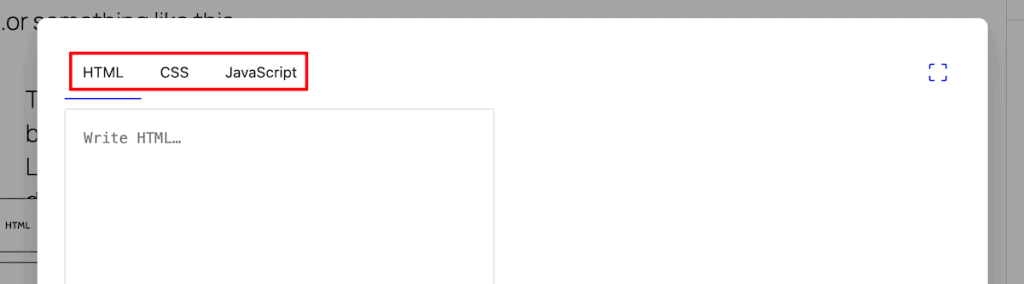
This is a much better experience than the old single-textarea approach. If you’re adding custom code to a page (an embed, a third-party widget, a small custom feature), you can now write it cleanly without mixing your CSS and JavaScript into a tangle of inline tags.
There’s also a button to enable full-screen mode if you need more room to work.
Image Block Improvements
The Image block gets a small but useful update. Aspect ratio control now works with wide and full alignment, not just the default size. You can pick from preset ratios grouped by Landscape (Standard 4:3, Classic 3:2, Wide 16:9) and Portrait (3:4, Classic Portrait 2:3, Tall 9:16), then use the crop tool to fine-tune what part of the image stays in frame.

The image cropper also work as a standalone component, so other parts of WordPress can use it too. Not something most users will notice, but worth knowing if you build with the block editor.
Math Block Styling Options
The Math block didn’t get much attention in previous versions. WordPress 7.0 adds styling options for color, typography, dimensions, and borders. If you write content that includes mathematical expressions, you can now match the styling to the rest of your site instead of being stuck with default formatting.
Customizable Navigation Overlays for Mobile Menus
Mobile menus in WordPress have been frustrating for a long time. The default mobile menu was fixed, and customizing it meant either editing theme code or installing a menu plugin.
WordPress 7.0 introduces customizable Navigation Overlays. These are template parts (the same kind of building block used elsewhere in the site editor) that you can edit to design exactly the mobile menu you want.
You can add any blocks to a Navigation Overlay, including a logo, social icons, a search field, the actual navigation menu, promotional content, or a login form.
Once you’ve created an overlay, you assign it to a Navigation block. The same overlay can be used by multiple Navigation blocks if you want a consistent look across your site.
There’s also a new Navigation Overlay Close block that lets you place the close button wherever makes sense in your design, rather than being stuck with whatever position the theme picked.
Custom CSS for Individual Blocks
WordPress 7.0 adds a new Additional CSS field to individual blocks. You’ll find it under the Advanced tab in the block settings sidebar. This is separate from the existing CSS field, which has been around for years and only lets you assign a class name.
With the new field, you can write CSS rules directly on the block without needing a selector. Just type color: red; and that block turns red. Previously, if you wanted to style one specific button or paragraph differently, you had to either give it a custom class and write CSS in your theme or use a third-party plugin. Now you can do it inline.

This is a nice middle ground between the rigidity of theme styles and the chaos of writing CSS everywhere. You get one-off customizations without polluting your stylesheet.
Show or Hide Blocks Based on Device
A new feature in WordPress 7.0 lets you control whether a block shows up on mobile, tablet, or desktop. This is the kind of thing page builders have offered for years, and it’s finally part of WordPress core.
To use it, select any block and open the visibility controls from the block toolbar or the settings sidebar. You’ll see toggles for desktop, tablet, and mobile, and you can choose which devices each block appears on.

This first version is fairly basic and the breakpoints are fixed. But it’s a useful improvement, especially for sites where mobile and desktop layouts need to differ significantly.
A Redesigned Revisions Screen
The revisions system in WordPress has been hard to use for a long time. Comparing two versions of a post often meant looking at HTML diffs and trying to figure out what actually changed.
WordPress 7.0 fixes this with a completely redesigned revisions interface. Instead of showing code, the new revisions screen gives you a visual preview of changes with color coding. Yellow highlights content that was modified, red highlights content that was deleted, and green highlights content that was added.

You can see exactly what changed at the block level. If you tweaked a paragraph’s color or moved an image, the diff shows you that directly. Restoring a previous version works the same way as before, but now you can do it confidently because you can see what you’re restoring.
Font Library Now Works With Classic Themes
The font library was introduced in WordPress 6.5, but it only worked with block themes, and classic themes couldn’t use it.
WordPress 7.0 extends the font library to all themes, classic and block alike. You can add and manage fonts from Appearance > Fonts in your WordPress dashboard, regardless of which type of theme you’re using.
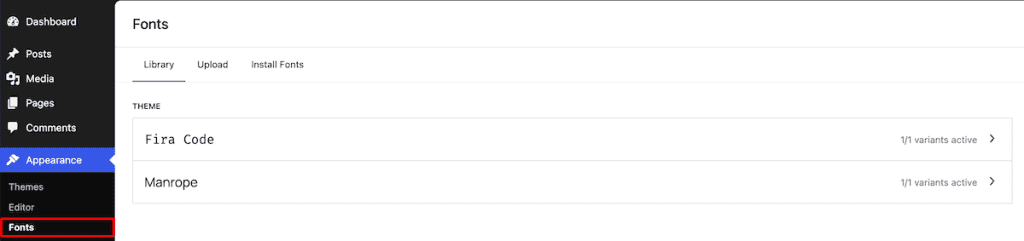
This means you no longer need a separate plugin to manage custom fonts if you’re using a classic theme. You can upload font files, configure them in your dashboard, and use them in your site.
What Didn’t Make It Into WordPress 7.0
If you’ve been reading about WordPress 7.0 over the past few months, you may have seen references to real-time collaboration as a flagship feature of this release. That feature has been pulled.
In early May 2026, the WordPress team decided to remove real-time collaboration from 7.0 due to concerns around stability, server load, and bugs found during testing. The feature will be re-evaluated for WordPress 7.1, which is scheduled for August 2026.
If you were specifically waiting for real-time collaboration before updating, you’ll need to hold off a few more months. Everything else covered in this article is still part of 7.0.
Changes for WordPress Developers
WordPress 7.0 includes a lot of developer-focused improvements. If you build themes or plugins, here’s what’s worth knowing.
Pseudo-classes in theme.json
You can now use pseudo-class selectors (:hover, :focus, :focus-visible, :active) directly in your theme.json file. Before this release, you could only use them on HTML elements through the global styles system. Now you can style block states declaratively in theme.json without needing custom CSS files.
Iframed Editor Improvements
The post editor’s iframe behavior has been updated. The editor now loads inside an iframe when all blocks in the content use Block API version 3 or higher, which helps isolate theme styles from the editor UI. For older blocks using earlier API versions, WordPress falls back to the previous non-iframed editor automatically.
For theme developers, this means you can write CSS that matches your frontend without worrying about it breaking the admin interface in modern blocks.
PHP-Only Block Registration
You can now register blocks using only PHP, without needing to write any JavaScript. WordPress 7.0 automatically generates the inspector controls for these blocks based on the configuration you provide.
This is a big deal for developers who have stuck with classic PHP development and haven’t moved to building blocks with React. You can now create custom blocks with PHP alone and have them work properly in the block editor.
DataViews and DataForm Improvements
The DataViews system, which is used in newer admin screens to display lists of content, got several updates, including a new Activity layout for timeline-style displays and a compact view mode for lists.
DataForm, which handles form generation in the admin, now has a new Details layout and customizable edit icons. The Field API has automatic validation and new formatting options for numeric and date fields.
WordPress 7.0 FAQs
What PHP version does WordPress 7.0 require?
WordPress 7.0 drops support for PHP 7.2 and 7.3. The minimum supported version is now PHP 7.4, and PHP 8.3 or higher is recommended for the best performance. If your site is running an older version, update PHP before installing WordPress 7.0.
Is my site compatible with WordPress 7.0?
In most cases, yes. WordPress puts a lot of effort into backward compatibility, and sites running 6.x should continue to work after updating. Issues are most likely if you’re using older plugins that haven’t been updated recently, or if your active theme uses deprecated functions.
Do I have to use the AI features in WordPress 7.0?
No. AI is completely opt-in. WordPress doesn’t connect to any AI provider until you install a connector and add an API key. If you don’t want to use AI on your site, you can ignore the Connectors screen entirely.
What happened to real-time collaboration?
Real-time collaboration was originally planned for WordPress 7.0 but was pulled in early May 2026 due to stability concerns. It’s expected to be re-evaluated for WordPress 7.1 in August 2026.
Closing Thoughts: Should You Update to WordPress 7.0?
WordPress 7.0 is a substantial release. AI tools in the core, a redesigned admin interface, and a long list of block improvements add up to one of the most meaningful updates in years.
For most sites, updating is a good idea since major versions include security fixes you’ll want either way. That said, it’s smart to wait a couple of weeks after release so plugin and theme developers can push compatibility updates.
Before you update, back up your site with a backup plugin or your host’s backup system, test on a staging site if you have one, and make sure your PHP version is at least 7.4 (ideally 8.3 or higher).
If you’re moving hosts anyway, this is a natural time to do both at once.
Now over to you. Are you planning to update to WordPress 7.0 right away, or holding off for a bit? What are your favorite new features? Share your thoughts in the comments below.
Ready to build your WordPress site?
Try our service free for 14 days. No obligation, no credit card required.


