

Whether you’re migrating content from an old website, regularly updating supplier information, or importing the most up-to-date real estate listing info for your readers, doing manual data entry can be time-consuming and even feel impossible.
That’s where WP All Import comes in. This plugin lets you import XML, CSV, Excel, and other file types directly into WordPress with a drag-and-drop interface. No coding, no database queries, and no headaches.
Below, you’ll learn exactly how to use WP All Import to handle any import task, from basic content, to WooCommerce products, and beyond. Basically, any kind of spreadsheet data you have that needs to be imported and handled with this plugin. We’ll take a detailed look at the plugin features, show you how to import data, and break down the differences between the free and pro versions.
Table of Contents
What is WP All Import?
WP All Import is a very popular WordPress migration and upload plugin that takes data from spreadsheets, XML files, or other formats and imports it into your WordPress site. Think of it as a bridge between your data and your WordPress site.
One really great feature is its drag-and-drop interface. A lot of migration, import, and backup plugins have a confusing user experience, but WP All Import is as simple as it gets. You literally drag column headers from your file and drop them into WordPress fields. It’s visual, intuitive, and works with any file structure you throw at it.
Unlike other import plugins that require specific column names or data formats, WP All Import adapts to your files. Got a CSV with weird column names? No problem. What about an XML file with nested data? It handles that too. This flexibility makes it a solid choice for developers, agencies, and anyone dealing with regular data imports.
There are two versions of the plugin, free and pro. The free version handles basic imports for blog posts, pages, and user profiles, while the pro version adds the ability to update existing content, scheduling, WooCommerce support, and more. We’ll break down the exact differences throughout this guide.
Why Use WP All Import?
WordPress’s built-in import tools are pretty basic. It works fine for simple blog posts, basic product data, and other WordPress data. But doesn’t do a great job importing data that isn’t using the WordPress export XML format.
For simple website migrations or importing content between basic WordPress installs, it can work, but you’ll run into the limitations pretty quickly.
WP All Import handles any data structure without reformatting. Let’s say your supplier sends you a jumbled CSV with 47 columns. Simply upload the file, map what you need, and forget about the rest. The plugin also works with larger files, even on shared hosting. It processes imports in small chunks to avoid timeouts, so that a 50MB product catalog won’t crash your site.
The plugin supports all WordPress content types, too. Posts, pages, custom post types, users, taxonomies, WooCommerce products, orders, customers, you name it. If it exists in WordPress, you can import it.
Best of all, no coding is required. The visual interface means you don’t need to know PHP, SQL, or any programming language. If you can use a mouse, you can your import data.
For pro users, scheduling capabilities let you automate recurring imports via cron jobs. Set it up once, and your inventory updates automatically every night. The bulk editing workflow saves hours, too. Export your content with WP All Export, make changes in Excel or Google Sheets, then re-import. It’s faster than editing posts one by one in WordPress.
Note: For exporting data, you’ll need the free export plugin or the Export Pro extension.
Getting Started with WP All Import
Before you can import anything to your site, you need to get the plugin installed and understand what file types work best for your needs.
1. Installing the Plugin
For the free version, installation is easy. Navigate to Plugins > Add Plugin in your WordPress dashboard and search for WP All Import. Then click Install Now and Activate.

The pro version will be slightly different. First, you’ll need to decide which version of the plugin you want to purchase (more on this in the pricing section). After purchasing, you’ll download a ZIP file from your WP All Import account. Then, go to Plugins > Add Plugin in WordPress and click Upload Plugin at the top of the screen. Choose the ZIP file and click Install Now, then activate the plugin when prompted.

Once activated, you’ll need to add your license key to enable automatic updates. To do this, navigate to All Import > Settings and paste your license key in the WP All Import License Key field and click Save License. The license key is found in your WP All Import customer portal.
Remember, if you have the free version installed, deactivate and delete it before installing the pro version. Don’t worry, your import templates and history stay intact.
2. Understanding File Compatibility
WP All Import supports a wide range of different file formats. CSV files are the most common format, and the plugin accepts any delimiter like commas, pipes, tabs, or semicolons. If your file has special characters like accents or symbols, then save your CSV with UTF-8 encoding. Google Sheets exports in UTF-8 by default.
Excel files work without conversion. You can upload XLS and XLSX files directly, and WP All Import reads all sheets and columns automatically. If your Excel file has multiple sheets, you’ll choose which one to import.
XML files offer the most flexibility for complex, nested data structures. The plugin parses the entire XML structure and lets you select specific nodes to import.
If you’re using Google Sheets, then you can integrate directly via URL without downloading. Just make your sheet public (view-only is fine), then use the Download a file option and paste your sheet’s URL (pro version).
The plugin also supports JSON, ZIP and GZIP compressed files, TXT and DAT files, and PSV. File size rarely causes problems, since the plugin processes large files in chunks.
Complete Step-by-Step Import Process with WP All Import
Now that you understand a bit more about the plugin, let’s get into importing data in your site. Note that some features described here require the pro version, which we’ll indicate as we go.
1. Upload Your Import File
First, navigate to All Import > New Import in your WordPress dashboard. The upload screen has three options for getting your data into WordPress.

The Upload a file option opens a standard file browser. Click Choose File and select your import file from your computer. The file uploads directly to your WordPress installation. File size limits depend on your server’s PHP configuration. If you’re running into issues, then consider increasing the max file size. But, there are no hard limits put on by the plugin.
Download a file fetches files from an external URL. This is the best option for files stored on cloud storage with public links, supplier feeds that update regularly, files too large for direct upload, or scheduled imports where the URL can be checked for updates.

Use existing file shows files you’ve already uploaded through previous imports. Each file displays with its upload date and file size. Click on any file to reuse it with different import settings.

After selecting your file, you’ll see two options that determine how the import behaves:
- New Items. Creates brand new posts, pages, or products (available in free and pro)
- Existing Items. Updates content already in WordPress (pro version only).
Note that with the free version can only create new posts with New Items. To update existing content, you need the pro version.
Next, select your import type from the dropdown. The list includes standard blog posts, static pages, users (with User Add-On), WooCommerce orders and products (with WooCommerce Add-On), and any custom post types registered by themes or plugins.
Once you’re finished click the Set Up Import button to move to the next step.
2. Map Your Data with the Drag & Drop Interface
This is the heart of WP All Import. The screen divides into two sections with WordPress fields on the left and your import file’s data elements on the right.
Mapping works through simple drag-and-drop. Click and hold any element from the right panel, drag it over a field on the left, and release. The field populates with {element_name[1]} syntax. You don’t have to map all of the data, only the elements you want to import. Note that you can map your fields to set the title, and add fields one after the other to display your fields in a single line.

Below the main mapping you’ll find additional settings for any images included in your dataset or WordPress library, existing custom fields, plus categories and tags. Once you’re happy with how your data is mapped, click the Continue to Import Settings button.
3. Configure Import Settings
The next screen gives you control over how your content will be imported. This helps to prevent duplicates and give you complete control over how the updates, or new content, will import.
With our example data, we’re importing supplier data and creating individual posts. So, we have the first option, Create new WordPress posts for each record in this import file selected.

If it’s not already populated, click Auto-detect and the plugin will select a unique identifier for the dataset. This prevents duplicates, even in the free version.
The free version only supports Create new posts, which imports everything as new and ignores existing content. But, if you’re on the pro version, you’ll have some more options available that let you:
- Update existing posts. Only updates posts matching the unique identifier.
- Update existing posts and create new ones. Updates existing posts and creates new ones not present.
- Delete posts not present in import file. Removes posts that aren’t in the current import.
- Selective Updates. Update all data or select specific fields based on your dataset to update.

If your data is being downloaded from a URL or you’re using an existing file, you’ll also have the option to schedule the import (Pro only).
Finally, the Advanced Import Settings dropdown lets you adjust how your data is processed. If you have very large files, or your host limits your resources, then you’ll want to import files in smaller chunks.

Once you’re finished, click the Continue button.
4. Run the Import
The final screen give you a complete Import Summary. All you need to do is review your import file, the target post type, total records, import behavior, and mapped fields. It’ll look something like the import summary below.
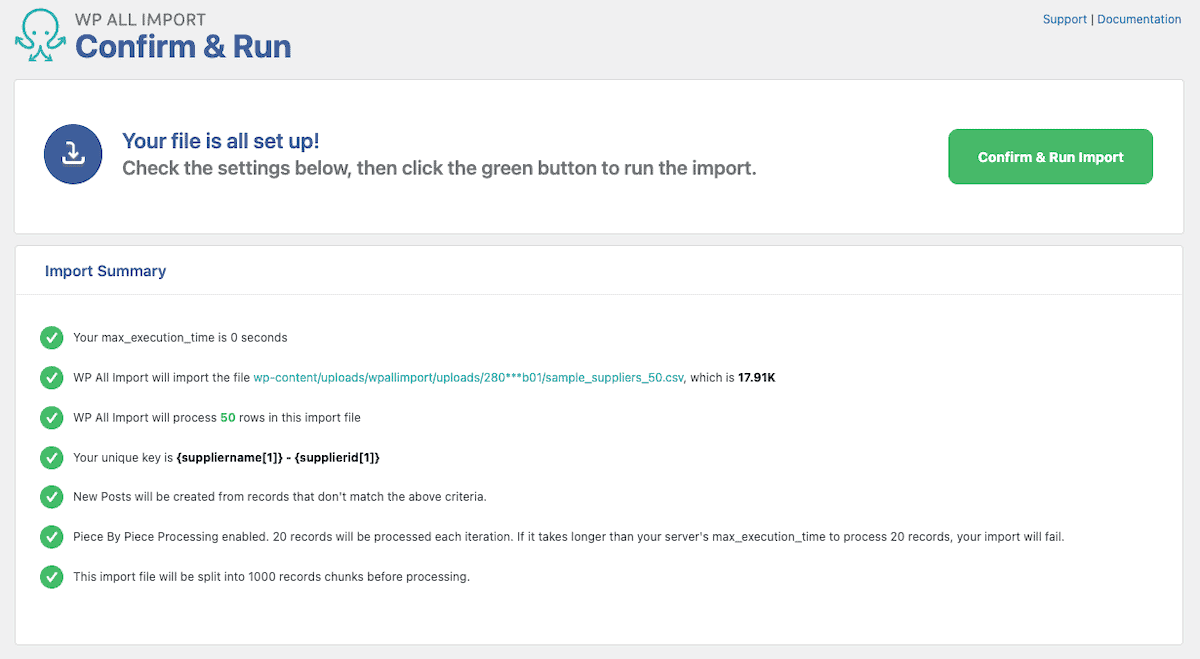
If everything looks good, then click Confirm & Run Import to start. The processing screen shows real-time progress with percentage complete, records processed, and estimated time remaining. The success messages appear in green, errors in red.

After starting, you can close the browser. The import continues server-side. You can check the import progress by going to All Import > Manage Imports to check the progress, or view all of your imports.

WP All Import Free vs Pro: Complete Feature Breakdown
By now, you should know how to easily import data with the WP All Import plugin. Above we were using the pro version, however the free version can also work depending on your needs. Below, we’ll highlight the main differences between the two versions of the plugin and the additional features you can get with specific add-ons.
Free Version Features
Here’s a quick look at the features of the free plugin:
- Includes the full drag-and-drop interface
- Can import posts, pages, and custom post types
- Maps to custom fields and taxonomies
- Imports images from URLs
- Creates categories and tags automatically
- Processes files of any size
However, the free version does have limitations. For example, it can’t update existing posts. Only create new content. There’re no scheduled or automated imports, limited forum support, and no user or WooCommerce imports or developer API is available.
The free version works perfectly for one-time migrations, testing before purchasing, and simple blog imports where you’re only creating new content.
WP All Import Pricing and Pro Features
The pro version of the plugin packs a lot more features. However, there are a ton of different pricing options depending on your plugin needs. We’ll focus on the pricing for the import plugin, however if you need an export plugin too, you have even more options.
Here’s the WP All Import pricing breakdown for the pro import plugin:
Import Standalone – $99/year
The basic pro version includes everything in free plus the ability to update existing posts, scheduled imports via cron, import/export bundles, developer API, email support, and use on unlimited sites. Perfect for basic content imports and occasional updates.
Import Pro Package – $199/year
This includes Import Pro plus six essential add-ons:
- WooCommerce for ecommerce imports
- ACF for Advanced Custom Fields including repeater fields
- Meta Box for custom fields
- JetEngine for Crocoblock fields
- Gravity Forms for form entries
- Users for user imports with custom roles
WooCommerce Import Package – $169/year
This includes Import Pro plus the WooCommerce Add-On. This enables variable product imports, product attributes and variations, order and customer imports, product gallery handling, stock status management, and grouped/external products.
Making the Free vs Pro Decision
Can’t decide which is best for you? Here’s a breakdown of how you can choose the right option for you. Go with the free plugin if you’re only creating new posts (not updating), importing once or rarely, have a tight budget, and can troubleshoot without support.
Choose the Import Standalone ($99) if you need to update existing content, want to schedule imports, need professional support, or work with client sites.
Choose WooCommerce Package ($169) if you run WooCommerce and only need import capabilities.
Choose Import Pro Package ($199) if you work with ACF, Meta Box, JetEngine, or handle complex imports with multiple plugins.
Closing Thoughts: Using WP All Import to Import Data Into WordPress
As you can see, WP All Import completely simplifies the data import process in WordPress and gets rid of manual data upload entirely.
The free version provides a lot of value for basic imports where you’re creating new content. But the pro version’s ability to update existing posts, import from URLs, and schedule recurring imports makes it essential for serious WordPress sites that need to upload/update data consistently.
A smart approach is to start with the free version to learn the interface and test with your data. Then if you need to update existing posts or schedule imports, the upgrade is seamless. Your templates and settings transfer over without any reconfiguration needed.
Whether you’re migrating a site, need your site up to date with the latest data, syncing inventory in WooCommerce, or managing content at scale, WP All Import has the features you need.
Have you used WP All Import to upload data or migrate your site? Please leave a comment below and share your experience.
Ready to build your WordPress site?
Try our service free for 14 days. No obligation, no credit card required.


