

You logged into your backlink report and found a pile of links you don’t recognize. Some might even come from sites in languages you don’t speak. A few look like spam directories or sketchy forums. Now you’re wondering if these links are dragging down your rankings and whether you should disavow them?
This is one of the most misunderstood topics in SEO. Many site owners rush to disavow anything that looks ugly, but this can actually hurt your site rankings in the process.
Below, you’ll learn how to disavow links, when it’s worth doing, when you should leave things alone, and how to go through the whole process using free tools.
Table of Contents
What Does It Mean to Disavow a Link?
When you disavow a link, you’re telling Google to ignore that backlink when evaluating your site. You upload a text file through Google Search Console. In this file you list the links or domains you want Google to disregard in this file.
Think of it as a formal note to Google that says these links have nothing to do with your site, and you’d rather they weren’t counted at all.
Google introduced the disavow tool in October 2012. At the time, the Penguin update would punish sites for unnatural link patterns. The disavow tool gave site owners a way to clean up and recover.
Things have changed since then. With the Penguin 4.0 update in 2016, Google shifted its approach. Instead of penalizing your site for spammy backlinks, Google now mostly ignores them. That change is why most sites never need the disavow tool at all.
Why Spam Links Can Be a Problem
Toxic or spam backlinks come from low-quality websites. You’d rather not have your site associated with them. They tend to come from link farms, paid schemes, scraper sites, and irrelevant directories.
For years, the fear was that these links would tank your rankings or trigger a penalty. That fear created an entire industry around backlink cleanup.
But, in 2026 that picture looks a little different. Google’s spam systems, including the part it calls SpamBrain, are good at spotting junk links and automatically discounting them. The random spam link that shows up in your profile next month is almost certainly being ignored already.
The real problem appears when there is a clear pattern of manipulation. If your link profile is dominated by paid links or exact-match anchor text from unrelated sites, that’s a red flag. Hundreds of domains that appear overnight are also a warning sign.
The goal with disavowing links isn’t to scrub every imperfect link. The goal is to address genuine manipulation when it exists and to leave harmless noise alone.
When You Should Disavow Links
There are only a handful of situations where disavowing is the right call. If none of these apply to you, you can probably close the tab and get back to building good content.
You should consider disavowing when:
- You received a manual action in Google Search Console. If Google sends a notice about ‘unnatural links to your site,’ that’s a direct signal. They have flagged your profile, and disavowing bad links is part of the solution.
- You bought links or used link schemes in the past. If you ran paid link campaigns, joined a private blog network, or hired an agency that did shady link building, cleaning that up before Google notices is a good move.
- You inherited a site with a history of dirty links. Buying a domain or taking over an old site can mean inheriting years of questionable links. A disavow file can be a reasonable precaution here.
- You’re the target of a negative SEO attack. This is rare, but does happen. A competitor mass-builds spammy links to your site, hoping to drag you down. If you see a sudden flood of toxic links appear at the same time your rankings drop, that’s worth investigating.
In each of these cases above, you see either a real penalty, clear manipulation, or a pattern.
When You Shouldn’t Bother to Disavow Links
Unnecessary disavowing is one of the easiest ways to hurt your own SEO. You don’t need to disavow links in the following scenarios:
- You’re just looking at a list of unfamiliar, low-quality links. Unfamiliar does not mean harmful. Every site accumulates random, low-quality links over time. It’s completely normal.
- You panicked after running an SEO audit and saw a big toxic number. Toxicity scores from third-party tools are estimates, not Google’s verdict. A high score alone is not a reason to disavow.
- You only have a handful of spammy links and no ranking drop or manual action. Google is already ignoring these.
Google’s own guidance is blunt about this. The company calls the disavow tool an advanced feature that should be used with caution and warns that using it incorrectly can hurt your search performance. Google representatives have said many times that most sites will never need it.
Free Tools to Find Your Backlinks
Before you can decide whether any links need attention, you need to see what’s actually pointing at your site. You don’t need an expensive SEO suite to do this, there are several free SEO tools at your disposal.
We’ll start with the three that cost nothing: Google Search Console, Ahrefs Webmaster Tools, and Bing Webmaster Tools. Semrush gets its own section a bit further down, since it works differently and comes with a few limits on the free plan.
Google Search Console
This is your starting point, and it’s free for every site owner. Search Console shows the backlinks Google itself has found, which is the data that matters most.
To see your links, log in to Search Console and select your site. Click Links in the left-hand menu, then look at the Top linking sites section.

Then, click More to open the full list of domains pointing at you.
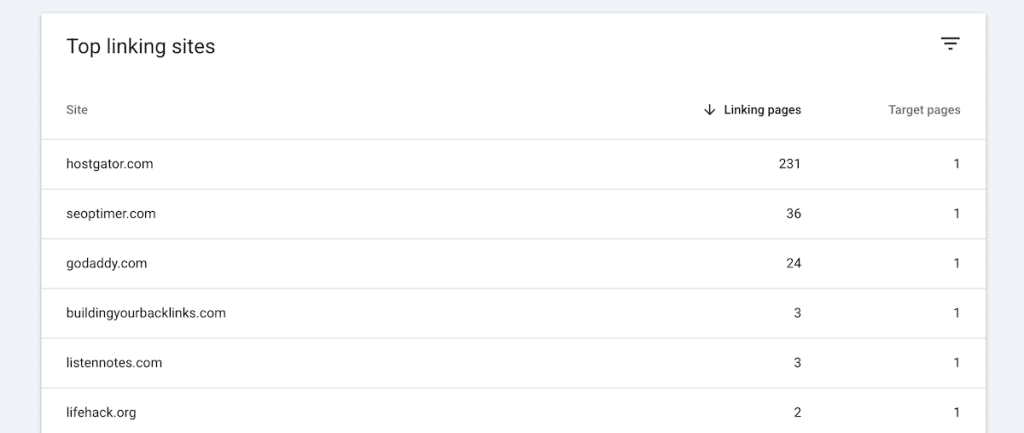
From there, click any domain and it’ll bring you to the site, so you can evaluate the website quality. You can export this list and work through it at your own pace. Google Search Console is also where you’ll use the disavow tool, so you’ll end up back here anyway.
Ahrefs Webmaster Tools
Ahrefs has their flagship SEO tool, but it also offers a free tool called Ahrefs Webmaster Tools. Once you verify that you own a site, you can check its backlinks for free.
This one is handy because Ahrefs has one of the largest link databases around, so it often surfaces links that Search Console misses. You can also filter and export the suspicious links, then use that list to build your disavow file.
We’ll cover this tool in more detail below.
Bing Webmaster Tools
People forget about Bing, but its free webmaster tools include backlink data. Setting it up takes a few minutes. But, it gives you a second source of link data to compare with Google’s. Bing also has its own disavow feature.
How to Tell if a Backlink Is Actually Harmful
Now, let’s talk about what links are actually bad for your site. A link can look ugly and still be harmless, and a scary number from an audit tool doesn’t mean Google sees a problem. What you’re trying to do is separate real manipulation from the everyday junk that Google already ignores.
The tools point you at suspicious links. They don’t make the final call. That part comes down to opening the linking site and looking at it with your own eyes.
Here’s what suggests a link is genuinely bad rather than just small or unfamiliar:
- The site exists only to host links, with little or no real content.
- The page is buried in ads and pop-ups and reads like it was auto-generated.
- The link looks bought, or sits in a block of unrelated paid links.
- The anchor text is a commercial keyword that has nothing to do with the linking site’s topic.
- The site is in a completely unrelated niche or country, and the link makes no editorial sense.
- A large batch of these links showed up at once, around the same time your traffic dropped.
One weak link that doesn’t fit this pattern is almost always safe to leave alone. What matters is a cluster of links that share several of these traits.
When you’re on the fence about a single link, treat that uncertainty as your answer. Google is far more likely to ignore it than to count it against you, so leaving it in place is the safer bet.
Semrush (Free Plan and Free Trial)
If you’d rather have a tool do the first pass and flag the suspicious links for you, this is where Semrush comes in. Semrush is the tool most SEO guides suggest for backlink audits. You can do more on the free plan than you might expect.
A free Semrush account doesn’t need a credit card. It limits you to 10 reports a day, gives you one project, and shows the first handful of results per report. Even with those caps, the Backlink tool is useful for sizing up your profile. It shows you:
- Total backlinks and referring domains
- An Authority Score for each linking domain
- The anchor text used in your links
- Link types and attributes, including dofollow and nofollow
- The country and category of the linking sites

The toxicity side is where it gets interesting. The Backlink Audit tool works on the free account, but with limits. It gives a toxicity snapshot, lets you flag bad links, and helps you build a disavow file. Results and exports are capped on the free plan, so it’s best for a small site with a short list of suspicious links. For a larger profile, you’ll only see a slice.

On your Backlink Audit report you can click the Audit tab and it’ll give you a list of your toxic backlinks. This gives you a list of potentially toxic links. You can click the Disavow Link button to start creating your disavow file.

You’ll find this file in the Disavow tab of the report. Here, you can download it and upload it to Google Search Console (we’ll cover this later).

If you’re hitting the limits, then you can take advantage of the free trial. Semrush offers a 7-day trial that unlocks all paid features.
For a one-off cleanup, this works well if you run the whole backlink audit during that week. Keep in mind, you need to enter a credit card to start, and the plan renews automatically unless you cancel before the trial ends.
For a single disavow job, the free plan covers a small site, and the trial covers a larger one. If you’re looking for free ongoing then using Google Search Console with Ahrefs Webmaster Tools is a great combo.
How to Find Bad Links in Ahrefs (Step by Step)
Search Console tells you which links Google has found, but it doesn’t do much to help you sort the good from the bad. Ahrefs is better for that, and the free Ahrefs Webmaster Tools account gives you enough to run a proper review of your own site.
First, set up a free Ahrefs Webmaster Tools account and verify that you own your site.
Next, open Site Explorer and enter your domain. This gives you an overview of your profile, including your total backlinks, referring domains, and your Domain Rating, which is Ahrefs’ own score for how strong a site’s link profile is. If you see thousands of links coming from a small number of domains, or a sudden spike in new links you can’t explain, that’s worth a closer look.

Then open the Backlinks report from the left-hand menu. This is the full list of pages linking to you, and it’s where you’ll do the real work.
Now apply a couple of filters to push the likely junk links to the top. Set the link type to dofollow, since nofollow links pass no weight and almost never need disavowing. Then sort the list by Domain Rating from low to high. Ahrefs also lets you exclude your best links, which clears out the strong, obvious keepers so the weak ones rise to the surface.

As you scan the filtered list, here’s what suggests a link is genuinely bad rather than just small:
- A very low Domain Rating combined with content that has nothing to do with your niche
- Odd top-level domains showing up in bulk, like .xyz, .ru, or .cn, when your audience is somewhere else
- Foreign-language pages that exist only to host links
- The same exact-match commercial anchor text repeated across lots of unrelated domains
- Linking sites with almost no website traffic of their own, but with huge numbers of outbound links
Open the anchor text report, too, by clicking Anchor in the sidebar. If a big share of your links use the same money keyword as the anchor, and those links come from sites with no real connection to you, that’s one of the clearest signs of paid or manipulated links.

When you’ve found the links worth acting on, click Export and download the report as a CSV.

Next, open the CSV in Google Sheets or Excel and go through the domains one by one. Don’t disavow a link just because its Domain Rating is low. Plenty of new, legitimate sites have a low rating simply because they’re young. Keep only the domains that show the clear patterns above, then take that cleaned list into the next step to build your disavow file.
Try to Remove the Links First
Before you disavow anything, Google would prefer you try to get the bad links removed at the source. This matters especially if you’re dealing with a manual action, because Google expects to see that you made the effort.
Find the contact details for the site owner, usually on a contact page or in the site’s footer, and send a short, polite request asking them to remove the link. Keep a record of who you contacted and when you contacted them.
Plenty of these emails will go unanswered. Spam sites rarely have a responsive owner. That’s expected, and it’s exactly the situation the disavow tool was built for. Once you’ve made a reasonable attempt and a link still won’t come down, disavowing becomes the fallback.
How to Create a Disavow File
The disavow file is a plain text file that tells Google which links to ignore. Getting the format right is important because small mistakes can make the whole file useless.
Here are a few technical requirements:
- Save it as a plain text file with a .txt extension
- Use UTF-8 or 7-bit ASCII encoding
- Keep the file under 2MB
- Put one domain or one URL on each line
A standard text editor like Notepad on Windows or TextEdit on Mac handles all of this fine.
You can list a bad link in two ways:
- Disavow a single page instead of a whole site, paste the full URL on its own line
- Disavow an entire domain, write a line that reads domain: followed by the site address, like domain:spammysite.com.
You can also leave notes for yourself. Any line that starts with a hash symbol is treated as a comment and ignored by Google. You can use this to record the date the file was created or the reason certain domains were added.
If you exported a file, then make sure you review the file and it matches the guidelines above.
How to Submit Your Disavow File to Google
Once your file is ready, submitting it takes about a minute. Open Google’s disavow links tool, select your property (the site you’re working on) from the drop-down, click the option to upload your disavow list, choose your .txt file, and submit it.

If the file uploads cleanly, you’re done. If there are formatting errors, Google lists them right away, and your previous file stays in place until you fix and re-upload the corrected version.
Next, Google processes the file over the following days, and your disavowed links get ignored as Google recrawls the web. The links will still appear in your backlink reports, which confuses many people. The report shows what exists, not what you’ve chosen to ignore.
If you were dealing with a manual action, there’s one more step. After you disavow links, file a reconsideration request in Search Console. Without it, the manual action stays in place even after the links are taken care of. And if rankings were affected, recovery can take weeks or months, not days.
The Risks of Disavowing Links
The biggest danger is disavowing links that were actually helping you. If you sweep up legitimate links by mistake, you remove real value from your profile, and your rankings can slip as a result. Once Google acts on the file, you’ve effectively thrown those links away.
There’s also no gentle undo. Every time you upload a disavow file, it replaces the previous one entirely. If you want to remove a domain from your disavow list later, you have to download the current file, edit it, and resubmit the whole thing. Forgetting this is a common way people accidentally re-enable links they meant to keep disavowed, or wipe out an existing list.
When you’re unsure whether a link is harmful, the safer choice is almost always to leave it alone. Google ignores most junk on its own, and a clean profile built on good links makes the occasional bad one irrelevant.
How to Build a Healthy Link Profile Instead
The best defense against toxic backlinks is a strong backlink profile that doesn’t depend on any single link. When most of your links are earned and relevant, a few spam links carry no weight.
Keep the following in mind:
- Earn links by publishing content people actually want to reference
- Avoid buying links or joining schemes that promise quick results
- If you run widgets or embeds that other sites can use, set the links inside them to nofollow
- Check your link profile every few months using the free tools above, so nothing surprising builds up unnoticed
Good hosting plays a quiet role too. A fast, secure site that stays online earns natural links and avoids the kind of downtime and security problems that scare off the sites that would otherwise link to you.
Disavow Links FAQs
Is the disavow tool free?
Yes. Google’s disavow tool is completely free and lives inside Google Search Console. You can also find and review your backlinks for free using Search Console, Ahrefs Webmaster Tools, and Bing Webmaster Tools, so the whole process can cost nothing.
Do I need a paid tool like Semrush to disavow links?
No. The disavow tool itself is free inside Google Search Console, and you can find your backlinks for free with Search Console, Ahrefs Webmaster Tools, and Bing Webmaster Tools. Paid tools like Semrush can speed up the audit and build the disavow file for you, but they’re a convenience rather than a requirement. However, you can use the 7-day free trial to test the backlink feature for yourself.
How long does it take for a disavow to work?
Google processes your file within a few days, but the effect isn’t instant. As Google recrawls and reprocesses pages across the web, your disavowed links get ignored. If you had a ranking issue or a manual action, recovery can take weeks or even months.
Will disavowing links improve my rankings?
Usually not. Since Google already ignores most low-quality links, removing them makes little difference. Disavowing only tends to help when you had a genuine penalty or a clear pattern of manipulative links holding you back. For most sites, it has no noticable effect.
Can I undo a disavow?
To stop disavowing a domain or URL, you download your current disavow file, delete the lines you no longer want, and upload the edited file. Since each upload replaces the last one, the corrected file becomes your active list.
Closing Thoughts: Disavowing Links in Google
For most site owners, disavowing links isn’t something you’ll have to do. Google ignores the vast majority of spam links on its own, and the disavow tool does more harm than good when it’s used out of fear.
Save it for the situations that actually call for it. Like, a manual action in Search Console, a link scheme you need to clean up, an inherited dirty profile, or a real negative SEO attack. In those cases, use the free tools to find the bad links, try to get them removed first, then build and submit a careful disavow file.
The rest of the time, your energy is better spent earning good links and keeping your site fast and secure. A strong profile makes the occasional bad link a non-issue.
Now over to you. Have you ever had to disavow links on your site, or did you decide to leave a suspicious profile alone? Share your experience in the comments below.
Ready to build your WordPress site?
Try our service free for 14 days. No obligation, no credit card required.


