

Every website owner needs to transfer files to their server, whether uploading a new plugin, restoring a backup, or editing configuration files.
If you’re still using FTP to move files, your data travels across the internet in plain text. Anyone intercepting your connection can see everything, including your login credentials. Not exactly ideal.
That’s where SFTP comes in. It’s a secure alternative that encrypts your data during transfer, keeping your files and passwords protected. Below, you’ll learn what SFTP is, how it differs from FTP, and how to connect to your server using clients like FileZilla and Cyberduck.
Table of Contents
What Is SFTP?
SFTP stands for SSH File Transfer Protocol. It’s a network protocol that lets you securely access, transfer, and manage files on a remote server.
Don’t let the name fool you. SFTP isn’t just FTP with added security. It’s a distinct protocol, built from the ground up as part of the SSH (Secure Shell) family.
SFTP replaced an older file transfer protocol, SCP (Secure Copy Protocol). While SCP could transfer files securely, it couldn’t do much else. SFTP expanded on that by adding the ability to edit files, change permissions, delete files, and perform other file management tasks. SFTP operates over the SSH protocol, providing encryption for secure transfers.
What Is SFTP Used For?
SFTP serves as a secure alternative to FTP for connecting to your server. In practice, you can do everything you would with FTP, with the added benefit of encryption.
With SFTP, you can edit files on the server. For example, tweaking your wp-config.php file or updating your .htaccess (these are files that control how your website works). You can delete files when cleaning up old backups or removing a problematic plugin.
You can transfer files from your computer to the server, such as WordPress themes, plugins, and images.
You can also download files from the server to your computer, like backups or logs. Lastly, you can change file permissions to control who can read, write, or run specific files.
The main advantage of SFTP over FTP is security. All your actions are encrypted, so even if someone intercepts your connection, they can’t access your data or credentials.
This matters to businesses needing to meet compliance like HIPAA or GDPR. It also matters to anyone who doesn’t want website credentials exposed in plain text.
How Does SFTP Work?
SFTP runs on top of the SSH protocol. To use SFTP for file transfers, the server you’re connecting to must support SSH. Most quality web hosting providers include SSH access with their plans.
Here’s how an SFTP connection works.
First, the SSH connection handles authentication. This can happen through a username and password, SSH keys, or both. SSH keys are generally more secure because they don’t require you to transmit a password.
Once authenticated, the SFTP session starts. Unlike FTP, which uses two connections, SFTP uses a single encrypted channel. This increases efficiency and reduces security risks.
The SFTP protocol typically uses port 22, the same port as SSH. Some hosting providers use a different port for security reasons. At SupportHost, we use port 2299.
During the entire session, all data is encrypted. Your login credentials, the files you’re transferring, and any commands you issue are all scrambled into unreadable ciphertext. Only the intended recipient with the proper decryption key can read the original content.
This encryption happens automatically. You don’t need to configure anything special. As long as you’re connected via SFTP instead of regular FTP, your data is protected.
SFTP vs FTP: What’s the Difference?
FTP and SFTP may seem similar, but they operate differently. Here are the main differences between the two.
First,the connection structure. FTP uses two separate connections, a command channel and a data channel. The command channel handles instructions and confirmations, while the data channel moves the actual files. SFTP uses a single encrypted connection for everything. This single-connection approach reduces complexity and minimizes security risks.
Next is security. This is the big one. FTP transmits all data in plain text. Your username, password, and every file you transfer are completely readable to anyone who intercepts the connection.
SFTP encrypts everything. Even if someone manages to capture your network traffic, they’ll just see scrambled data they can’t decode.
Then, we have ports. FTP typically uses port 21 for commands and port 20 for data transfers (or a range of ports in passive mode). SFTP uses a single port, usually port 22.
Finally, the protocol foundation. FTP is its own standalone protocol, or set of rules for data transfer. SFTP is built on top of SSH, which means it inherits all of SSH’s security features and authentication methods.
Here’s a quick comparison of FTP and SFTP:
Feature | FTP | SFTP |
|---|---|---|
Encryption | None | Full encryption |
Connections | Two (command + data) | One |
Default Port | 21 | 22 |
Authentication | Username/password | Username/password or SSH keys |
Security Level | Low | High |
How to Use SFTP
There are two main ways to connect to a server using SFTP. You can use the command line (terminal) or an SFTP client with a graphical interface.
For most website owners, an SFTP client is the easier option. Programs like FileZilla and Cyberduck provide a visual interface for dragging and dropping files between your computer and the server.
That said, knowing how to connect via the command line can be useful in certain situations, so let’s cover both methods.
Connecting via Command Line
If you prefer working in a terminal, SFTP connections are straightforward.
The first thing you need to do is make sure you can establish an SSH connection to your server. Open your terminal and run:
ssh user@server_ipaddressreplacing user with your username and server_ipaddress with your server’s IP address or domain name. If the connection works, exit the SSH session.

Now you can initiate an SFTP connection by running sftp user@server_ipaddress. If your server uses a non-standard port (like SupportHost’s port 2299), you’ll need to specify it with
sftp -oPort=2299 user@server_ipaddress.Once connected, you’ll see an SFTP prompt where you can enter commands.

Navigation commands help you move around and see what’s on the server. The pwd command displays the current remote directory, while lpwd displays the current local directory. Use ls to list files in the remote directory and lls to list files locally. To change directories, use cd directory_name for remote and lcd directory_name for local.
File transfer commands handle the actual movement of files. The get filename command downloads a file from the server to your local machine, and put filename uploads a file from your local machine to the server. For multiple files, use mget *.txt to download or mput *.txt to upload files matching a pattern.
File management commands let you organize files on the server. Use mkdir directory_name to create a new directory, rmdir directory_name to remove one, and rm filename to delete a file. The rename oldname newname command renames files, and chmod 755 filename changes file permissions.
To end your SFTP session, type exit or bye.
Connecting with an SFTP Client
For most people, using an SFTP client is more convenient than typing commands in a terminal. Like we mentioned above. FileZilla and Cyberduck are two popular options that work on Windows, Mac, and Linux.
Before connecting with either client, you’ll need to set up SSH key authentication. While you can connect with just a username and password, SSH keys are more secure and often required by hosting providers.
Setting Up SSH Keys
SSH keys come in pairs: a public key, which you can share, and a private key, which you keep secret on your computer.
The public key is placed on the server, while the private key remains on your computer. When you try to connect, the server checks if your private key, by proving ownership without revealing it, matches the public key it has on file.
Generating SSH Keys
On Mac or Linux, you can generate SSH keys directly in the terminal by running ssh-keygen -t rsa -b 2048. The system will ask where to save the key (the default location is fine) and prompt you to enter a passphrase.

This creates two files in your .ssh directory. The id_rsa file is your private key, and id_rsa.pub is your public key.

Adding Your Public Key to the Server
Now you need to add your public key to the server’s authorized_keys file. This tells the server to trust connections that use your private key.
Open the id_rsa.pub file and copy its contents.

Next, connect to your server and navigate to the .ssh directory in your home folder. If the directory doesn’t exist, create it. Open (or create) the file called authorized_keys and paste your public key on a new line.
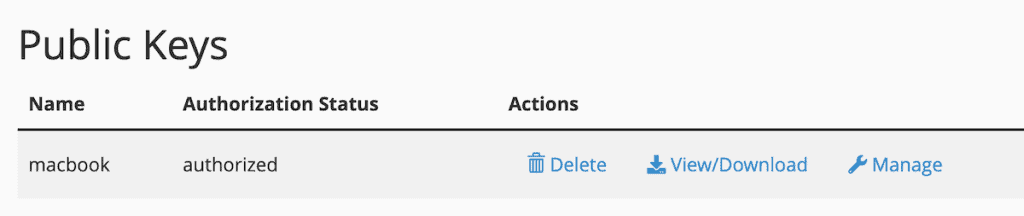
If you’re using cPanel, you can use the File Manager to edit the authorized_keys file directly. Navigate to the .ssh folder in your home directory, open the authorized_keys file, paste your public key, and save.
Connecting via SFTP with FileZilla
FileZilla is a free, open-source FTP client that supports SFTP connections. Here’s how to set it up.
Start by downloading and installing FileZilla from the official website. Once installed, open FileZilla and click on File then Site Manager.
Click New Site and give it a name you’ll recognize. In the Protocol dropdown, select SFTP – SSH File Transfer Protocol. Enter your server’s hostname in the Host field (usually ftp.yourdomain.com or your server’s IP address). For the Port, enter the SFTP port. Port 22 is standard, but SupportHost uses 2299.
Set the Logon Type to Key file and enter your FTP/SFTP username in the User field. For the Key file, click Browse and select your private key file.

Click Connect when you’re ready. The first time you connect, FileZilla will show a warning that the server’s host key is unknown. This is normal for a first connection. Check the box to Always trust this host and click OK.
If you set a passphrase when creating your SSH key, FileZilla will ask for it. Enter the passphrase and click OK.

Once connected, you’ll see your local files on the left side of the FileZilla window and your server files on the right. You can drag and drop files between the two panes to transfer them.

Troubleshooting FileZilla Connection Issues
If you see a “Server rejected our key” error, this usually means the public key on the server doesn’t match your private key. Double-check that you copied the entire public key to the authorized_keys file and saved the changes.
If your passphrase is rejected, make sure you’re entering the exact passphrase you set when generating the key. Passphrases are case-sensitive.
If you’re experiencing a connection timeout, verify you’re using the correct port. If you’re connecting to a SupportHost server, remember to use port 2299 instead of the default port 22.
Connecting via SFTP with Cyberduck
Cyberduck is another popular FTP client, especially among Mac users. It has a clean interface and works well for SFTP connections.
Start by downloading and installing Cyberduck from the official website. Open Cyberduck and click the Open Connection button in the toolbar.
In the dropdown at the top of the connection window, select SFTP (SSH File Transfer Protocol). Enter your server’s hostname or IP address in the Server field. For the Port, enter the SFTP port (22 is standard, 2299 for SupportHost).

Enter your FTP/SFTP username in the Username field. Leave the Password field blank if you’re using SSH key authentication. For SSH Private Key, click Choose and select your private key file.

Click Connect when you’re ready. When Cyberduck warns you about an unknown fingerprint, click Allow to proceed.
If you set a passphrase on your SSH key, Cyberduck will prompt you to enter it. Type your passphrase and click Continue.
Once connected, you’ll see your server files in the main Cyberduck window. You can drag files from your computer into the Cyberduck window to upload them, or drag files from Cyberduck to your desktop to download them.

SFTP FAQs
What port does SFTP use?
SFTP uses port 22 by default, the same port used by SSH. Some hosting providers configure a different port for security reasons. At SupportHost, we use port 2299 for SFTP and SSH connections.
Is SFTP the same as FTPS?
No, they’re different protocols. SFTP runs over SSH and uses a single encrypted connection. FTPS is regular FTP with TLS/SSL encryption added. While both provide encryption, SFTP is generally considered more secure and easier to configure because it uses only one port.
Do I need special software to use SFTP?
You need an SFTP client to connect to your server. Many popular FTP clients, such as FileZilla, Cyberduck, and WinSCP, support SFTP connections. You can also connect via the command line on Mac, Linux, or Windows.
Can I use SFTP with my hosting account?
Most quality hosting providers support SFTP connections. All SupportHost plans include SSH access, which means you can connect via SFTP. Check with your hosting provider if you’re unsure whether SFTP is supported.
Is SFTP slower than FTP?
SFTP can be slightly slower than FTP due to encryption overhead. However, the difference is usually minimal and not noticeable for typical file transfers. The security benefits far outweigh any minor speed difference.
Should I use password authentication or SSH keys?
SSH keys are more secure than password authentication. With SSH keys, there’s no password to intercept or guess. Many security-conscious hosting providers require SSH key authentication and don’t allow password-only SFTP connections.
Closing Thoughts: What is SFTP?
SFTP gives you a secure way to transfer files between your computer and your server. Unlike regular FTP, which sends everything in plain text, SFTP encrypts your data and credentials so they can’t be intercepted.
Setting up SFTP might take a few extra minutes compared to regular FTP, especially if you’re creating SSH keys for the first time. But once you have it configured, the process is just as simple as using FTP. You connect, drag and drop your files, and everything transfers securely in the background.
For anyone managing a website, SFTP should be your default choice for file transfers. There’s really no reason to use unencrypted FTP when SFTP is widely supported and easy to set up.
Now over to you. Do you use SFTP for your file transfers, or are you still using regular FTP? Share your experience in the comments below.
Ready to build your WordPress site?
Try our service free for 14 days. No obligation, no credit card required.


