

If you run a local business, a travel blog, or a site where people need to find a physical location, embedding Google maps is one of the most useful things you can do. It saves visitors from opening another app, helps build trust, and makes your content feel more grounded in the real world.
The good news is that adding Google Maps to WordPress isn’t hard. The slightly tricky part is that there are a few different ways to do it, and each one makes sense in a different situation. Some methods take 30 seconds and require no setup. Others need an API key, which sounds scary but isn’t.
This guide covers when an API key is required, how to get one, and three methods to embed Google Maps on your WordPress site, so you can pick the best approach for your needs.
Table of Contents
Why Add Google Maps to WordPress?
For physical locations like restaurants or stores, a map on your contact page helps visitors easily find you, avoiding manual address copying and switching between apps.
For bloggers and content sites, maps make location-based content more useful. A hiking blog that maps a trail is clearer than one that only lists it. A travel post is better when readers can see the neighborhood’s spots and zoom in on the map.
Embedding a map can help local SEO. Nearly half of Google searches have local intent, and a map with proper structured data boosts your chances to appear in local results.
Any site benefits from an embedded map, making your contact info feel more practical and real than plain text.
Do You Need a Google Maps API Key?
Before picking a method, you need to understand whether it requires a Google Maps API key.
Here’s the short version. If you just want to embed a simple map using the Share feature on Google Maps (Method 1 below), you don’t need an API key. Google handles it for you behind the scenes. That’s the fastest path, and it works for most contact pages.
If you want to use a WordPress plugin, either a dedicated Google Maps plugin or a local SEO plugin, you’ll almost always need an API key. Plugins use Google’s various APIs to render dynamic maps, geocode addresses, and perform tasks beyond a basic embed.
How to Create a Google Maps API Key
If you plan to use a plugin (Methods 2 or 3 below), here’s how to get your API key.
First, head to the Google Maps Platform website and click Create an account. You’ll be asked to sign in with your Google account, so if you don’t already have one, you’ll need to create it.

After agreeing to the Terms of Service and entering payment information, Google requires a card even if you remain within the free tier, which covers most WordPress traffic.
After you finish billing, Google will generate an API key for you. Copy it and save it somewhere safe. You’ll paste this into whichever plugin you end up using.

The Maps Embed API (used for plain iFrame embeds) is now completely free with unlimited usage, and for other APIs, you get 10,000 free calls per SKU per month on the Essentials tier. New customers also get a $300 trial credit valid for 90 days. For a typical small business site, you won’t come close to hitting the limits.
Restrict Your API Key
Once you have your key, restrict it so others can’t copy or use it elsewhere. If someone else uses your key, their usage counts against your limits and could cost you.
To do this, go to the Google Cloud Console and open Google Maps Platform > Keys & Credentials, then click on your API key to open its settings. Under Application restrictions, choose Websites and add your domain, something like .yoursite.com/, so the key only works on your site.

While you’re there, it’s also a good idea to limit the key under API restrictions so it only works with the specific APIs you need (usually Maps JavaScript API, Maps Embed API, Geocoding API, and Places API, depending on what your plugin uses). Save your changes, and you’re done.
With your key set up and restricted, you’re ready to use any of the methods below.
Method 1: Embed Google Maps Without a Plugin
This is the fastest method and the one most site owners should start with. No plugin, no API key, or setup. It takes less than a minute.
To get started, head to Google Maps and search for the address or location you want to show. Once you’ve found it, click the Share button in the left-hand panel. A pop-up will appear with two tabs, and you’ll want to click the Embed a map tab. From there, click COPY HTML.

Now switch over to your WordPress site and open the post or page where you want the map to appear. Click the + button to add a new block and search for Custom HTML. Paste the HTML code you copied from Google Maps into the Custom HTML block. Click Preview to check how it looks, then Update or Publish to save your changes.
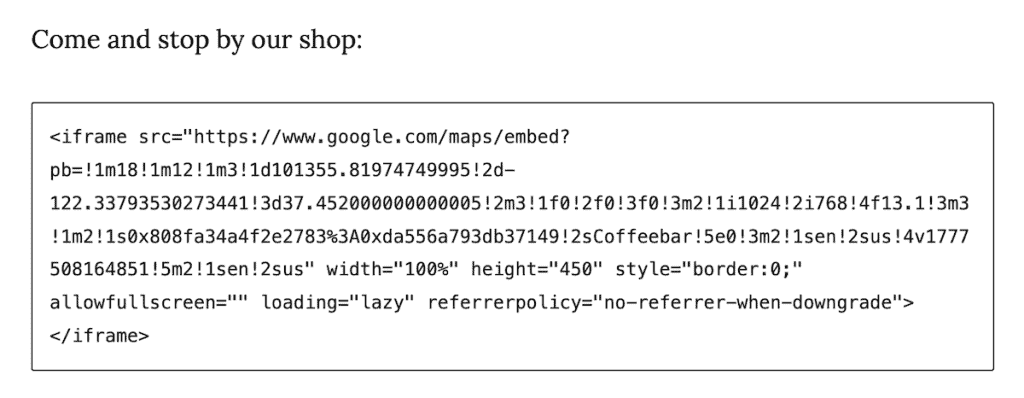
That’s it. The map will show up on your page, complete with zoom controls, directions, and a link to open the full Google Maps view. It’s the same map users are already familiar with, so there’s no learning curve for your visitors.

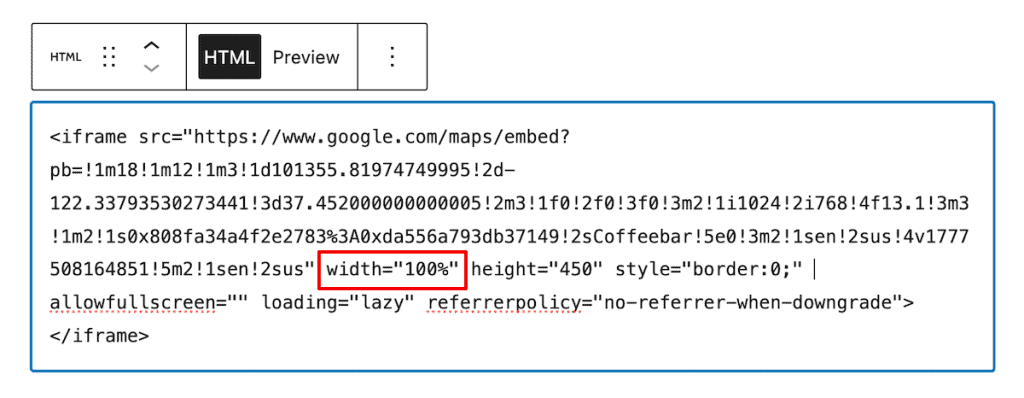
A few things to know about this method. You can resize the map by editing the width and height values in the iFrame code. Setting width=”100%” makes the map responsive, which is usually what you want. You can’t add custom markers or styling this way, though.
What you see in the Google Maps embed is what you get. And there’s no local SEO benefit from structured data. The map is just a visual. If your goal is to rank for local searches, you’ll want to look at Method 3.
Custom Multi-Pin Maps with Google My Maps
If you want to show multiple locations on a single map without installing a plugin, Google has a free tool called Google My Maps that works alongside Google Maps.
My Maps lets you build your own custom map with multiple pins, drawn routes, custom labels, and different colored markers. Great for a travel itinerary, a list of your favorite restaurants in a city, or a map of multiple business locations.
Once your map is built, click the three-dot menu in the sidebar and choose Embed on my site.

You’ll get an iFrame code that works exactly like the Method 1 embed. Paste it into an HTML block on your WordPress page.

One thing to remember. You need to make the map public before you can embed it. In the Share settings, set it to Anyone with the link can view.

Here’s what your map looks like live on your website:

Method 2: Use a Dedicated Google Maps Plugin
If Method 1 feels too basic, or you want features like custom markers, a store locator, or deeper customization, a dedicated Google Maps plugin is the way to go. These plugins give you a visual editor inside WordPress, so you can build and manage maps without ever leaving your dashboard.
WP Go Maps (Formerly WP Google Maps)
WP Go Maps is the most popular Google Maps plugin on WordPress, with over 300,000 active installations and more than 26 million downloads. It’s been around for over a decade and has a 4.8-star rating from 3,000+ reviews.
To install it, go to Plugins > Add Plugin in your WordPress dashboard and search for WP Go Maps. Click Install Now, then Activate.

Once activated, you’ll see a new Maps menu item in your sidebar. The plugin walks you through a setup wizard the first time you run it. You’ll need to paste your Google Maps API key here.

From there, you can create as many maps as you want.
Each map can have unlimited markers (even in the free version), custom descriptions, images, and links attached to each marker.

You can change the map type (roadmap, satellite, hybrid, terrain), adjust the zoom level, and more.
Adding the map to your site is easy. You can use the shortcode that’s generated for each map or use the included Gutenberg block.

When you use the block the map won’t generate until you preview your site or publish it live and view your map in real time.

The plugin also supports non-Google map engines like Leaflet, OpenStreetMap, and MapTiler. If you want to skip the API key setup entirely, you can use Leaflet as your map engine and avoid Google’s platform altogether. The maps look slightly different, but for most basic use cases, they work just fine.
The free version covers most needs. The Pro version (starting at $79/lifetime) adds features like marker clustering, custom icons, directions from a user’s current location, advanced filtering, and Elementor integration.
Maps Widget for Google Maps
If you want a map that loads fast and doesn’t slow down your site, Maps Widget for Google Maps is worth a look. This plugin takes a different approach. Instead of loading a full interactive map on every page, it loads a small static image thumbnail. When a visitor clicks the thumbnail, the interactive map opens in a lightbox.

The performance difference can be significant. A full Google Maps embed can add hundreds of kilobytes of JavaScript and make multiple external requests. A static image thumbnail is just one request and has a small file size.
Maps Widget is a better fit for small sites or contact pages where the map isn’t the main attraction. If you’re building something more interactive, like a store locator with multiple locations users need to browse, WP Go Maps is the better choice.
The free version gives you the basics. The Pro version adds custom pins, more skins, and additional customization options.
Method 3: Use a Local SEO Plugin
If you run a local business and you want your map to do double duty as an SEO asset, use a local SEO plugin. These plugins embed Google Maps while also adding Schema markup (structured data) to your pages, which helps search engines understand your business details like name, address, phone number, and hours.
The tradeoff is that the map features in these plugins are usually part of a paid tier. You’re paying for the SEO benefits first, and the map is bundled in.
All in One SEO (AIOSEO)
All in One SEO is one of the most widely used SEO plugins for WordPress, with over 3 million active installations. The map and local SEO features are part of the Pro version.
After installing AIOSEO Pro, go to All in One SEO > Local SEO and click Activate Local SEO. You can then add your business location by typing the address into a search field, and AIOSEO pulls it from Google Maps.
If you have multiple physical locations, you can enable the Multiple Locations setting, which adds a new Locations menu to your dashboard where you can add each location individually.
To display the map on your site, use the AIOSEO Local – Map block in the Gutenberg editor.

You can also use a widget or shortcode. Each map is automatically connected to the business info you entered, so the Schema markup is generated for you. The embedded map will look identical to the manual Google maps embed.
You’ll need a Google Maps API key to display the map. AIOSEO has a field for it under Local SEO > Maps.
Rank Math
Rank Math is another popular SEO plugin, and its local SEO features are included in the Pro version (starting at around $95/year).
After installing Rank Math Pro, enable the Local SEO module in the dashboard. Then go to Rank Math > Titles & Meta > Local SEO and fill in your business information. At the bottom of that page, you’ll see a field for your Google Maps API key.
Rank Math adds a Gutenberg block called Local Business that automatically applies Schema markup when you insert a map into your content.

Once the map is inserted into your page you can customize it with the block settings on the right-hand side of the page.

Yoast
Yoast SEO is the most well-known SEO plugin in the WordPress ecosystem. The map functionality is part of Yoast SEO Premium (starts at $118.80/year).
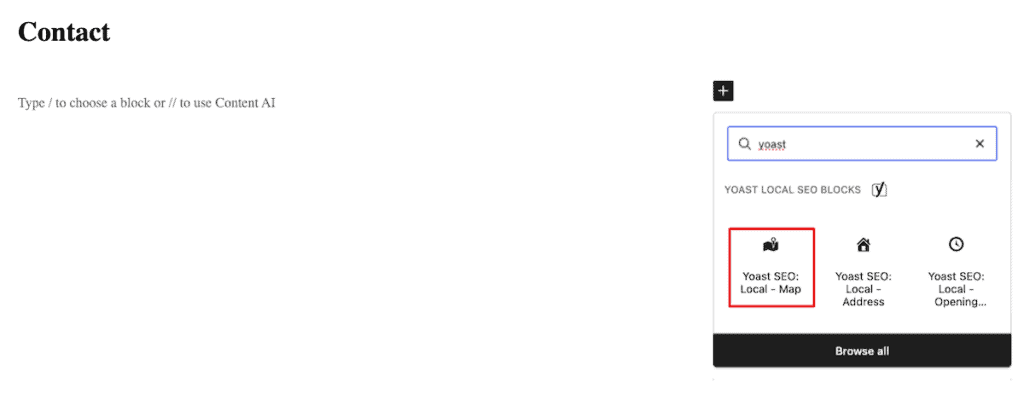
Once installed, you’ll find the settings under Yoast SEO > Local SEO, where you can enter your API key and add your business details. The plugin includes a Yoast SEO: Local Map block for adding maps to your pages.
Of the three, AIOSEO has the most beginner-friendly interface. Rank Math tends to appeal to users who want more control over their SEO settings. Yoast is the legacy choice, but ultimately it depends on if you’re already using one of these SEO plugins for your site.
Keep Google Maps from Slowing Down Your Site
Embedded maps, especially interactive ones, can drag down your page load times. Google Maps loads multiple scripts, fetches tile images, and adds DOM elements that all add up. Here are a few ways to keep maps from hurting your site performance.
Swap Interactive Maps for Static Ones When You Can
Not every map on your site needs to be fully interactive. If the map is just showing where your office is, a static image works fine. Visitors rarely need to zoom and pan on a contact page map. They just want to see the pin and know where you are. Plugins like Maps Widget for Google Maps default to static thumbnails for exactly this reason.
Enable Lazy Loading
Lazy loading means the map doesn’t load until a visitor actually scrolls down to it. So if your map sits in the footer of a long blog post, it doesn’t waste bandwidth loading up for visitors who never reach it.
Most modern plugins support lazy loading out of the box. If you’re using the iFrame method, you can add loading=”lazy” to the iFrame tag and get the same benefit.
Keep Maps to One Per Page
Every embedded map adds weight to your page, so stacking three or four of them on the same page multiplies the impact. If you’ve got a reason to show multiple locations, consolidate them into a single map with multiple markers using WP Go Maps instead of embedding a separate map for each one.
Pick a Host That Can Handle It
A map embed on a slow server is going to feel even slower. Good WordPress hosting makes everything load faster, including third-party embeds like Google Maps.
If your site is already sluggish before you add a map, the map isn’t the real problem, and fixing the hosting situation is going to give you a much bigger win than optimizing the map itself.
Comparing the Main Methods
Here’s a quick side-by-side of the methods covered:
| Method | API Key Needed | Custom Markers | Local SEO Schema | Good For |
| iFrame (Google Maps) | No | No | No | Simple contact pages |
| Google My Maps | No | Yes | No | Custom multi-pin maps without a plugin |
| WP Go Maps | Yes | Yes | No | Full-featured maps, store locators |
| Maps Widget | Yes | Limited | No | Fast-loading single-location maps |
| AIOSEO / Rank Math / Yoast | Yes | Basic | Yes | Local business sites focused on SEO |
Add Google Maps to WordPress FAQs
Do I need a Google API key to embed Google Maps in WordPress?
Only if you’re using a plugin. The basic iFrame method (using the Share feature on Google Maps) doesn’t require an API key. Dedicated map plugins and local SEO plugins almost always do.
Is Google Maps free for WordPress sites?
For most small sites, yes. The Maps Embed API (used for basic iFrame embeds) is completely free with no usage limits. For other APIs, Google gives you 10,000 free calls per SKU per month on the Essentials tier, which is more than enough for typical traffic levels. You only pay if you exceed those limits.
Will embedded Google Maps slow down my WordPress site?
They can, especially interactive maps that load a lot of JavaScript. To minimize the impact, use static maps when possible, enable lazy loading, and avoid putting multiple maps on a single page. A plugin like Maps Widget for Google Maps loads maps as static thumbnails, which is much faster than a full interactive embed.
Can I add multiple locations to one Google Map in WordPress?
Yes. For a no-plugin approach, use Google My Maps to build a custom multi-pin map and embed it with an iFrame. For more control, a plugin like WP Go Maps lets you add unlimited markers to a single map, each with its own description, image, and link.
Which method has the best local SEO benefit?
A local SEO plugin like AIOSEO, Rank Math, or Yoast Local SEO. These plugins add Schema markup to your pages alongside the map, which helps search engines connect your business info to local search results. The iFrame method shows a map but provides no SEO benefit on its own.
Closing Thoughts: How to Add Google Maps to WordPress the Right Way
There’s no single best way to add Google Maps to WordPress. The right method depends on what you’re trying to do.
If you just need a map on a contact page, start with the iFrame method. It’s fast, free, and doesn’t require any setup. Most sites don’t need anything more than that.
If you want more control, like custom markers, a store locator, or multiple maps across your site, a dedicated plugin like WP Go Maps is the right call. You’ll need an API key, but the free tier is generous enough that you probably won’t ever get charged.
If you run a local business and care about ranking in local search results, a local SEO plugin gives you both the map and the Schema markup you need. Yes, you’ll pay for the Pro version, but for a business that depends on local customers finding you, it tends to pay for itself quickly.
Whichever route you choose, remember to restrict your API key, keep an eye on site performance, and test the map on mobile devices to make sure it displays well for visitors on smaller screens.
Have you added Google Maps to your WordPress site? Which method worked best for you, and did you run into any issues along the way? Share your experience in the comments below.
Ready to build your WordPress site?
Try our service free for 14 days. No obligation, no credit card required.


