

Want to learn how to add PDFs to your WordPress site so visitors can view them right inside your pages and posts?
In this guide, we’ll walk through a few different methods you can use to embed a PDF viewer directly on your site. That way, you won’t need to rely on third-party file-sharing services to distribute documents to your readers.
Let’s get started!
Table of Contents
Why embed a PDF in an article or page
Whether it’s a catalog, a digital magazine, or course support material, PDFs are often a great way to share information. That’s why it’s useful to know how to display PDFs by embedding them directly on your WordPress site.
In some cases, embedding files is more practical than sharing a link to an external file storage service.
Of course, if you choose to host files directly on your site, you’ll also want to make sure the storage they use doesn’t conflict with your hosting plan’s available space. But if you’ve chosen a service like SupportHost WordPress hosting, you can easily upgrade from one plan to another, paying only the difference between the two.
How to insert PDFs into WordPress
There are several ways to embed PDFs in WordPress. The simplest is to use the Gutenberg File block.
If you need more fine-grained control over the display options, or if you don’t use Gutenberg and therefore can’t use this method, your best alternative is to use a plugin that includes this feature.
In this guide, we’ll look at three different plugins that offer PDF embedding.
Before we begin, if the files you’re uploading are meant only for specific readers and shouldn’t be publicly accessible, it may be worth creating a restricted area in WordPress and learning hot to set PDFs to noindex.
Viewing PDF files on WordPress (method without plugins)
If you use the block editor (also called Gutenberg) on your WordPress site, there’s an easy way to display PDFs directly inside a page or post.
The system uses the default Gutenberg block: “File.”
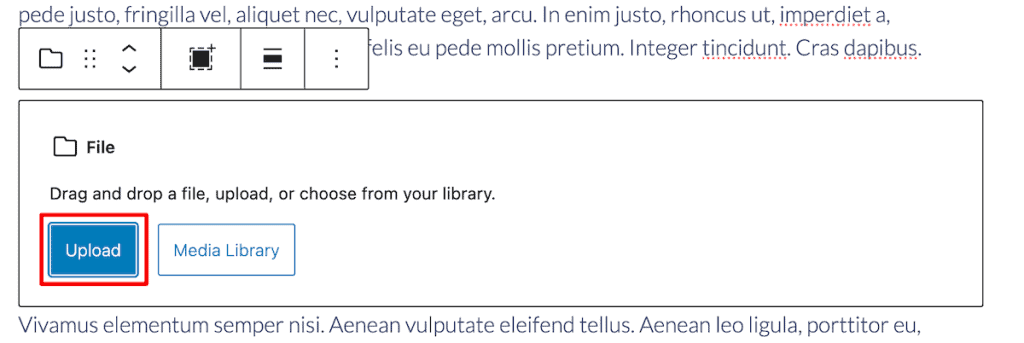
Create or edit the post or page where you want to insert the PDF, then add the “File” block, like this:

You can then choose whether to upload the PDF file or select it from the media library. If you haven’t uploaded it yet, click “Upload” and choose it from your computer, or simply drag and drop it onto the File block.
As soon as the PDF uploads, you’ll see a preview in the editor.
At this point, we can make a few small tweaks to change how the viewer looks.
Click the block to select it, then open the “Block” tab in the right sidebar of the WordPress editor.
Here you’ll find the “PDF Settings”:
- Height in pixels: this setting lets you decrease or increase the viewer height. (If you change it, you’ll see the result in the editor preview).

- Link to: in most cases, it’s best to leave “Link to: Media File” enabled so that when someone clicks the link below the PDF preview, the PDF opens directly in the browser, like the image below.

If you choose the “Attachment Page” option, then it’ll link to another page containing the file link.

Let’s go back to the “File” block settings.
In the “Settings” section, you can also choose whether to display the download button, which lets visitors download the PDF more quickly.

Note that the button is enabled by default. If you want to remove it, disable the “Show download button” option.
As we’ve seen, this method is quick and simple, but it doesn’t offer much flexibility.
On the other hand, the plugins we’ll look at aren’t always fully featured in their free versions. So we recommend comparing each plugin’s options to decide whether a free plugin is enough for you, whether the built-in Gutenberg method (without plugins) is the better fit, or whether it’s worth purchasing a plugin’s Pro version.
How to insert PDFs into WordPress with a plugin
If you want more control over how PDFs are inserted and displayed in WordPress, you can use a plugin.
PDF Embedder is a plugin designed specifically to let you embed PDFs in WordPress pages.
As we’ll see, unlike the default WordPress PDF viewer (when we upload files using the “File” block, as shown earlier), this plugin lets us further customize the toolbar.
One downside is that if you use the free version of the plugin, links inside the PDF won’t be clickable.
Install and activate PDF Embedder
The PDF Embedder plugin is very easy to use. If you use Gutenberg, the plugin adds a new block you can insert just as we did before.
However, if you use the Classic Editor, you can embed PDFs where you want using a shortcode (we’ll see exactly how in a moment).
First, install and activate the “PDF Embedder” plugin.

Insert PDFs into Gutenberg
After installing and activating PDF Embedder, the plugin is ready to use.
To embed a PDF in a post or page, open the content and use the block inserter to search for “PDF Embedder,” then click it to add the block:

Next, select the document you want to display from the library.
Once you’ve done that, you can change the settings for that specific PDF from the “Block” tab in the right-hand sidebar of WordPress.

Width & Height: in this section, you can change the viewer size by setting the width and height in pixels.
Toolbar: the “Toolbar” section lets you choose whether the toolbar appears above, below, in both positions, or not at all. Under “Visibility,” you can choose whether it should always be visible or only appear when you hover over it (display on hover).
Insert PDFs with Classic Editor
If you’re using the Classic Editor, you can still use PDF Embedder. After installing and activating the plugin, upload the file to the media library and insert it into the page as media.
You’ll see that, in the editor, instead of a PDF preview, a shortcode appears, like in the example below.

In this case, you’ll use the shortcode to customize the PDF viewer.
The basic shortcode is:
[pdf-embedder url="https://example.com/wp-content/uploads/2025/10/document.pdf"]The URL value contains the PDF link. To find it:
- go to the media library and upload the PDF;
- click the uploaded item and copy the link shown under “File URL” (or click “Copy URL to clipboard”).

If you want to customize the PDF viewer, you can use the shortcode options, as shown below.
To set a custom height and/or width:
[pdf-embedder url="https://example.com/wp-content/uploads/2025/10/document.pdf" width="500" height="800"]You’ll need to edit the shortcode by always entering:
- the correct URL;
- the desired width and height (or just one of the two) instead of width=”500″ and height=”800″.
If you want to customize how the toolbar is displayed, you can use these two options:
toolbar="top"– adds the toolbar at the top instead of the default position (bottom).toolbarfixed="on"– keeps the toolbar visible at all times instead of only showing it when you hover your mouse over it (the default).
Change the global settings of PDF Embedder
In addition to changing settings for individual PDFs, you can also update the default settings for the PDF Embedder plugin.
When you change the global settings, they’ll apply by default, but you can still override them for individual PDFs using the block options or shortcodes, as we saw earlier.
Go to “Settings > PDF Embedder” to access all the options.

Here you can change the same settings we saw earlier:
Width: set a maximum width (enter a value in pixels, for example 600 for 600 px). The default value is “max.”
Height: same as above, but for maximum height.
Toolbar Location: choose top, bottom, both (above and below), or no toolbar.
Toolbar Visibility: choose whether it’s always visible or only appears when you hover over it.
If you have the premium version of the plugin, you can also enable additional options here, such as tracking the number of PDF views and downloads.
Alternative plugins for inserting PDFs
If PDF Embedder isn’t the right fit for you, there are other options.
Here, we’ve selected two alternatives:
- PDF.js Viewer is available only as a free plugin and has the advantage of keeping PDF links clickable.
- Dear Flipbook, available in both free and Pro versions, offers lots of customization for a flipbook-style effect.
PDF.js Viewer
PDF.js Viewer is available only as a free plugin, which means all included features are available right away and don’t require any paid licenses.
From the plugin’s general settings (Settings > PDFjs Viewer), you can choose which buttons to show in the PDF viewer (save, print, search, edit) and set the default height and/or width.

You can also choose whether to adjust these options individually for each PDF you embed in WordPress.
After installing and activating the plugin, you’ll see a new “PDF.js Embed” block that allows you to embed PDFs.
By clicking the “Block” tab, you can change the settings for each individual PDF, choosing which buttons to show in the viewer and whether to enable the option to open the PDF in full screen (including customizing the link).

Compared to the “PDF Embedder” plugin we mentioned earlier, links inside PDFs work properly here.
Dear Flipbook
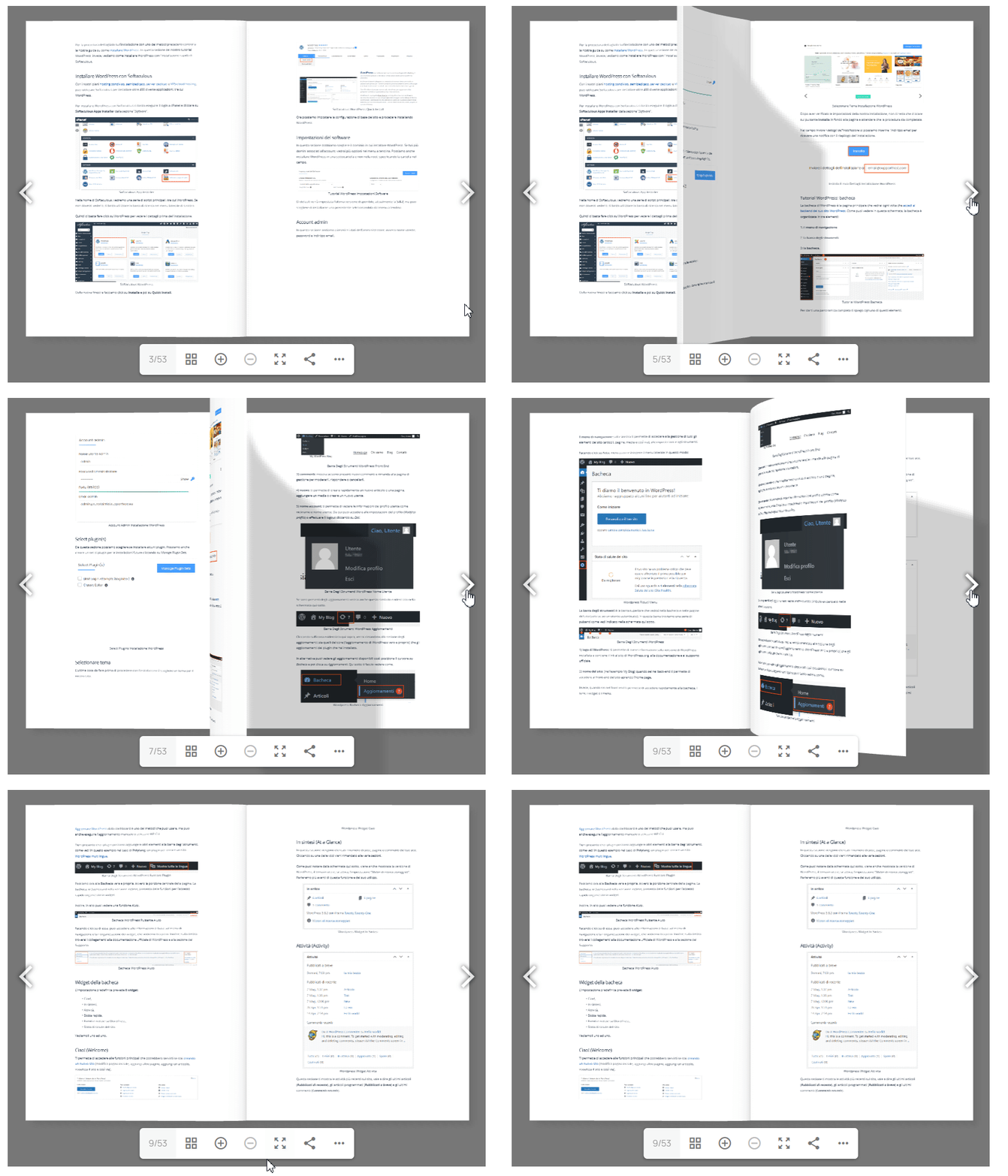
The Dear Flipbook plugin is ideal if you want your WordPress PDF viewer to use a flipbook effect (as if the pages are actually being turned).
This plugin is available as a free Lite version and a paid Full version ($39 per year). Keep in mind that the free version does not make links inside the PDF clickable.
After installing and activating the plugin, you’ll see a new menu item called “DearFlip Books” in the WordPress sidebar. From here, you can create a new item by clicking “Add New Book” that the plugin calls a “Book.” In addition to entering basic details, like choosing a name and selecting the file from the library, you can manage the settings for the flipbook effect.

After creating the new item, go to DearFlip Books > All Books to see the full list and copy the shortcode.

Then simply insert the shortcode into your post or page to embed your PDF. It will look something like this:
Conclusions
We’ve looked at several ways to insert PDF files into a WordPress site so they’re embedded directly on your pages. Depending on the method you choose, you can embed a PDF using Gutenberg’s built-in tools or use a dedicated plugin for more customization.
Now it’s your turn, tell us which method you chose and why. We’d love to read your comments!
Ready to build your WordPress site?
Try our service free for 14 days. No obligation, no credit card required.
