

You click a link expecting to go to a website, but a frustrating error message appears. The page won’t load and your browser says the connection was reset. Now you wonder what went wrong.
The ERR_CONNECTION_RESET error can appear unexpectedly. Everything works, then suddenly you can’t access a website or several sites.
Fortunately, this error is almost always fixable on your end. It’s typically caused by an issue with your device (like your computer, tablet, or phone) or your network (such as your internet connection), not by the website itself.
Below, you’ll see what causes the ERR CONNECTION RESET error and ten ways to fix it. Whether it’s a VPN, cache, or network issue, these solutions will get you back online.
Table of Contents
What is the ERR_CONNECTION_RESET Error?
The ERR Connection Reset error occurs when your browser attempts to connect to a website’s server, but the connection is interrupted before any data is transferred. The handshake starts, but something severs the link before they can communicate.
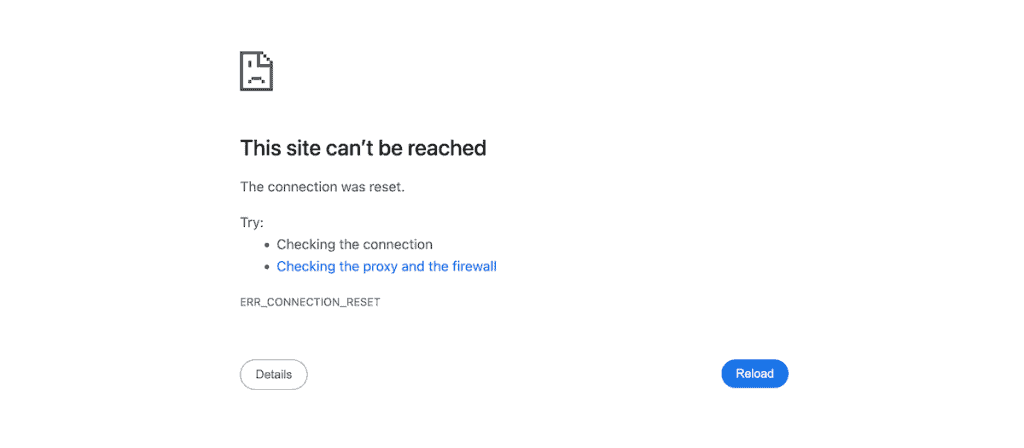
In Google Chrome, you’ll see: This site can’t be reached. The connection was reset.
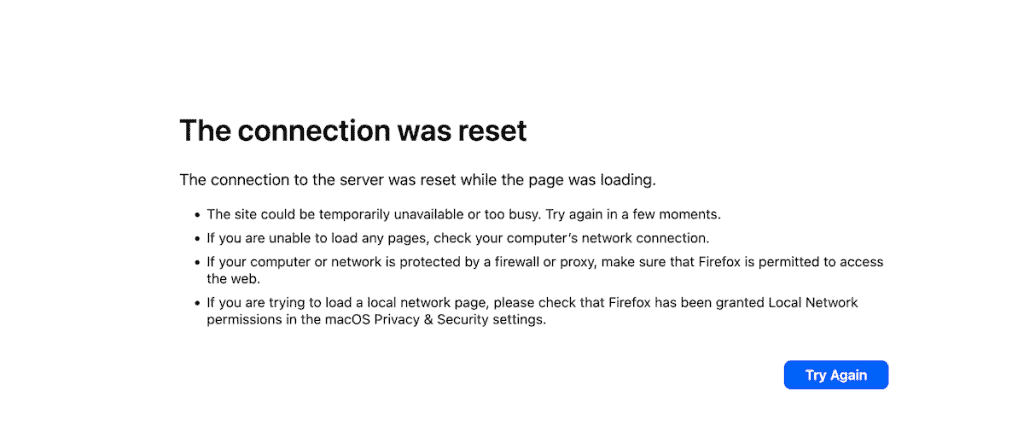
Other browsers show this error differently, but the problem is the same. In Mozilla Firefox, you’ll see: The connection was reset. The connection to the server was reset while the page was loading.
Regardless of browser, this error means your browser can’t connect to the server.
What Causes the ERR_CONNECTION_RESET Error?
Unlike server-side errors, ERR Connection Reset is almost always a client-side problem. It typically stems from your browser, device, network configuration, or security software.
Here are the most common causes:
- VPN issues. A dropped or unstable VPN can block access to websites. Some sites also block known VPN IPs.
- Proxy server problems. Misconfigured or unresponsive proxies can interrupt connections.
- Firewall or antivirus interference. Security software sometimes becomes overly aggressive, blocking legitimate connections and treating them as potential threats.
- Outdated browser cache. Corrupted or old cached data can cause connection errors.
- Problematic extensions. Third-party extensions can disrupt browser connections. A buggy or incompatible one might be to blame.
- Corrupted TCP/IP settings. Misconfigured network protocols can cause connection problems.
- DNS cache issues. Stale or corrupted DNS records can prevent connections from completing.
- General network problems. Sometimes the issue is just a weak internet connection or a router that needs to be restarted.
Now that you know the causes, let’s work through the solutions.
How to Fix the ERR_CONNECTION_RESET Error
Since there’s no single cause for this error, you’ll need to work through these methods systematically. Start with the simplest solutions first, then move on to more advanced fixes if the problem persists.
1. Refresh the Page and Check Your Connection
Sometimes a simple page refresh is all it takes to resolve a temporary connection hiccup. Simply click the refresh button in your browser. If the error persists, try closing the tab completely and opening a new one.
Next, check whether the problem affects just one website or all websites. Try visiting a few different sites you know work reliably, like google.com or your email provider.
If you can’t reach any websites, the problem is likely with your internet connection. Check whether other devices on your network can access the internet, and check your router and modem to make sure all indicator lights are normal.
Try restarting your router by unplugging the power cable, waiting 60 seconds, and plugging it back in. Wait a few minutes for the connection to fully restore, then try again.
If only one specific website triggers the error, move on to the next solution.
2. Check if the Website is Actually Reachable
Before spending time troubleshooting your own setup, verify that the website itself isn’t experiencing problems. If the server is down, no amount of tinkering on your end will help.
You can check a website’s status using free online tools like Down For Everyone Or Just Me or Is It Down Right Now. Simply enter the website’s URL, and the tool will tell you whether the site is down for everyone or just for you.

If the site is down for everyone, you’ll need to wait for the website owners to fix the problem. You could try reaching out to them through social media or their support channels if it’s a service you rely on. If the site appears to be up for everyone else but not for you, the problem is on your end.
3. Disable Your VPN
If you use a VPN for privacy or to access region-restricted content, it could be causing the error. VPN connections can drop, and some websites actively block traffic from known VPN IP addresses.
To test whether your VPN is the issue, temporarily disconnect from it and refresh the page that was showing the error. If the site loads after disconnecting, you have a few options.
Try connecting to a different VPN server, since your provider likely offers multiple locations. You should also check your VPN software for updates. If specific sites consistently fail to load while connected, your VPN provider’s support team might be able to help.
4. Disable Your Proxy Server
Proxy servers route your internet traffic through an intermediary server. While useful for privacy and bypassing restrictions, a misconfigured or unresponsive proxy can trigger connection reset errors. If you’re not sure whether you’re using a proxy, check and disable it to rule it out as a cause.
To disable a proxy in macOS, open System Settings and click on Network.

Select your active connection, whether that’s Wi-Fi or Ethernet, and click Details.
Then, navigate to the Proxies tab and uncheck any enabled proxy protocols and click OK.

Windows users can disable proxy settings by searching for Proxy in the Start menu and opening the proxy settings from there.
After disabling the proxy, refresh the page to see if the error is resolved.
5. Reset Your TCP/IP Settings
TCP/IP settings control how your computer communicates over the internet. When these settings become corrupted or misconfigured, connection errors like ERR_CONNECTION_RESET can occur.
Resetting these settings forces your operating system to restore them to their default state, which often fixes connection problems.
To reset TCP/IP settings in macOS, open System Settings and click on Network. Select your active internet connection from the list on the left and click the Details button.

Then, go to the TCP/IP tab and click Renew DHCP Lease. Click OK, and try loading the website again.

Windows users can reset their TCP/IP settings by opening Command Prompt as an administrator and running a series of network reset commands. This process also flushes your DNS cache, which can resolve additional connection issues.
After resetting your TCP/IP settings, try accessing the website that was showing the error.
6. Disable Your Antivirus and Firewall
Security software is designed to protect you from online threats, but sometimes it gets a little too protective. Firewalls and antivirus programs can occasionally block legitimate connections, mistaking normal traffic for something suspicious. Temporarily disabling your security software helps determine whether it’s causing the error.
To disable the firewall on macOS, open System Settings and click on Network.

Then, click on the Firewall option and click the toggle to turn off the firewall.

After disabling the firewall, try loading the website that was giving you the error. If it loads successfully, you’ve found the culprit. Make sure to re-enable the firewall after testing by returning to the same screen and clicking Turn On Firewall.
Windows users can also disable their firewall and antivirus through the Windows Security settings. If you’re using third-party antivirus software on either operating system, check your software’s documentation or look for a pause protection option.
If disabling your security software fixes the error, you’ll need to add an exception for the affected website rather than leaving your protection disabled.
7. Clear Your Browser Cache
Your browser stores copies of website data, images, and files to speed up loading times when you revisit those sites.
This cached data is usually helpful, but when it becomes outdated or corrupted, it can cause connection errors. Clearing your browser cache forces your browser to fetch fresh data from websites, which can resolve ERR_CONNECTION_RESET errors.
To clear the cache in Google Chrome, click the three-dot menu in the top-right corner, then go to Settings > Privacy and security.

Then, click Delete browsing data and set the time range to All time. Next, check Cookies and other site data and Cached images and files and leave other options unchecked unless you want to clear them too. Finally, click Delete Data.

You can also quickly access the clear browsing data dialog in most browsers by pressing Ctrl + Shift + Delete on Windows or Command + Shift + Delete on macOS.
After clearing the cache, try loading the website again.
8. Disable Browser Extensions
Browser extensions add functionality to your browsing experience, but they can also interfere with how your browser handles connections. A buggy extension, an incompatibility with a particular website, or an extension that modifies network requests can all trigger connection errors.
The quickest way to test whether an extension is causing problems is to use incognito or private browsing mode, which disables most extensions by default. In Chrome, press Ctrl + Shift + N on Windows or Command + Shift + N on macOS. In Firefox, press Ctrl + Shift + P on Windows or Command + Shift + P on macOS.
If the website loads correctly in private browsing mode, an extension is likely the culprit. You’ll need to identify which one by disabling them individually.
To disable extensions in Chrome, click the three-dot menu and go to Extensions > Manage Extensions. Toggle off each extension one at a time, then try loading the problem website after each. When you find the extension causing the issue, you can leave it disabled or uninstall it. If you’re using a different web browser, then you’ll follow similar steps.

Once you identify the problematic extension, check to see if an update is available. If updating doesn’t help, consider an alternative extension with similar functionality.
9. Reset Your Browser to Default Settings
If clearing the cache and disabling extensions didn’t help, resetting your browser to its default settings might. This restores all browser settings to their original state while preserving your bookmarks and saved passwords.
A browser reset can fix issues caused by corrupted settings, problematic configurations, or lingering effects from malware.
To reset Google Chrome, click the three-dot menu and go to Settings. Click Reset settings in the left sidebar, then click Restore settings to their original defaults. Read the warning about what will be reset and click Reset settings to confirm.

After resetting, you’ll need to reinstall any extensions you want to keep using. Consider adding them back one at a time to avoid reintroducing a problematic extension.
10. Flush Your DNS Cache
Your computer maintains a DNS cache that stores the IP addresses of websites you’ve visited. This speeds up browsing because your computer doesn’t need to look up the same addresses repeatedly.
However, if a website’s IP address changes or the cached data becomes corrupted, your computer might try to connect to an outdated or incorrect address. Flushing the DNS cache forces your computer to look up fresh DNS records.
Note that this is different from clearing your browser cache. The DNS cache is maintained by your operating system, not your browser.
To flush DNS cache in macOS, open Terminal and type sudo dscacheutil -flushcache; sudo killall -HUP mDNSResponder, then press Enter. Enter your administrator password when prompted. The command won’t display a confirmation, but the cache will be flushed.

Windows users can flush their DNS cache by opening Command Prompt as an administrator and running the ipconfig /flushdns command.
To flush Chrome’s internal DNS cache, type chrome://net-internals/#dns in Chrome’s address bar and press Enter. Click the Clear host cache button. Chrome maintains its own DNS cache separate from your operating system, so clearing both is a good idea.

After flushing your DNS cache, try loading the website again.
ERR CONNECTION RESET Error FAQs
Why does ERR_CONNECTION_RESET only happen on certain websites?
When the error affects only specific websites, it usually indicates that something in your configuration is blocking or interfering with connections to those servers. This could be your VPN, your firewall rules, cached data specific to that site, or outdated DNS records for that domain.
Can the ERR_CONNECTION_RESET error be caused by the website itself?
While this error is typically client-side, the website’s server can technically cause it. If the server is overloaded, misconfigured, or experiencing issues, it might reset connections. However, if the site is down for everyone, there’s nothing you can do except wait for the site owners to fix it.
Will resetting my browser delete my saved passwords and bookmarks?
No, a browser reset typically preserves your bookmarks and saved passwords. However, it will disable all extensions, clear temporary data, and restore settings to their defaults. Each browser handles resets slightly differently, so check the confirmation dialog before proceeding to see exactly what will be affected.
How do I know if my ISP is causing the connection reset error?
If you’ve tried all the solutions above and still can’t access certain websites, your Internet Service Provider might be the issue. Some ISPs block access to specific websites or have routing problems that cause connection errors. Try accessing the same website using mobile data (disconnected from Wi-Fi) or a different internet connection to test this theory. If the site loads on a different connection, contact your ISP for assistance.
Should I keep my VPN and firewall disabled if they were causing the error?
Absolutely not. These tools are important for your online security. If your VPN or firewall caused the error, the solution is to configure them properly rather than leaving them disabled. For firewalls, you can add exceptions for trusted websites. For VPNs, try different servers or check with your provider about sites that might be blocking their IP ranges.
Closing Thoughts: Fixing the ERR Connection Reset Error
The ERR_CONNECTION_RESET error is frustrating, but it’s almost always fixable. Since the problem usually originates in your device, network, or browser rather than the website itself, you can resolve it.
Start with the simple solutions: refresh the page, check your connection, and verify the website is actually online. If those don’t work, try more advanced fixes, such as resetting your TCP/IP settings, clearing your DNS cache, and temporarily disabling security software.
In most cases, one of the ten methods covered here will get you back to browsing. If you’ve tried everything and still can’t access a specific website, the issue might be with your ISP or the website’s server. At that point, contacting your ISP or the website’s support team is your best bet.
Now over to you. Did one of these solutions fix your ERR_CONNECTION_RESET error? Share which method worked in the comments below.
Ready to build your WordPress site?
Try our service free for 14 days. No obligation, no credit card required.


